A Sigverif warning about OpenCL.dll isn't a reason to replace it on its own. Check each file with Sigcheck, which shows signatures and signed file catalogs. In the reported case, both verified and one owner said the issue was sorted out.
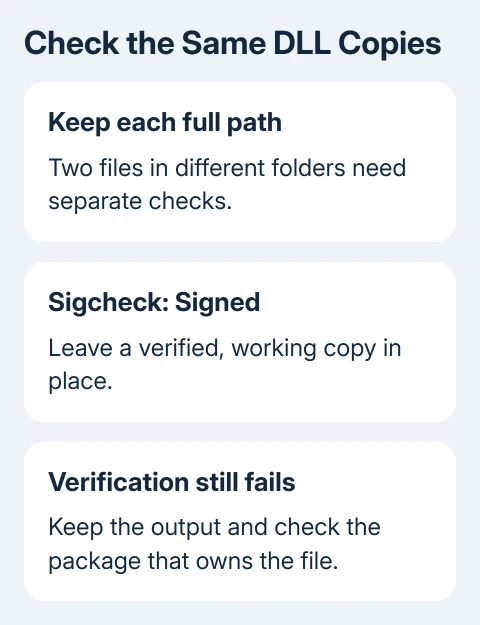
Use Sigcheck's result to decide what to do: it either verifies the signature or reports a problem that needs more attention. Keep each file's full path so you check the same copies that produced the original warning.
In this guide
1. Keep the paths from the Sigverif report
Read the Sigverif results and record the full location of each OpenCL.dll entry. The filename alone isn't enough. Windows, a graphics package and an application can each have a copy in a different folder.
Don't delete either file to clear the report. A signature warning is different from an app being unable to load a DLL, a file containing code the app uses. Removing the file can create a new problem before you've checked the original one.
On 64-bit Windows, System32 normally holds 64-bit system components, while SysWOW64 holds 32-bit components. Two DLLs in those locations aren't automatically duplicates that should be merged. Check each listed path separately.
If an app also reports a missing or damaged OpenCL.dll, record its name and error. Follow that additional symptom after verification. A Sigverif warning alone doesn't identify which copy the app uses.
2. Get Sigcheck from the official download page
Visit the official Sigcheck page and select Download Sigcheck. Save the ZIP, then use its right-click Extract All command. Open the extracted folder.
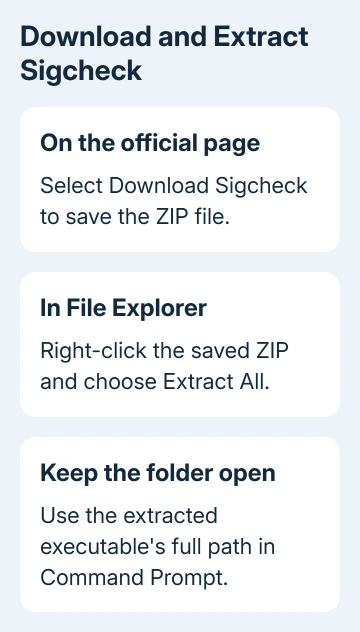
Sigcheck is a command-line tool. Double-clicking its executable can make a window appear and disappear before you can read anything. Open Command Prompt first so the results remain visible after the check finishes.
Microsoft lists Windows 11 and higher as supported clients for the current download. On older Windows, ask your administrator which verification tool supports your release, or discuss upgrading before trying this download.
On x64 Windows 11, use the extracted sigcheck64.exe in its own folder. For another architecture, use the matching executable in the official package. Renaming the program file won't make it run on a different processor type.
On Windows 11, Settings > System > About > System type identifies the architecture. Check this if Windows says Sigcheck can't run on your PC. At that point, it hasn't checked any DLL yet.
3. Run the check from a Command Prompt window
Open Start, type cmd, and open Command Prompt. Type the full path to the extracted executable, followed by -i and the full path to the DLL. Put each path in quotation marks, especially when it contains spaces.
For example, after extracting the x64 tool into C:\Tools\Sigcheck, the command for the usual System32 path is:
"C:\Tools\Sigcheck\sigcheck64.exe" -i "C:\Windows\System32\OpenCL.dll"Substitute your extracted tool folder and the reported DLL path. Accept the license prompt when offered. The -i option includes the catalog and signing chain, helping explain a result that differs from Sigverif.
Run a second command for the other exact path in the report. For a file under SysWOW64, that would be:
"C:\Tools\Sigcheck\sigcheck64.exe" -i "C:\Windows\SysWOW64\OpenCL.dll"If the command says the executable isn't recognized, check the executable's location and name. If it says the DLL can't be found, check the DLL path. Neither message means the file is unsigned. The check hasn't run yet.
I'd check the two named files before scanning an entire drive. That keeps the output readable and answers the actual warning. A whole-drive scan can mix unrelated application files into a question about two particular copies.
4. Does Sigcheck verify the file?
Look for the Verified result and signing information for each file. Signed means Sigcheck verified a signature for that copy. The catalog and signing chain (certificates used to verify the signature) show how it was signed.
Windows can verify signatures through catalogs, which hold signed information about files, as well as signatures embedded inside a file. Sigcheck's catalog output is useful when another signature-checking tool gives a different result.
In the saved case, an adviser recommended Sigcheck. The asker initially couldn't launch it; after the Command Prompt explanation, they said the issue was sorted out. They didn't need to replace a DLL.
If both files verify and no application is failing, leave them in place. A verified signature won't explain every application problem, but it answers the warning about whether those copies have a verifiable signature.
If the result is still unsigned
If the result is Unsigned or verification fails, save the complete output rather than just the filename. A certificate or trust error needs its own explanation. Don't disable certificate checks simply to make the result look successful.
5. Repair the package that owns a failing copy
For a failure linked to a graphics update or OpenCL app, get the correct graphics package from the PC or GPU manufacturer's support site. Match the computer or GPU model and its supported Windows release.
If the application also reports a load failure, follow the Bad Image error checks for its named DLL and package. Avoid standalone DLL download sites.
If Windows reports damaged system files too, open an administrator Command Prompt. Run DISM.exe /Online /Cleanup-Image /RestoreHealth, then sfc /scannow. Use the SFC result guide to interpret it.
Those commands repair supported Windows components. An app's own files or its graphics package need their matching repair instead. Use the DLL path to identify the support team responsible for an unresolved warning.
If verification still fails, send support the DLL path, Sigcheck output, Windows release and graphics-driver version. Ask whether that file should verify through their catalog. They can check the package before you replace a library.
The Short Version
Run Sigcheck in Command Prompt against each reported path. Keep signed copies that work. If verification keeps failing, retain the output and use official support to repair the graphics, application or Windows package responsible.
Checked November 17, 2026.
 If you have any business, I can build it online