Missing appointments in Outlook's overlay view can be hidden rather than deleted. Switch to side-by-side view first. If the events return, keep that view while checking calendar order and Office updates.
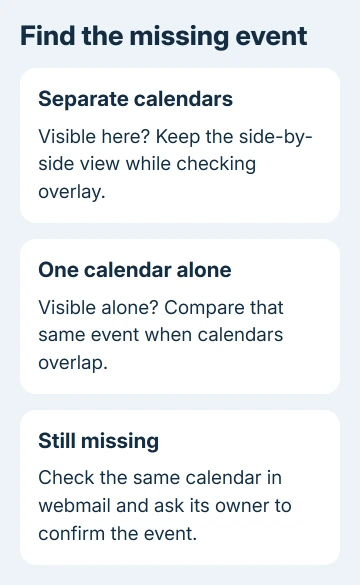
Check whether the events disappear only when calendars overlap. Events missing from a calendar opened on its own need a different check, especially when the same gap appears in webmail.
In this guide
1. Show the affected calendar beside your own
Open Calendar in classic Outlook for Windows. Find the shared calendar in the calendar list, then select its checkbox. Look for the calendar's named tab over the schedule.
When it's already overlapping another calendar, use View in Side-by-Side Mode on that calendar's tab. The calendars should occupy separate columns rather than share the same time grid.
Check a specific appointment that you know should exist. Use its date and start time, rather than judging whether the whole week looks fuller. Compare both a repeating meeting and a recently created appointment if those behave differently.
If the missing appointment returns, you can use it normally from this view. The combined view is hiding it. Don't recreate the meeting just because its block vanished in the overlapping schedule.
Several owners in the original overlay discussion could see all appointments separately while overlay hid some. Separate columns let them keep using those calendars.
If the event is missing here too, skip the calendar-order change and compare the calendar on its own in step 3. Reordering won't recover an item that isn't showing in either layout.
2. Put the affected calendar first in the list
For classic Outlook, try moving the problem calendar ahead of the others in the calendar list. Drag its name within its group, then select the calendars again and compare the same appointment in overlay.
One owner restored the combined display by putting the affected calendar first. I'd try that before repairing Office because you can see the result immediately and keep working in separate columns if it doesn't help.
The order change has limits. Another owner had about 30 affected shared calendars, so putting one first couldn't make the whole schedule usable. If the order change helps only one calendar, use separate views for the rest.
Check which calendar is selected before adding a new appointment. A view change is useful only if the meeting still goes into the calendar you intended to edit. Confirm its calendar name when opening the appointment form.
If your issue is that Outlook forgets the selected calendars after restarting, use the calendar display settings checks. That behavior differs from events disappearing inside an already selected overlay.
3. Open one calendar without the overlay
Clear the other calendars' checkboxes temporarily, leaving only the affected calendar selected. Stay on the same date. This gives you a readable schedule even when your own calendar seems to trigger the disappearance.
If an event appears alone and disappears when you add your calendar, tell IT exactly when it disappears. It tells IT much more than saying that the shared calendar doesn't work.
For a work mailbox, open your organization's Outlook webmail, go to Calendar and select that same shared calendar. Compare the appointment using your own account and existing access.
If the appointment appears in webmail but not the desktop app, check the desktop display or its local copy. If both views lack it, ask the calendar owner whether the item still exists and whether your sharing permission changed.
Don't assume an empty space means someone canceled a meeting. Confirm the item with its organizer before changing plans. If access itself is wrong, the calendar sharing guide explains the permission choices.
4. Use Split view in new Outlook
New Outlook has different controls. Open Calendar, select the calendars in the list and look in the Arrange group for Split view. Turn it on to place the selected schedules beside each other.
Turn Split view off when you want the selected calendars combined again. Compare the same appointment after changing it. The classic Outlook tab control isn't the command to search for in this version.
The multiple-calendar instructions also describe Split view for Outlook on the web. A signed-in calendar is required; a public Outlook home page won't show this control.
The old Outlook 2016 report doesn't tell us whether new Outlook has the same fault. Compare the layouts in your app, then follow its update and support steps.
5. Update the installed app before deeper repairs
In classic Outlook, open File > Office Account. If the installation provides Update Options, choose Update Now. Save open Office work if the update asks to close apps.
After updating, reopen the affected calendar and compare the exact appointment again. The fix has worked if the appointment stays visible when you return to overlay. Opening Outlook without an error isn't enough.
If Update Options isn't offered or your employer controls it, send IT the Office Account version and build. For new Outlook, use the app's Microsoft Store update route or your organization's managed updates instead.
These reports date from January 2018, including Version 1712, Build 8827.2148. Changing update channels helped one participant then. That helped at the time, but you shouldn't install an obsolete build today.
Leave update-channel changes to the administrator who manages Office. They affect the whole installation and its features. A current supported update is the sensible next check when the workaround still leaves your schedule awkward to use.
When the combined calendar still hides events
Ask IT for an Outlook calendar display support case. Include the app version, calendar names and one missing appointment's date. Say whether that event appears alone, beside another calendar and in webmail.
Tell IT which repairs you've already tried. A fresh profile didn't help the asker; another owner still had the problem after repairing Office and removing the calendar. Don't repeat those changes before checking the display pattern.
The Short Version
Separate the calendars first so you can read the appointments. Try putting the affected calendar first in classic Outlook, or use Split view in new Outlook. Update the app, then give IT a specific event comparison if overlay still hides it.
Checked November 17, 2026.
 If you have any business, I can build it online