Outlook needs an actual message selected before it can print the email. Start by opening that email separately and printing from its message window.
If it still says it cannot print unless an item is selected, identify the Outlook app before hunting for its classic OutlPrnt file.
An owner restored printing after leaving the preinstalled mail app and opening the installed Office version of Outlook. They never found an OutlPrnt file in the first app.
In this guide
1. Open one email before choosing Print
Return to the inbox and select a normal received email. Double-click it to open the message separately where your app offers that option. Confirm that the subject and message text belong to the email you intend to print.
In classic Outlook, choose File > Print from that open message. The preview should contain the email, rather than a folder listing or an empty print area. Ctrl + P also opens printing for the selected item.
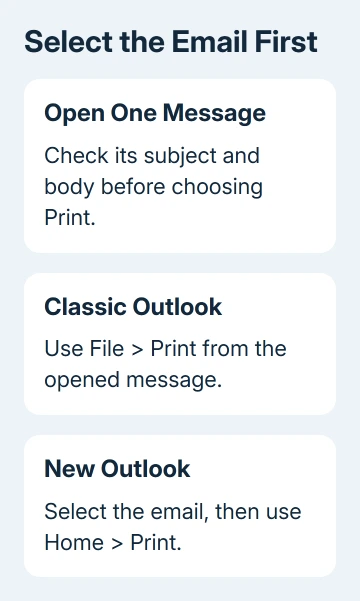
In new Outlook, select the message, then choose Home > Print from the ribbon. Select the printer, layout, and pages in the print dialog. Its controls differ from classic Outlook's Print Options window.
In Outlook on the web, use More actions > Print inside the email, followed by Print in its preview. Printing the entire browser page can produce the inbox interface instead of the email you need.
Microsoft's Outlook printing instructions separate these app versions. Start with the tab for the app in front of you rather than searching for a button from another version.
If the message now previews and prints, there was no need to reset Outlook's files. If the error still appears for a visibly opened email, identify the app next.
2. Check whether this is classic or new Outlook
Look for File in the main Outlook window. In classic Outlook, that tab leads to Office Account, where its version is listed. The newer app has its own settings interface rather than classic Outlook's profile and printing setup.
Open Start, type Outlook, and inspect the available applications. A computer with Office installed may have Outlook (classic) as well as the newer Outlook app. Try the classic entry if it's available and configured for your account.
Check that the same message is present, then open it and choose File > Print. If it prints there, you can use that app for now. You can finish the urgent print job while reporting the fault in the other app.
The original selected-item discussion dates to 2021. The owner reported that switching to the full Office version of Outlook restored printing and created the expected Outlook folder.
They described a free preinstalled Outlook app on their PC in 2021. It doesn't mean today's new Outlook is the same application or that every current error has the same cause.
I'd check the Start menu before spending time searching every hidden folder. If the classic Outlook folder is missing, check whether you're using a different app.
3. Use OutlPrnt advice only for classic Outlook
The old reply suggested renaming OutlPrnt to outlprnt.old inside the user's roaming Outlook folder. The asker couldn't find either the file or the folder. That reply wasn't the repair they later confirmed.
If you're checking classic Outlook, press Windows + R, enter %appdata%\Microsoft\Outlook, and press Enter. This opens the current Windows user's roaming Outlook folder when it exists.
The equivalent full route begins %userprofile%\AppData\Roaming\Microsoft\Outlook. A different Windows account has a different profile, so searching someone else's folder won't answer whether your Outlook has the file.
Don't create an empty Outlook folder or download an OutlPrnt file to satisfy an old instruction. Printing doesn't require you to create that file yourself.
For this particular thread, switching apps is the confirmed outcome. The file rename was a suggestion in that discussion, with no confirmed success. Ask support whether it fits your classic Outlook installation before trying it.
If the error changes to blank calendar output, use the Outlook calendar printing checks. A calendar selection problem needs its own settings rather than a mail-message repair.
4. Save printable output before checking the printer
Once the email reaches print preview, select Microsoft Print to PDF instead of the physical printer. Print that email to a file, noting the save location. Open your new PDF to inspect the message text.
This PDF printer is included with Windows 10 and with Windows 11. It gives you a file to inspect without using paper, and shows whether Outlook can produce printable output for the selected message.
When your PDF looks right but the paper print fails, use the manufacturer's help for that printer model. Include whether another application prints and whether the printer queue holds the job.
If Outlook reports the selected-item error before either printer produces anything, stay with the app and message-selection checks. Replacing an ink cartridge won't make Outlook recognize an email as the selected item.
Readable text starting far down the second page is a separate layout fault. The Outlook second-page gap guide covers that formatting fault once a message is actually reaching the print process.
5. Compare another message, then report the exact failure
Try a short plain email from another sender. Use the same app and printer as the failing email so you change only the message. Compare whether print preview appears and whether the selected-item message returns.
If one email fails while the other prints, keep the affected message so support can check it. Mention invitations, embedded content, or attachments it contains. Let support check which feature causes the failure.
For a work account, give IT your Outlook version, the exact error, whether a separately opened message prints, and whether another Outlook app works. Include the PDF result if you were able to get that far with printing.
For a personal account, use Help in the affected Outlook app to reach its support route. Ask them to check message selection and printing for that specific app version, especially if classic Outlook prints the same email successfully.
The Short Version
Open the email before printing, then identify the Outlook app. The original owner's fix was using Office Outlook rather than the preinstalled app. Don't create a missing OutlPrnt file. Compare a PDF only after the message reaches printing.
Checked November 17, 2026.