

A shared mailbox can hide Private messages in classic Outlook while showing them on the web. Ask IT to check private-item access when only certain senders' messages disappear. Another mailbox rebuild won't grant that permission.
If ordinary messages are missing too, the problem needs a wider check. But when a message is visible in Outlook on the web, delivery succeeded. Start by checking that message's sensitivity before changing the desktop client's cache.
In this guide
1. Check whether the missing messages are Private
Ask the affected sender to inspect the message sensitivity. While composing in the classic app, open File > Properties and check Sensitivity. Private is the relevant setting.
That older sensitivity setting differs from organizational sensitivity labels and encryption rules. An email containing confidential information isn't necessarily marked Private. Check the actual message property.
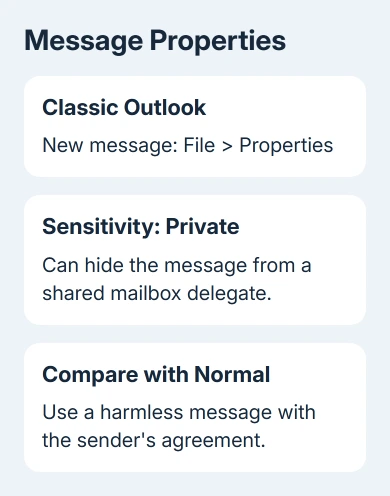
With the sender's agreement, compare a harmless Normal message with a harmless Private message sent to the same shared address. Use different subjects for the two tests, then check which arrives in classic Outlook.
If the Normal message appears and the Private one doesn't, while both are present on the web, that matches the private-item permission problem. If both are missing, don't assume the same fix applies to your mailbox.
One owner confirmed that Private messages were affected and reproduced the behavior using a new message. Recreating the Outlook profile had already failed; the accepted reply didn't say a new profile would fix it.
Only the sender can set an item's sensitivity. The recipient can't turn Private off from their Inbox. Asking the sender to resend as Normal is appropriate only when the information doesn't need that setting and your workplace permits it.
2. Use the web mailbox to handle messages now
Use your own work account on your organization's Outlook website. Select your profile or account menu, choose Open another mailbox, enter the shared address, and open it.
Read the affected message in that mailbox, rather than forwarding private business mail to a personal account. You can keep using the web mailbox while an administrator checks the desktop permissions.
That lets you read the message without changing it or making another local copy of the mailbox. Keep the shared mailbox open in its own window so it's clear which mailbox you're reading and replying from.
If opening it produces a permission error, stop there and ask IT to review the shared mailbox membership. Knowing the shared address doesn't give an account permission to open it.
The shared mailbox setup guide covers membership and adding the mailbox when the folder tree itself is missing. That's different from seeing the mailbox normally but losing only its Private messages.
If the web mailbox also lacks the message, ask the sender for its time and recipient address. The administrator needs to check delivery before spending time on private-item visibility in Outlook.
3. Have the administrator grant private-item access
Microsoft's private-item guidance describes adding the user as a delegate with permission to view private items. Permission to open the mailbox doesn't always include permission to see its private items.
For Exchange Online, an administrator can connect to Exchange Online PowerShell and run this command. Replace both sample addresses with the actual shared mailbox and the person receiving delegate access:
Add-MailboxFolderPermission -Identity shared@contoso.com:\Calendar -User reader@contoso.com -AccessRights Editor -SharingPermissionFlags Delegate,CanViewPrivateItemsAlthough the command targets Calendar, the documented workaround also makes private Inbox items visible. It grants calendar Editor rights too, so the mailbox owner or administrator needs to approve that person's access.
This is an administrator action, not a command every affected employee should run. If a permission entry already exists, the administrator needs to review and update that entry rather than repeatedly trying to add a duplicate.
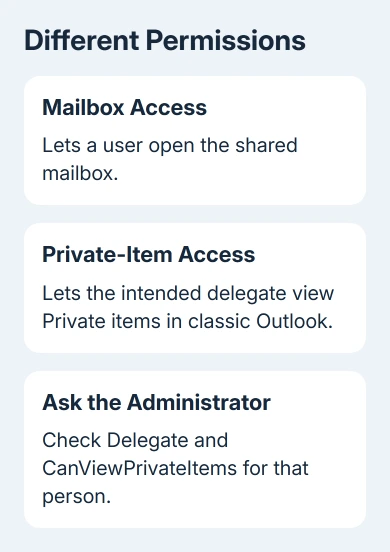
Where the mailbox's delegate controls are available in Outlook, the documented route is File > Account Settings > Delegate Access. Add or open the delegate and select Delegate can see my private items, then confirm with OK.
Don't convert the shared mailbox into a regular user mailbox just to expose that checkbox. That was discussed as an awkward workaround in the old thread; the current guidance supplies an Exchange Online permission method.
After the administrator changes the permission, reopen classic Outlook and inspect the same Private message. Compare it with the web copy. A fresh harmless Private message is a useful final check that access works for new mail too.
4. Check how Outlook connects to the shared mailbox
Classic Outlook's older mailbox connection can hide private items in both Cached Mode and Online Mode without the delegate permission. Turning the cache off doesn't replace that permission.
The new Windows app, Outlook Mobile and webmail connect to the mailbox differently. Full Mailbox Access can make private items visible there, explaining why the same message appears differently across clients.
Another documented option is to add the shared mailbox as an additional account, signing in with the account of the person who has access. This differs from adding it as an additional mailbox inside the user's existing account.
IT must turn off automatic mapping, which adds the mailbox to Outlook, and remove any duplicate additional-mailbox entry. Ask them to set this up; don't seek a shared-mailbox password or change its sign-in settings yourself.
If the only failure is stale search results rather than invisible Private messages in the Inbox, the shared mailbox search fix addresses a separate Outlook problem.
When the messages still don't appear
Give your Microsoft 365 administrator one affected subject, sender, delivery time, and the clients where it's visible. Include whether the sender confirmed Private sensitivity and whether a Normal comparison message appears.
Ask them to check the delegate's private-item permission and the way the mailbox was added. If both are set up as the guidance describes, IT can submit those results to Microsoft 365 support with your Outlook build.
The Short Version
When classic Outlook hides only a shared mailbox's Private messages, check private-item access. Use webmail for current work, then have IT grant delegate access or configure the documented additional-account arrangement.
Checked November 17, 2026.






