Some classic Outlook contacts have stored internet headers, extra message details that can lock their notes. Update Outlook first: this contact bug was fixed years ago.
If older contacts still won't let you edit notes, try editing on the web or backing them up, then exporting and importing them.
Start with one affected contact and one new contact. That tells you whether only certain saved contacts are affected or the whole folder refuses note edits, before you replace any address-book data.
In this guide
1. Check the contact and update classic Outlook
Open People, find a contact you own and open its full contact window. Try changing a small part of Notes, then select Save & Close. Compare that with another contact whose notes you can still edit.
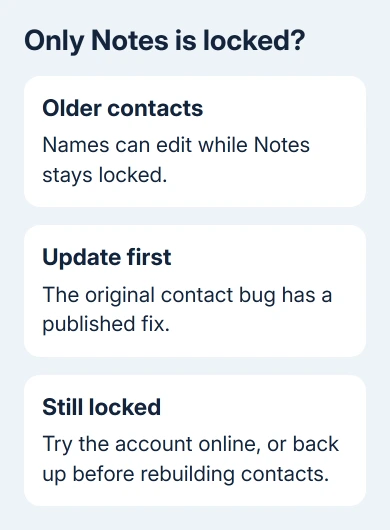
This fault can leave names editable while Notes stays locked. A company directory entry or shared folder without edit rights is different. Check a saved personal contact in a folder you can change.
In classic Outlook, open File > Office Account > Update Options > Update Now. Restart after the installation finishes, reopen the contact and try the note again. On a managed PC, ask IT to apply the approved Office updates.
Microsoft's contact-editing issue page lists the original trigger as Build 16.0.11126.20266. Current Channel was fixed in Version 1904, Build 11601.20144.
It also lists the Semi-Annual Enterprise Channel fix as Version 1808, Build 10730.20340, and the August 13, 2019 public update for Outlook 2016, 2013 and 2010. These are historical fix points, not versions to install today.
If updating restores editing, save the changed contact and reopen it once to confirm the note remains. If only the same older entries stay locked, use the account or contact-level routes next.
2. Edit a supported account's contact on the web
For Microsoft 365 or Outlook.com accounts, sign in to your mailbox through a browser, then open People. Select the affected personal contact, choose Edit contact, change the note and select Save.
The web workaround is listed for those account types. It doesn't make a contact stored only in a local PST file appear online. A PST is an Outlook data file stored on your computer, outside the mailbox's online address book.
Reopen the saved contact online and check the edited note. Then allow desktop Outlook to sync and compare the same entry. If the web edit works, you can update the information without rebuilding the desktop contacts folder right away.
If the entry isn't online, confirm which account or local folder holds it in desktop Outlook. Don't import the whole address book into a different account just because that account's People page opens successfully.
For contacts that edit correctly in Outlook but don't reach an iPhone, the Outlook contact-sync checks cover the transfer settings. That is separate from a Notes field that won't accept typing.
3. Back up before rebuilding affected contacts
Before replacing contacts in bulk or changing an item's stored properties, make a PST backup in classic Outlook. Choose File > Open & Export > Import/Export > Export to a file > Outlook Data File (.pst).
Select the affected contacts folder, choose a safe destination and finish the export. Keep the PST backup separate from the repair CSV. CSV is a table of contact fields; it doesn't preserve the original Outlook items.
Next export a CSV through File > Open & Export > Import/Export > Export to a file > Comma Separated Values. Choose the correct contacts folder, name the file and select Finish after confirming its destination.
Check that the exported file includes the contacts and notes you need. Close it without saving accidental spreadsheet changes. A file exported from the wrong folder won't repair the address book you were actually using.
I'd keep both exports until the repaired contacts have been checked in Outlook. Those backups help recover data if a field or an entry doesn't look right after importing.
4. Choose the import destination with a new contact
Create a new contact in the existing folder, save it and reopen it. Try editing its Notes field. That tells you which folder to import into when you follow the workaround. Keep the originals until you're ready to do the import.
If the new contact's notes are editable, the workaround uses the existing folder with Replace duplicates with items imported. If the new contact's notes are also locked, create a new contacts folder and use that folder instead.
For a new folder in classic Outlook, right-click an existing contacts folder, choose New Folder, name it and make sure it contains contact items. Use a clearly different name so you can tell the original folder from the repair destination.
Start the import with File > Open & Export > Import/Export > Import from another program or file > Comma Separated Values. Browse to your exported CSV. For replacement in the original folder, choose Replace duplicates with items imported.
Select the destination contacts folder and finish the wizard. If field mapping appears, check that Notes maps to Notes. Do not import duplicate items would keep existing matching entries rather than replace them.
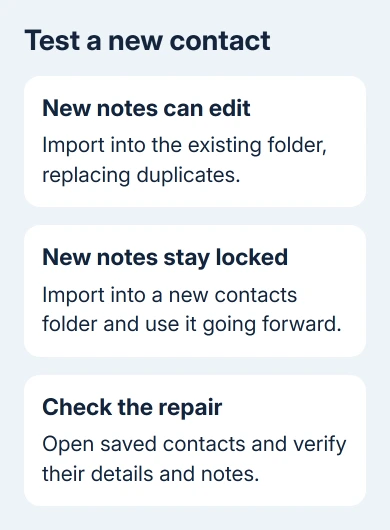
Reopen several repaired contacts, check their important details and save a small note edit. The export/import process removes the internet headers associated with this fault. When a new folder was required, use the new folder going forward.
5. Leave a single-item property repair to experienced help
For individual items, the vendor page describes the third-party OutlookSpy add-in. After opening the affected contact, its OutlookSpy > iMessage property window can remove PR_TRANSPORT_MESSAGE_HEADERS through Delete Properties.
Only that named property is involved in the workaround. Have an experienced administrator handle this if the property window is unfamiliar. Save the change, close the contact and check its Notes field after reopening.
An owner confirmed this method worked. The support page still notes an unfixed case for individual recurring appointments. The contact bug was fixed, even though that separate appointment problem remains.
If contacts remain locked, send IT the build, folder location and new-contact test result. For a contact group that exists but won't appear while addressing mail, use the separate contact-group suggestion workaround.
The Short Version
Update classic Outlook, then try web editing for Microsoft 365 or Outlook.com. Back up before export/import or property changes. A new-contact test decides whether to use the existing folder or a new contacts folder.
Checked November 16, 2026.