Contacts visible in Outlook's People view can be absent from the address book because it opens another list. Choose the correct Contacts folder first. If it stays empty while another PC shows your contacts, try a separate Outlook profile.
Use these steps in the classic Windows version of Outlook, including the version supplied with Microsoft 365. The 2018 report called it new Outlook 365, but it wasn't today's separate new Outlook app.
In this guide
1. Choose Contacts instead of the company directory
Open a new message and select To. In the Address Book dropdown, choose the contacts list for the account where that person's details are saved. Search for someone you can already see in People.
An Exchange account can open its company directory by default. That list is different from your personal contacts, so an empty or unfamiliar directory doesn't mean your saved contacts have been deleted.
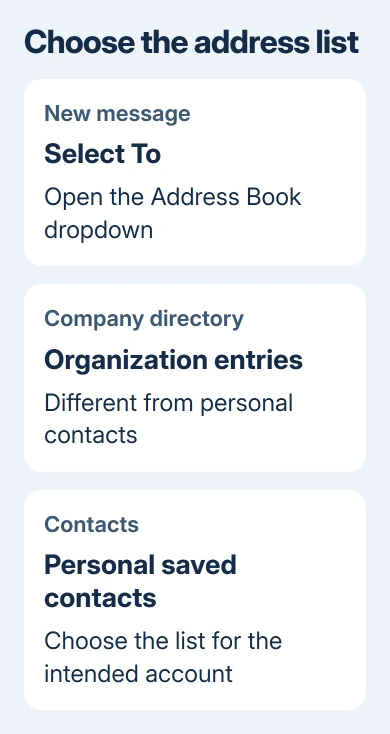
Microsoft's contact search instructions describe choosing another address book from this dropdown. If the contact appears after you switch lists, select them and check the recipient address.
If the person appears in People but not in any relevant address-book list, open that contact and check its email field. A contact containing only a name or phone number won't provide an email recipient.
This is also different from a group that won't appear in typing suggestions. The contact-group name-resolution guide covers saved groups that still exist but don't appear automatically.
2. Check which folder actually contains the contacts
Open People and select the folder containing your real contacts. In classic Outlook, Ctrl+6 opens the full folder list, which can help distinguish folders under the mailbox from folders inside a local data file.
Don't rely on a name such as Contacts1. In the original report, that empty folder was separate from the working Contacts folder. Its name made the setup confusing, but it didn't mean the contacts had been erased.
For an additional contact folder, right-click it and choose Properties > Outlook Address Book. Check Show this folder as an e-mail Address Book if the option is available, then reopen the address-book list.
Don't delete the default contacts folder just because that option is grayed out. The original case included that state, and creating a fresh profile eventually restored the address book.
If you're checking a work account, compare the same contact with another authorized Outlook installation or the account's signed-in People view. Keep the account address the same during the comparison.
Contacts missing on an iPhone as well need a separate Outlook-to-iPhone contact sync check. The desktop address-book setting doesn't turn on phone contact syncing.
3. Preserve local folders before adding a profile
Open File > Account Settings > Account Settings > Data Files and note the existing files and their locations. A PST can hold local mail, contacts, and archives that won't appear automatically in a new profile.
An OST is an offline account data file. It isn't a portable backup that you can attach to a fresh profile like a PST. Keep the existing profile while checking what is stored locally.
If important items exist only in the old profile, export them to an Outlook data file before proceeding. Use File > Open & Export > Import/Export > Export to a file > Outlook Data File (.pst) and choose the folders you need to preserve.
This matters especially for folders labeled This Computer Only under an IMAP account. IMAP synchronizes mail, rather than providing server synchronization for those local contacts and calendar entries.
For Gmail contacts absent from the Windows app, check the Google copy and supported Outlook connection before rebuilding a classic Outlook profile.
I'd keep both profiles until you've checked the new address book and found all your old local folders. The owner who fixed the address book immediately asked where their personal folders had gone.
4. Create a separate classic Outlook profile
Close Outlook. Press Windows+R, enter outlook.exe /profiles, and press Enter. In the picker, select Options, turn on the startup profile prompt, and select New.
Name the profile something recognizable, such as Contacts Check. Add the affected account through the normal sign-in process, then start Outlook using that new profile.
Current classic Outlook also lets you hold Shift while starting the app to reach the picker. Older installations may use Control Panel > Mail > Show Profiles > Add; use the current picker if your account needs modern sign-in.
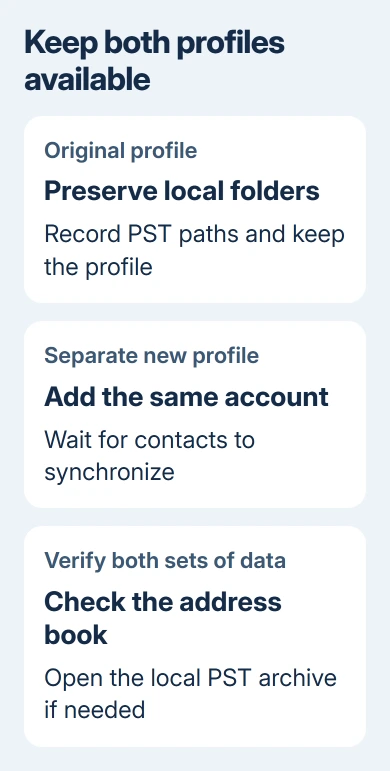
Let the account finish synchronizing before reopening People and To > Address Book. Select the account's Contacts list again and look up the same person used in the first check.
An owner with an empty address book reported in Microsoft's forum that a new profile populated it correctly. Their old and new profiles both used Exchange, so this wasn't evidence of an IMAP problem.
If your contacts are still absent, switch back to the old profile rather than remove it. Tell support whether the account's contacts are available elsewhere and whether either profile shows the correct folder.
5. Reattach the local archive and verify the result
If the new profile fixes the address book but an archive is missing, open File > Open & Export > Open Outlook Data File. Browse to the existing or exported PST and open it.
Its folders should appear separately in the folder pane. Open a few expected folders and check their contents before deciding that the new profile contains everything you need.
Reattaching an archive doesn't automatically upload it to the mailbox. If the purpose is simply to keep old mail accessible, opening the PST lets you do that without merging its contents into the server account.
If the new profile still lacks contacts visible on another PC, ask support or IT to check its address-book service and whether the contacts folder is set to appear in the address book. Include your account type and comparison results.
For contacts absent everywhere, ask about restoring the server contacts instead. Rebuilding the local address book won't recover entries that are missing from the account itself.
The Short Version
Select your account's Contacts list and keep local PST data safe. If the address book stays empty while the contacts exist elsewhere, compare a new classic Outlook profile. Reopen local archives before retiring the old setup.
Checked November 16, 2026.