

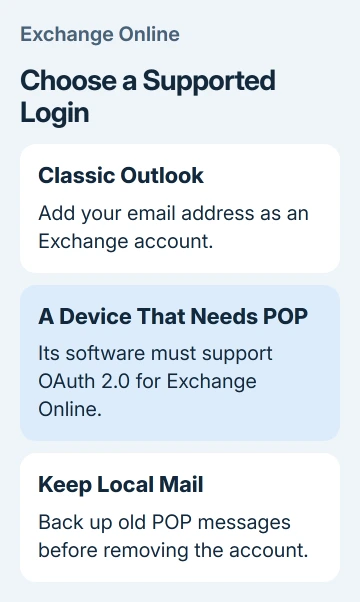
An outlook.office365.com POP3 login can reject the right password because Exchange Online retired POP basic authentication. Use Exchange setup in classic Outlook. Devices that need POP must support OAuth 2.0.
Keep your existing local mail before changing accounts. POP often stores messages on the computer, and reconnecting to the server won't bring back messages that were removed from it after downloading.
In this guide
1. Check whether this is a login failure or a connection failure
Check the full error message before editing connection settings. Unknown user name or bad password means something different from a connection timeout, an unavailable server, or a certificate warning.
An Oracle sender with a Microsoft SMTP certificate error needs its trusted CA chain checked separately from POP authorization.
For a Microsoft 365 business mailbox, the published incoming settings remain outlook.office365.com, port 995, with SSL/TLS encryption. Microsoft lists those settings in its Exchange Online POP guidance.
A working hostname and encrypted connection aren't enough by themselves. The app also needs a supported way to sign in, and your organization must allow POP for that mailbox.
Sign in on the Outlook webmail page your organization normally uses. If that works while POP rejects the same account, stop resetting the password repeatedly. The account can be valid while that older connection method is blocked.
If web sign-in fails too, solve that sign-in error with your administrator first. A disabled account, expired password, or organization access rule won't be repaired by switching the POP port.
For a timeout, ask IT to check access to port 995 and the device's TLS support. That branch needs a connection check before you can check whether the device's sign-in method works.
2. Preserve the mail that exists only on this computer
In classic Outlook, open File > Account Settings > Account Settings > Data Files. Note the location of the .pst file used by the old POP account and which folders it contains.
Before removing anything, export the mail you need through File > Open & Export > Import/Export. Choose Export to a file, select Outlook Data File (.pst), then select the account or folders to preserve.
Select Include subfolders when you need the account's folder tree. Choose the backup location, finish the export, and keep that file separate from the working mailbox file.
The export saves the mail that's currently in Outlook. It doesn't retrieve older messages that aren't present on this computer or on the server, so check the important folders before treating the backup as complete.
I'd keep the POP setup intact until the new connection receives mail and you can open the local archive. Keep the backup afterward for any older messages that aren't on the server.
If Outlook is already damaged or won't open, have IT preserve the existing data file before repairs. The Office repair guide explains the repair choices once that mail is safe.
3. Add the mailbox as Exchange in classic Outlook
Open File > Add Account, enter the full Microsoft 365 email address, and select Connect. Use the organization's sign-in window and complete any required multifactor approval.
Let Outlook discover the mailbox; leave manual POP setup unselected. Exchange setup supports modern authentication, which uses sign-in tokens instead of the retired password-based POP login.
After setup finishes, restart Outlook if prompted. In File > Account Settings > Account Settings, check that the new entry is Microsoft Exchange or Microsoft 365 rather than another POP/SMTP entry.
Send a small message to the mailbox from another account and confirm it arrives. Send a reply and verify delivery at the other address. That checks both incoming and outgoing mail.
A new Exchange connection displays what remains in the online mailbox. Old mail downloaded and removed by POP stays in the local archive unless you choose to move or import it.
If Outlook won't add the address because it's already configured, ask IT to set up a separate Outlook profile for the Exchange connection while retaining the old profile. Avoid deleting the POP profile as the first response.
The Outlook account sign-in checks cover a different problem where the authentication window itself disappears. Use those only if that is what prevents the new setup from completing.
4. Keep POP only with an app that supports modern sign-in
Some mail downloaders and business devices really do require POP. Ask the software or device vendor whether its current version supports OAuth 2.0 for Exchange Online POP, rather than only SSL or an app password.
SSL/TLS encrypts the connection. OAuth lets the app get permission to access your mailbox through a modern sign-in process. A device can support the first and still lack the second.
Exchange Online supports OAuth for POP, but classic Outlook doesn't support that combination. Switching Outlook from POP to IMAP doesn't solve its lack of OAuth for these Exchange Online connections either.
Follow a compatible client's Microsoft 365 OAuth setup and have IT verify that POP access is allowed for this mailbox. For custom software, the developer needs to add that sign-in process and arrange approval from your organization.
If the device vendor offers no compatible firmware or software, ask for an alternative supported mail-collection method. Changing the password can't give a device a sign-in feature it doesn't have.
5. Skip the old basic-authentication re-enable advice
The June 2022 thread described temporary basic-authentication shutdowns before retirement. At that time, replies suggested a self-service re-enable diagnostic. That advice doesn't restore Exchange Online POP basic authentication now.
The current basic-authentication retirement guidance also explains that app passwords don't bypass this change. Don't weaken organization security settings to follow a historical workaround.
An owner in the original thread created a fresh app password and recovered sending but still couldn't receive. Incoming POP and outgoing SMTP are separate connections, so sending successfully doesn't tell you whether incoming POP works.
Give IT the app name, account type, POP error, and whether the app supports OAuth. For a new failure on a previously working OAuth client, ask them to check Health > Service health > Exchange Online and open a support request if needed.
The Short Version
Preserve local POP mail, then connect Outlook to Microsoft 365 as Exchange. A separate POP device needs OAuth support and mailbox permission. App passwords and old basic-authentication re-enable tools won't restore the retired login method.
Checked November 16, 2026.






