Outlook search on a MacBook can miss mail because of folder filters or an unfinished Spotlight index. Check the scope and filters first. Reindex only when Outlook is searching mail through the Mac's local index.
In this guide
1. Search where the missing message actually lives
Open a folder containing a message you can still read. Copy an unusual word from its subject and search for that word. Clear sender, date and attachment filters, then expand the search scope if you need other folders or accounts.
This tells you whether Outlook was searching too few folders or missing mail right in front of you. If changing the scope finds the message, you don't need a database repair. Keep the broader scope for your next search.
Check other accounts, archives and local folders for the missing message. Searching one mailbox won't necessarily cover them all. Choose the mailbox holding that message before trying different search words.
If the same visible message still won't appear, note the Outlook version from Outlook > About Outlook. The next checks depend on which search system your Outlook uses, not the processor inside your MacBook.
2. Keep server search separate from Spotlight search
For a Microsoft 365 mailbox, search for the same subject in webmail if you're already signed in there. If it appears online but not on the Mac, check desktop search or the mail stored on your Mac.
If both searches miss it, check whether the message was moved or deleted. Have the mail administrator review search for that mailbox. A local index rebuild won't fix server search.
The Windows Outlook search guide covers a different repair path. Don't look for Windows Search services or Control Panel indexing options on this Mac.
Microsoft's Mac search troubleshooting steps cover Spotlight indexing and local Outlook profiles. Follow those steps if your setup uses those local profiles. Don't switch Outlook experiences just to expose an old repair menu.
3. Let a new account or import finish indexing
Microsoft says search can show No Results after a new profile, account or mail import while Spotlight builds its searchable list. The messages can be visible before their search entries are ready.
Connect the charger while the account downloads its remaining mail. Repeat the same subject search later. Results that gradually return suggest indexing is still running; importing mail doesn't mean the messages have been lost.
There isn't one completion time for every mailbox. Its size and the work the Mac is doing both matter. Starting another rebuild each time search looks incomplete just creates more work instead of letting the current pass finish.
If ordinary files are also absent from Command-Space searches, use the Mac Spotlight troubleshooting guide. That broader failure needs attention beyond one Outlook folder.
4. Remove an accidental privacy exclusion
Open Apple menu > System Settings > Spotlight. On versions that combine the controls, choose Siri & Spotlight instead. Scroll to Search Privacy or Spotlight Privacy, depending on the macOS version.
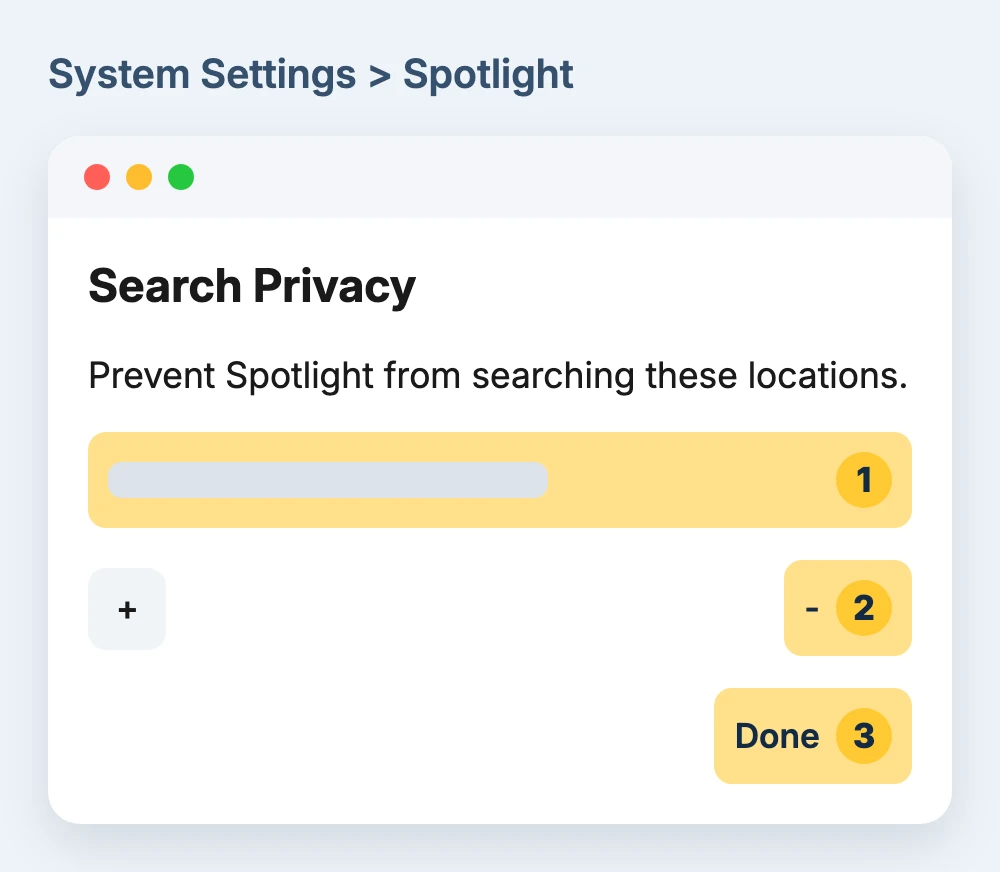
Look for the Outlook profile folder, a parent folder or the startup disk. Locations in this list are excluded from Spotlight searches. Select an accidental exclusion and click the remove button, then click Done.
Removing an exclusion lets Spotlight index that folder again, but all the results won't return immediately. Let it finish before searching again. Keep unrelated folders excluded if that's how you want them.
For the local profile folders covered by the troubleshooting page, Finder's Go > Go to Folder can open this location:
~/Library/Group Containers/UBF8T346G9.Office/Outlook/The relevant folder is Outlook 15 Profiles. That folder name can remain in installations with a much newer Outlook version; the number isn't an instruction to install Outlook 2015.
5. Reindex the affected folder once
For a profile that exists in that location, you can use the supported Spotlight folder rebuild: add the affected folder to Search Privacy, wait a few seconds, then remove it again. Click Done and close System Settings.
This asks Spotlight to build fresh search information for that folder. Start with the affected Outlook location rather than the entire disk. I'd try this before removing Office, because it leaves the application and mailbox setup in place.
After indexing finishes, reopen Outlook and repeat the subject search. Try an older message too if the first result returns. Make sure you can find the mail you need, rather than judging only the search box's appearance.
6. Check the profile before deeper repairs
For the local profile setup, open Finder > Applications. Control-click Microsoft Outlook, choose Show Package Contents, then open Contents > SharedSupport > Outlook Profile Manager. Read the profile name there.
Search can fail when a profile name has special characters such as a slash, or when its folder is stored outside the expected location. A custom profile name or a moved folder matters when earlier checks haven't restored search.
Save a backup of local-only mail before any profile-folder rename or move. Have your mail administrator or Outlook support check its location and name, particularly with multiple profiles. Don't delete a profile to clear search results.
When results still stay empty
Open Help > Contact Support in Outlook if that option is available. Include the Outlook version, macOS version, account type, whether other Spotlight searches work, and whether the same message is searchable online.
Ask support to check how your Outlook searches mail and check its local profile before recommending an Office reinstall. Those details tell them whether they need to repair local indexing, mail syncing or mailbox search.
The Short Version
Check scope and filters first. For locally indexed mail, let imports finish, correct Spotlight exclusions and rebuild the affected folder once. Have support check the profile or mailbox if those results stay empty.
Checked November 27, 2026.
 If you have any business, I can build it online