The missing Outlook Store button may have another name: Browse Office Store in Outlook 2016's command list, Get Add-ins in later releases, or All Apps in current classic Outlook. Look for the name used by your version of Outlook.
For Outlook 2016, adding Browse Office Store to the Quick Access Toolbar restored access for one owner. If the command stays unavailable, check the selected mailbox and your organization's add-in policy before changing more ribbon settings.
In this guide
1. Restore Browse Office Store in Outlook 2016
Open File > Options > Quick Access Toolbar. In Choose commands from, select All Commands. Find Browse Office Store, select it and click Add, then OK.
The command should now appear in the small Quick Access Toolbar, outside the Home ribbon. Open it from there and check whether the add-in store loads. Looking only for a command called Store can miss the older internal name.
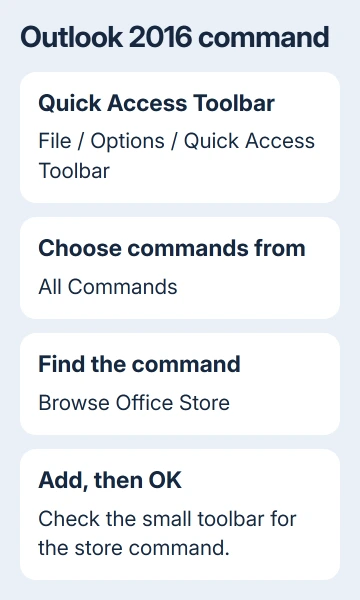
An owner found the command under its longer name and confirmed the toolbar repair on Microsoft's forum. Another reply said the toolbar change still failed. Restoring a shortcut won't solve every account's store problem.
If the store opens, review the add-in's permissions before installation. For a disabled or unresponsive shortcut, check the account and policy next. Another copy of the command won't change those settings.
Support for Outlook 2016 ended on October 14, 2025. These instructions explain its old interface; for a workplace still using it, arrange a supported Office upgrade with IT as part of the lasting solution.
2. Look for All Apps in current classic Outlook
Open Mail and choose Home > All Apps. With the Simplified Ribbon, use the ribbon's … menu and look for All Apps there. Select Add Apps in the store to browse available additions.
Starting with Version 2303, Build 16215.10000, classic Outlook replaced the Get Add-ins ribbon button with All Apps. An older supported interface may still show Get Add-ins. The new name doesn't mean the store was removed.
Microsoft's Outlook add-in instructions show the different routes. Check File > Office Account > About Outlook if you need the version and build before choosing which instructions fit.
For an installed add-in, select a message and check for its ribbon button. Use All Apps if that button isn't visible. Opening the store and running an existing add-in are separate actions.
An add-in can also be designed for reading mail, composing mail or a particular item type. Try it in the type of item it's designed for. An empty folder or a calendar screen won't necessarily offer the same message commands.
3. Use the new Outlook route when the File tab is absent
New Outlook doesn't have the classic File > Options customization window. While reading a message, select More apps on the ribbon or Apps on the message's action bar to find installed add-ins.
For the store, the current new Outlook instructions use More apps > Add apps. Search for the add-in and follow its installation prompts. A work account may instead receive the add-in from the administrator.
To keep a useful installed add-in visible, open More apps, right-click that add-in and choose Pin. Pinning makes an installed add-in easier to reach; it doesn't bypass a policy that blocks installation.
Don't follow a Quick Access Toolbar repair in this app. First identify which Outlook is open, then use its own Apps controls. Classic and new Outlook can be present on the same Windows PC, which makes their different menus easy to confuse.
If the missing control is specifically the meeting integration, use the Teams add-in checks. The Teams meeting command has its own setup requirements beyond opening the general store.
4. Check the mailbox and ask IT about installation rights
In classic Outlook, open File > Account Settings > Account Settings and check the account's Type. Tell IT whether it is Microsoft 365 or Exchange, or uses POP or IMAP. Don't assume every account offers the same add-in support.
The old discussion includes an owner whose store returned after adding Outlook.com. I'd keep personal accounts out of a work profile during this repair. Ask IT how add-ins can be installed for that work mailbox instead.
An absent All Apps button can mean the organization turned off add-ins. Find out whether employees can install them, or whether IT needs to install the app for you.
Give IT the add-in's full name and the mailbox where it must run. Shared-mailbox support also depends on the add-in: installing it for the primary mailbox doesn't automatically make it available in every shared mailbox.
If your organization installed the app, check its expected reading or composing screen before requesting another installation. The app may be present but offer its command only on the reading or composing screen its developer supports.
5. Separate a missing store from a disabled installed add-in
Classic desktop COM add-ins are managed through File > Options > Add-ins. They are a different kind of extension from the web add-ins shown in All Apps. Before trying a repair, check whether yours is a COM add-in or a web add-in.
For example, a missing KnowBe4 Phish Alert button needs its installed version and deployment checked. Opening the Office Store isn't a replacement for that product's specific repair.
When the store still won't open
Send IT the supported Outlook version, mailbox type, command tried and any error shown. Include whether colleagues with the same setup can open the store and whether just one add-in is absent.
Ask IT to check your organization's Outlook add-in policy and the app's installation status. If those are correct, they can raise a Microsoft 365 support request for the unavailable store command with your account and build details.
The Short Version
In Outlook 2016, add Browse Office Store from All Commands to the Quick Access Toolbar. Current classic Outlook uses All Apps; new Outlook uses More apps. If access stays unavailable, ask IT about mailbox support and installation policy.
Checked November 17, 2026.
 If you have any business, I can build it online