The KnowBe4 Phish Alert button can vanish when Outlook disables its add-in. Turning on the Reading Pane can restore a grayed-out button. Start with View > Reading Pane > Right, then check which add-in version your organization uses.
The EXE add-in installed on your PC and the Hybrid add-in assigned to your work account don't use the same controls. A missing Hybrid deployment won't be repaired by searching Outlook's COM Add-ins list.
In this guide
1. Select an email and turn on the Reading Pane
Open your normal work Inbox in classic Outlook for Windows and select an email. Choose View > Reading Pane > Right or Bottom, then check the Home tab for Phish Alert.
KnowBe4's Hybrid PAB instructions require the Reading Pane in Outlook. Turning it off can leave the reporting control unavailable even though the organization deployed it.
For Hybrid PAB in classic Outlook, look for the control on the Home tab at the top of an open email. Check the ribbon inside a message window, alongside the one in your main Inbox, especially when the ribbon is collapsed.
Use an ordinary harmless email to check whether the control is present. Don't submit it as phishing just to test the button. A real suspicious message should follow your organization's reporting procedure.
If the button returns when you turn on the pane, it needed a selected message in view. If it's still missing, find out which PAB version IT installed before changing add-in settings.
2. Match the repair to the installed PAB version
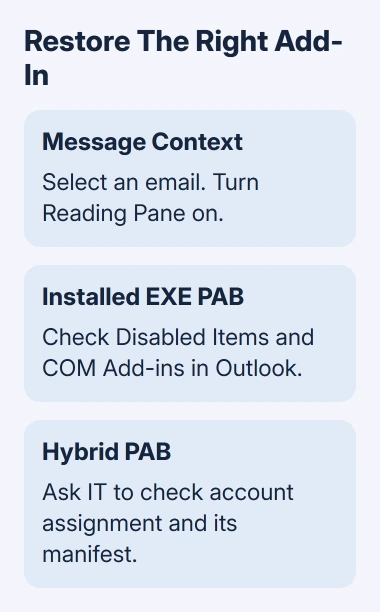
Ask IT whether your PC uses the Microsoft Outlook EXE PAB or Hybrid PAB. Both can provide a Phish Alert control in classic Outlook, but one is installed locally and the other is deployed through Microsoft 365 or Exchange.
For a locally installed COM add-in, Outlook can show an entry under File > Options > Add-ins. Look for a Phish Alert or KnowBe4 entry and check its type and status to see whether it's a locally installed COM add-in.
A Hybrid web add-in is a different installation route. It can be assigned to your account without appearing in COM Add-ins. Skip to the deployment check if that's the version your organization uses.
For trouble opening the general add-in catalog, find Outlook's renamed Store command before changing the Phish Alert deployment.
Use your organization's approved Phish Alert package. IT supplies its version, configuration and reporting destination. Installing a different package can leave you with a button that doesn't match the organization's security workflow.
For reporting with Microsoft's own command, the Outlook phishing-report guide explains that separate control. Report phishing and Phish Alert aren't interchangeable names for one add-in.
3. Re-enable an installed add-in that Outlook disabled
In classic Outlook, select File > Options > Add-ins. Read the active, inactive and disabled lists before changing anything. Write down the name shown for Phish Alert so you can select the right item.
At the bottom, set Manage to Disabled Items and choose Go. If the Phish Alert component is listed, select it, choose Enable, close the dialog and restart Outlook.
Return to File > Options > Add-ins. Set Manage to COM Add-ins, choose Go, and check the approved Phish Alert entry if it is present but unchecked. Confirm with OK, then check the message ribbon again.
If the add-in isn't in either list, that isn't a reason to enable unrelated items. For an EXE deployment, ask IT to verify its installation on this PC and whether the package matches the installed Outlook edition.
Microsoft's classic Outlook add-in warnings explain that slow add-ins can be disabled automatically. File > Manage COM Add-ins lists unhealthy components and the delay Outlook recorded.
For a disabled entry, that panel can offer Always enable this add-in. Discuss a repeatedly disabled security add-in with IT before overriding the warning, particularly when Outlook has started crashing or loading slowly.
I'd note the delay and Outlook version before the next restart. If Outlook disables the same entry again, those details can help IT work out why it keeps happening.
4. Have IT verify Hybrid deployment for your account
If your organization uses Hybrid PAB, have the administrator responsible for Microsoft 365 check the add-in's assignment to your account or the correct group. Compare your signed-in work address with the account they assigned.
The administrator should also check the manifest, the add-in's setup file, came from your KnowBe4 console. Each console supplies its own file, so another organization's copy won't fix your deployment.
The current guide includes a specific migration instruction for manifests installed before February 11, 2025. Those installations need the current manifest downloaded and redeployed through the documented administrator procedure.
That date is a condition for IT to check, not a reason for every user to remove the add-in. Ask whether your deployment falls into it, especially if the button vanished after a tenant or authentication change.
If only your account is affected, tell IT whether Phish Alert appears for another work account or another user on the same Outlook version. Keep that comparison separate from a local COM add-in failure.
5. Confirm access or use the approved reporting route
After the repair, restart classic Outlook, select a message and check the button again. If it returns, it's available to use; ask your security team to check report delivery if you're unsure that reports are reaching them.
A missing button during a real incident shouldn't delay notifying the security team. Use the alternate reporting method your organization approves. Avoid forwarding a suspicious attachment through an improvised route.
If credentials were entered on a suspicious page, report that fact promptly too. The phishing-response checks cover the account actions that a restored reporting button can't perform for you.
If you still need help, send IT your Outlook version from File > Office Account > About Outlook, the affected mailbox, whether Reading Pane is on, and the add-in entry or warning you saw. Include when the control last worked.
Ask IT to verify the EXE installation or Hybrid assignment for your deployment. If IT opens a ticket, those details tell KnowBe4 Support which version needs fixing and what you've already checked.
The Short Version
Enable Reading Pane and select an email. Restore a disabled local PAB through Outlook's add-in controls. For Hybrid PAB, IT needs to check account assignment and its manifest. Ask IT to examine a component that repeatedly disables itself.
Checked November 12, 2026.
 If you have any business, I can build it online