Voting buttons can be lost in transit when they reach individuals but vanish from group emails. Have IT check signature services and mail rules. One owner restored voting by correcting the rule sending internal mail to that service.
Check the recipient's Outlook setup first. New Outlook doesn't support classic voting buttons, and protected messages can hide them too. Those cases need different fixes from group messages that lose voting data during delivery.
In this guide
1. Check the recipient's Outlook and voting control
Ask one affected recipient to open the message using classic Outlook on Windows. In an open message, check Message > Respond > Vote. In the reading pane, look for Click here to vote in the message header.
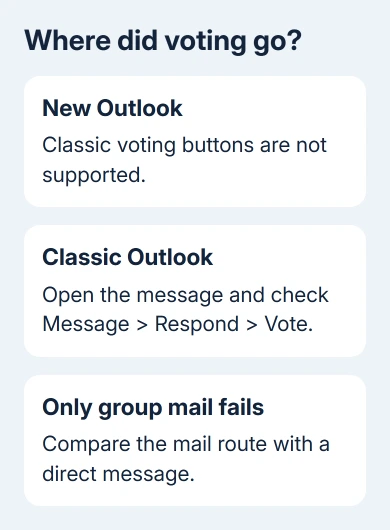
The voting options don't always appear as buttons inside the email body. Someone looking only at the text can miss the command even when delivery worked. Ask them to choose an option and send the response to confirm it works.
Microsoft's voting-button instructions describe these reading-pane and message-window controls. They also explain that the sender's Tracking command appears only after at least one recipient replies with a vote.
New Outlook doesn't support classic voting buttons. A recipient using it needs a supported classic Outlook setup or a different response method. Recreating the distribution group won't add this missing feature to the new app.
The feature also doesn't work with Outlook.com, Hotmail.com or Live.com accounts. Check the actual mailbox and app rather than assuming every product carrying the Outlook name supports the same voting tools.
If a recipient can vote after opening the message correctly, the group delivered the options. If their supported classic Outlook still shows no voting command, compare delivery to that same person directly.
2. Compare direct delivery with distribution-list delivery
Create a harmless test email in classic Outlook. Open Options > Use Voting Buttons and select Yes;No. Send it directly to one internal coworker who can help you check the result.
Send a second test with the same voting selection to the affected distribution list, including that coworker. Use distinct subjects so they can compare the direct message with the group message without mixing them up.
If direct delivery offers Vote but the group version doesn't, the recipient's app supports it. Give IT those results. That points to something happening during group delivery, since voting works in the direct message.
If neither test works, return to the account, app and message-protection checks. If direct messages fail too, check more than group delivery. Include that result when you ask for help.
Confirm you're testing the intended saved group or directory list. The Outlook email-group guide explains the local collection, while a company distribution list is managed through the organization's directory.
In the reported case, creating a new test group with the same members didn't restore the buttons. That failed attempt matters: replacing the list would have repeated work without changing the mail route that removed the voting data.
3. Have IT check the signature-service mail rule
Ask your Exchange or Microsoft 365 administrator whether group messages pass through a third-party signature service, gateway or other mail processor. Include the direct and group test subjects, sender, recipient and sending times.
The original owner traced the loss to a transport rule, which is an organization-wide rule that processes mail in transit. Their rule sent messages through a third-party signature service. Internal group mail lost voting along that route.
The owner changed the rule so it skipped messages sent between people inside the organization, and confirmed voting worked again. That fixed their setup; it doesn't mean every signature service breaks voting.
Have IT review the rule's conditions and exceptions with the signature-service provider. The right change depends on which mail the service should process. Don't disable organizational security rules to copy a forum fix.
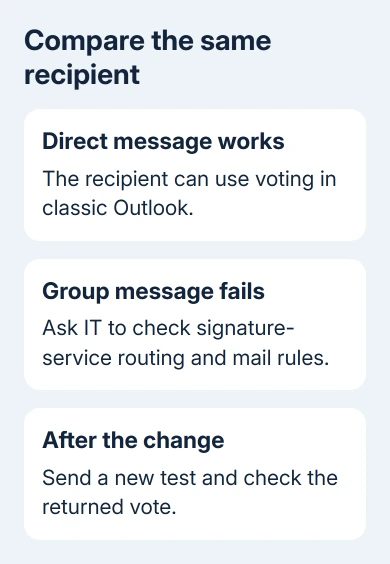
I'd give IT the two matched test messages before asking for an Outlook reinstall. They show the important difference: the same recipient and voting choices behave differently when the message takes the group route.
After IT applies an approved correction, send a fresh voting test to the group. Ask the coworker to vote, then open the sent message and check Message > Tracking once the response arrives. That tests delivery and the return vote together.
4. Check protected messages and Exchange conversion
Information Rights Management permissions can hide voting options. These controls limit what recipients can do, such as forwarding a message. Recipients also won't see voting buttons in encrypted messages.
If your test message needs protection under company policy, keep that protection and use an approved alternative way to collect answers. For a non-sensitive test, ask IT whether an ordinary unprotected message is permitted for comparison.
Exchange also carries Outlook-specific voting information using TNEF, a format that preserves extra Outlook message data. Mail conversion can remove that information even while the readable email text still arrives normally.
In one hybrid Exchange setup, messages lost their voting options when sent between cloud mailboxes and mailboxes on the organization's own servers. The hybrid voting-options fix uses TNEF settings on the relevant remote domains.
Leave this configuration to the mail administrator. Changing every message to Rich Text or enabling TNEF for every external destination is unnecessary. Match the change to the affected mail route.
5. Escalate with the sent and received examples
If the fault remains, ask IT to compare sent and received group messages. In classic Outlook, open each test and use File > Save As to preserve an Outlook message file for the private support case.
The owner found voting data in Sent Items but missing from the received group message. Support requested a message trace to check its route. Have IT compare those copies rather than editing message properties yourself.
For a group that won't resolve in the To field at all, use the separate contact-group suggestion checks. Missing voting after successful delivery is a different fault.
The Short Version
Check classic Outlook's Vote command, compare direct and group delivery, then have IT review signature-service routing. Unsupported apps and protected messages need another voting method. Verify with a fresh message and returned vote.
Checked November 16, 2026.