A PC that can't project to another screen often needs its graphics driver repaired, especially after a Windows reinstall or display update. Restart, then check Device Manager > Display adapters before buying a video card.
A wired HDMI connection and wireless casting need different checks. Follow the cable checks for a wired screen or the Miracast checks for wireless casting. This message alone doesn't mean your graphics card has failed.
In this guide
1. Restart the graphics driver and try projecting again
Save your work, then press Windows + Ctrl + Shift + B. The display may briefly flicker as Windows resets its graphics driver. This can recover an existing setup that stopped sending a picture without removing any driver software.
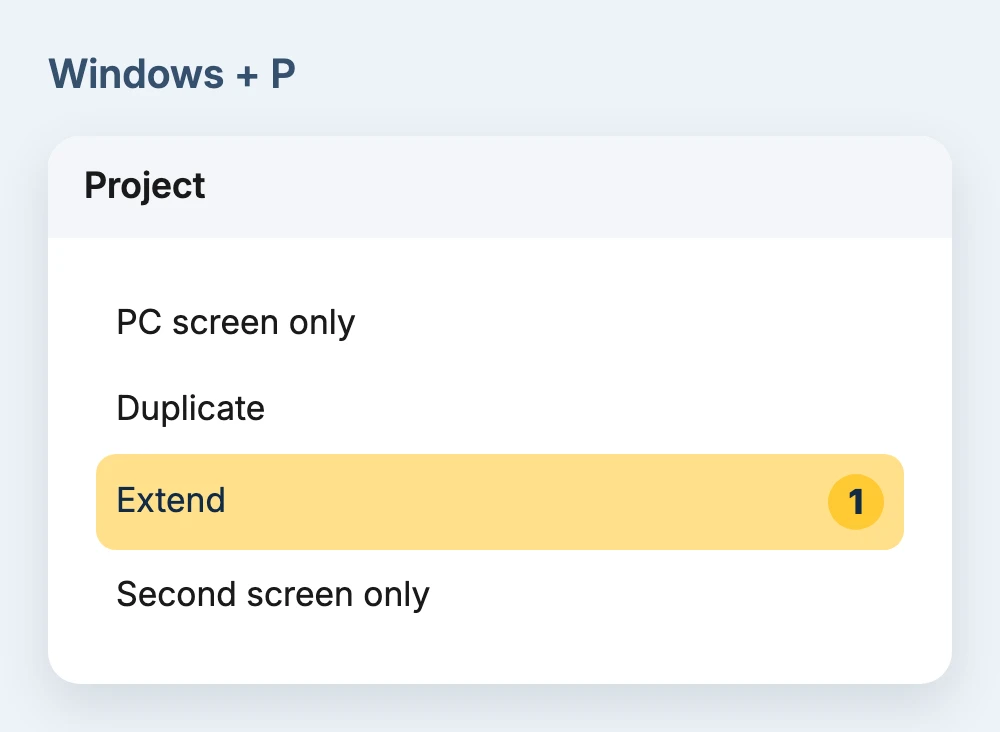
Press Windows + P and choose Extend to give the monitor a separate desktop. Choose Duplicate instead when the projector should show the same thing as your laptop. Check whether your desktop now appears on the second screen.
If the error remains, use Start > Power > Restart and retry the same connection. I'd do these quick checks before uninstalling anything. They can get a stalled driver working again without removing the installed driver.
When the projection choices work but the display still says No Signal, check its selected input and cable in the next section. If projection remains unavailable in Windows, check the display adapter entries next.
2. Test one monitor through a direct video connection
Connect just one external display. Disconnect extra docks, hubs and adapters where a direct connection is available. On the monitor itself, select the input used by your cable, such as HDMI or DisplayPort.
Unplug and firmly reconnect both video cable ends. Try another cable, then another compatible video output if the PC has one. A picture with the replacement cable points to a cable or connection problem, rather than a failed graphics card.
Connect that monitor to a second computer if available. If that computer also gets no picture, check the display and its input selection before changing Windows. If it works there, check the first PC's driver and the port's video support.
A USB-C socket's shape doesn't tell you whether it carries video. Check the laptop's port specifications and the adapter's requirements. A charging-only connection won't become a video output through a Windows setting.
For a projector that accepts the connection but displays the wrong source, the projector connection steps explain input selection. Keep one known-working cable and display attached during the driver checks.
3. Replace Microsoft Basic Display Adapter with its proper driver
Right-click Start, open Device Manager, and expand Display adapters. Read every entry. Microsoft Basic Display Adapter means Windows is using its generic graphics driver because a suitable manufacturer driver isn't installed or available.
That entry can explain why the laptop screen works while more advanced display features don't. Microsoft's basic display driver guidance recommends the manufacturer's driver for features including multiple monitors.
A laptop can list two graphics adapters. Inspect both entries even when one already has an Intel, AMD or NVIDIA name. One adapter can have its correct driver while the other still uses the generic one.
Run Windows Update first. In Windows 11, open Settings > Windows Update > Check for updates. In Windows 10, use Settings > Update & Security > Windows Update > Check for updates. Restart when requested.
Check Device Manager after installation. If the generic entry changes to the manufacturer's name, the new driver is installed. Retry Windows + P and Extend. If updates don't provide it, ask the PC maker for your model's graphics package.
Use the package matching your Windows version. Laptop graphics can depend on a combination of integrated and dedicated graphics. Give support the complete model number and both adapter names instead of guessing from the brand.
4. Restore the earlier driver after an update failure
For a setup that failed immediately after a graphics update, try restoring the earlier driver. In Device Manager > Display adapters, right-click the affected adapter, choose Properties, and open Driver.
Select Roll Back Driver if the button is available, then follow the prompts. Restart, then retry the same monitor and cable. If projection returns, report both driver versions to the PC maker before installing the failing package again.
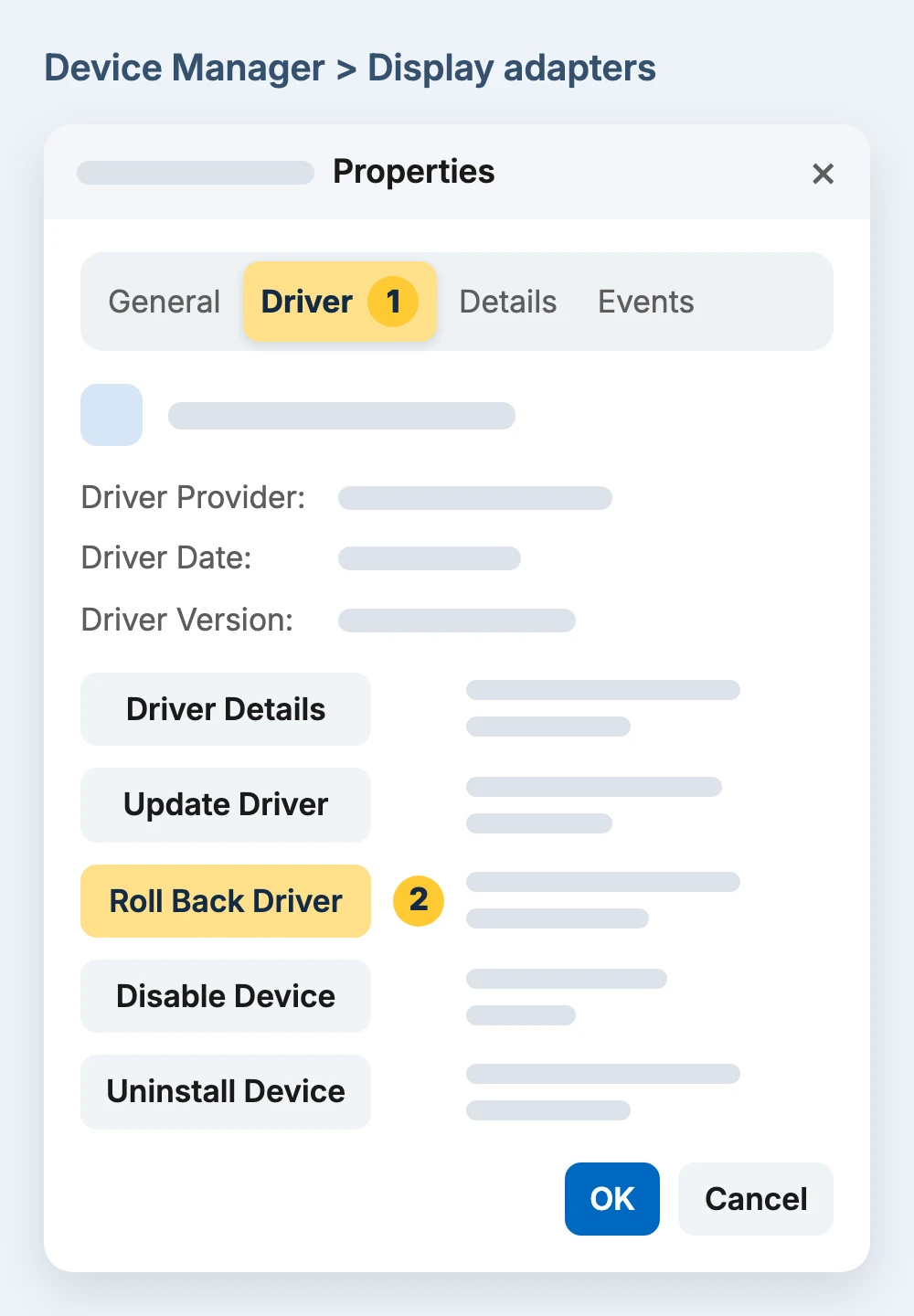
When you can't select Roll Back Driver, Windows isn't offering an earlier driver through that button. Ask the manufacturer for a compatible earlier package or reinstall instructions.
For a reinstall, Microsoft's external monitor repairs give the Device Manager removal and update sequence. Have the model's replacement driver ready before removing the current package.
If the error clears but Windows still can't detect the display, continue with the second-monitor detection checks. That's a narrower problem than Windows refusing projection altogether.
5. Check Miracast separately for a wireless screen
For Windows 11, press Windows + K. A message telling you to use a cable can mean the PC doesn't support Miracast, the wireless display technology used by this route. Installing a monitor driver won't add missing hardware support.
For Windows 10, search Start for Connect and read its compatibility message. Keep Wi-Fi turned on and confirm the receiving display supports Miracast too. A TV with a different casting system isn't automatically a Miracast receiver.
Restart the PC and wireless display. If the receiver is another Windows PC, it needs the Wireless Display optional feature and discoverable settings under Settings > System > Projecting to this PC. That page configures the receiving PC.
Without Miracast support, use a compatible video cable or ask the PC maker about wireless options. If supported hardware still won't connect, send support the error, adapter names and driver versions. Include whether wired projection works.
The Short Version
Restart the graphics driver, test a direct cable, and inspect Display adapters. Replace a generic driver or roll back a recent faulty update. Check Miracast support separately when the connection is wireless.
Checked November 27, 2026.
 If you have any business, I can build it online