Plex Media Server on Windows 11 runs in the system tray, so it doesn't need a desktop window. Launch it, then open http://127.0.0.1:32400/web in a browser on that PC. A working page means the server is running.
A failed browser connection and a Plex page that opens without your server or libraries need separate fixes. Check the local address, then follow the matching result. Reinstalling the player app won't repair a server that never started.
In this guide
1. Open the server's local page on its own PC
Open Start, search for Plex Media Server, and launch that entry. Plex for Windows and Plex HTPC are players, not the server program that manages your libraries. Check the name before launching or reinstalling anything.
Look in the notification area beside the Windows clock. Open the hidden-icons menu if needed. Right-click the Plex Media Server icon and choose Open Plex. Your server's controls open in a browser rather than a separate server window.
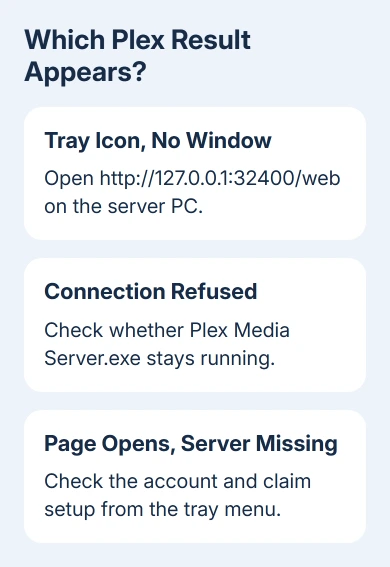
If that menu doesn't open a page, enter http://127.0.0.1:32400/web directly into the browser's address bar. Keep the http:// prefix and port number. This connects to the server on the computer you're currently using.
Don't enter that address on your phone to test the PC. On the phone, 127.0.0.1 refers to the phone itself. A different device needs the server PC's network address after local access is working.
Plex's opening instructions list local web app addresses, including http://localhost:32400/web. If either address opens your libraries on the PC, skip to the account or network checks rather than repairing server startup.
I'd use the numeric local address first. It gives a direct answer about the server on this computer without depending on a bookmark, another device's saved address, or an account's list of available servers.
2. Check whether the server stays running
If the browser reports that it can't connect, right-click Start > Task Manager. Open Details and look for Plex Media Server.exe after launching the server. If it quickly disappears, the server may be failing at startup.
If it stays running but no page opens, use the tray menu to exit the server, then launch it once more from Start. Save open documents, then restart Windows if the process remains stuck. Test the same local address after signing back in.
Note whether the process keeps running while the page stays unreachable. Tell support what you saw so they can check for a startup crash or a running server that isn't answering. Starting more copies won't help explain the problem.
Check Windows Security > Protection history if security software reported a blocked or quarantined component. Review the file path and alert. Don't disable protection for the whole PC to make an unknown executable run.
For software that's missing from Start entirely, open Settings > Apps > Installed apps and search for Plex Media Server. If you find only a Plex player, you still need to install the server on this PC.
3. Install the correct server package
Open the Plex Media Server downloads page, select the server download for Windows, and use the package matching the PC. Check that the page says Media Server rather than a player app.
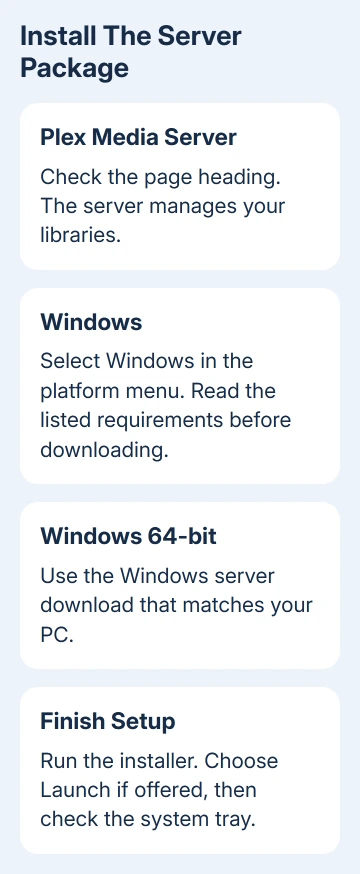
Start the downloaded installer, then follow setup to completion. At the final screen, choose Launch if offered. If you finish without that choice, start Plex Media Server from Start afterward and check the tray icon.
For an existing server, keep its data folder intact. The folder contains library information and settings, so deleting it isn't a routine way to repair an installer. Back it up before following support instructions that change server data.
After setup, check the local web address again. If it works now, confirm your expected server and libraries before changing anything else. If the server still closes, check the logs instead of repeating installation.
For a Windows installer that itself fails, record its message and version separately. If security software blocked the connection, review the Windows firewall controls rather than changing media settings.
4. Reconnect the account when the page opens
If the Plex page opens without your server, check that the server and player use the intended Plex account. A different account can show different shared libraries. That isn't the same as a failed connection to the local server.
For a newly installed or unclaimed server, use Open Plex from its tray menu on the server PC. Follow the account setup shown there. Starting with this local menu helps when the hosted web app doesn't offer the server's settings.
Disconnect a running VPN, launch the server, and check its sign-in under Settings > Server > General. Reconnect the VPN and compare access. VPN routing can send Plex the wrong connection address.
Note exactly what works and what doesn't. If local access works but the phone can't connect, compare their network names. The PC and phone need the same home network; guest Wi-Fi can block access between connected devices.
Remote Access is a later check for devices outside the home network. Changing router ports won't start a server that isn't answering on its own PC. Get local access working before changing the router.
If the library opens and only playback spins, use the separate Plex playback guide. At that point, compare media, subtitles, and browser playback rather than keep reinstalling the server.
5. Collect startup logs for a repeatable failure
Press Windows + R, enter %LOCALAPPDATA%\Plex Media Server\Logs, and press Enter. This opens the usual Windows server-log folder for the current user. Open it under the Windows account that runs the server.
Look for Plex Media Server.log and files updated at the time of the failed launch. Note when the launch failed. If the folder is missing, tell support that too; it helps support check whether setup failed or the server crashed later.
Plex's server connection troubleshooting leads to its support forums for persistent failures. Post your Windows and server versions, what happens at launch, whether the local address opens, and the relevant logs.
Follow the forum's log attachment instructions. Keep account details out of public messages. Ask whether the log shows a crash or connection failure before changing the database or Windows registry.
The Short Version
Launch the server and open its local web address on that PC. If it fails, check the tray and process. Install a missing server, check account access when the page loads, and collect logs for repeated exits.
Checked November 12, 2026.