Plex's endless spinner in Chrome can mean blocked playback or a server struggling to convert video. Try another title with subtitles off. If only certain files fail, check conversion and quality before clearing Chrome's data.
A missing library needs a connection check; a movie that opens but won't start needs playback checks. Save the exact error message, if one appears, so you don't spend time fixing video settings when the server itself is unavailable.
In this guide
1. Compare the failing title with another player
Open a second title from the same Plex library. If it plays, return to the failing one and turn Subtitles off in its playback controls. Start it again from the same place.
An incompatible subtitle format can make the server draw the words into every video frame. The server then has to convert the whole video, even when the picture and sound could otherwise play unchanged.
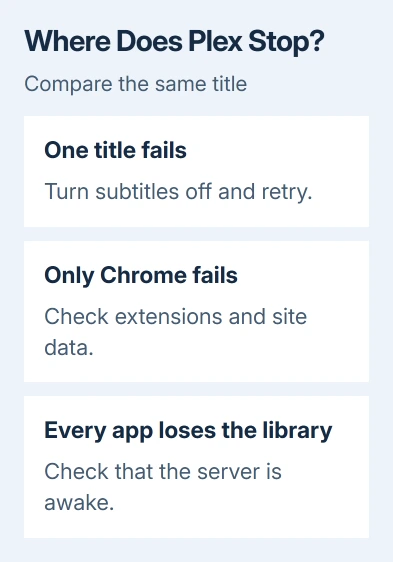
Next, open that title using an installed Plex app or a second current browser. Keep the same server and network for that comparison. If the app plays it, focus on Chrome or the version of the video Chrome asks the server to send.
If other websites also refuse playback, use the general Chrome video repairs before changing the Plex server.
If the library itself is unavailable in every app, check that the computer or NAS running Plex Media Server is awake and connected. A browser refresh can't start a server that has shut down or lost its network connection.
On a Windows host, check Plex Media Server startup through its tray icon and local browser address before repairing playback.
I'd make these comparisons before deleting anything. Whether one file, one browser, or every player fails tells you which settings to check next.
2. Update Chrome and check extensions
In desktop Chrome, open More > Help > About Google Chrome. Let an offered update finish, select Relaunch, then retry the same video. This checks whether an older Chrome version was causing the playback problem.
Open an Incognito window from the More menu, sign in to Plex, and try the title again. A successful test points toward an extension or browser data in your usual window, rather than a broken media file.
Incognito doesn't disable an extension you've allowed to run there. Open More > Extensions > Manage extensions and check any video tools, content blockers, or privacy extensions that can still run in that window.
Temporarily switch those extensions off and retry playback in your regular window. After video plays, enable each extension separately and retry it. The one that brings the spinner back needs its permissions or site rules adjusted.
Google says to compare a clean window in its video playback troubleshooting. For trouble affecting other video sites too, the Chrome freezing checks cover the wider browser problem.
3. Remove the affected Plex site's stored data
Use this step when Plex works in the clean window but still fails in the regular one after extensions are disabled. Removing a site's stored data signs you out, so have your Plex sign-in method ready.
Open Settings > Privacy and security > Third-party cookies. Select See all site data and permissions. Search for the Plex address you're using, then delete its matching stored data. Close its tabs and open Plex again.
The hosted web app and a server opened through its local address are different browser locations. Clear the entry matching the address in the failing tab. Your other Plex tabs may use a different saved sign-in.
Sign back in and play the comparison title. If your regular window now works, keep using it. If it still spins, clearing unrelated browsing history won't address a server that can't deliver the requested video.
For a broader cleanup, the Chrome cleanup guide explains the browser-wide controls. A targeted site reset is the smaller change when only Plex is affected.
4. Match quality to both the connection and the server
Plex calls video conversion transcoding. The server changes the file into a version the player can use. A slow connection and a slow conversion can both cause buffering, but fixing one can make the other worse.
Open Plex's Settings, then the Plex Web quality controls. Under Internet Streaming, reduce Video quality when a remote connection can't carry the stream reliably. Retry the title before changing anything else.
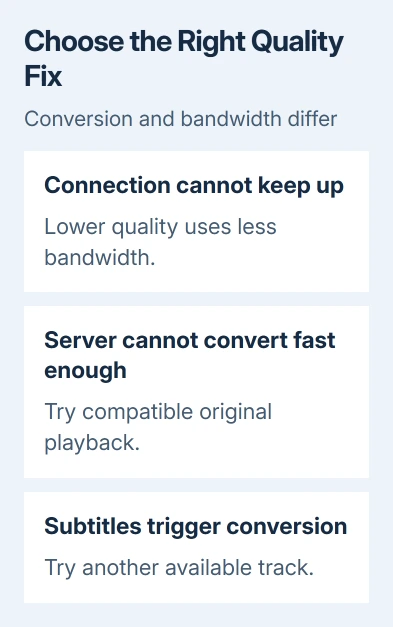
Lower quality asks for less network bandwidth. It can also make the server convert a file that was previously being sent unchanged. If playback worsens, check how hard the server is working to convert video before reducing quality again.
Home Streaming controls playback on the local network. Its recommended setting lets compatible content play at original quality. Don't change the remote setting and expect it to repair every local playback problem.
If you administer the server, check its playback activity while starting the title. A Transcode entry means conversion is involved. Someone watching a shared library should ask the owner to make that check.
5. Check Direct Play and the media file
Direct Play sends a compatible file unchanged. Direct Stream repackages compatible media without fully converting the video. Even with these options, some file formats won't work in every browser.
Leave Direct Play enabled for normal use. Turning it off forces conversion and can make a limited server work harder. If the server can't convert quickly enough, try a compatible version or a Plex app that can play that file directly.
If subtitles caused the stall, select another available track and retry. Keep that track if it avoids making the server convert the video. Check available subtitle alternatives before accepting playback without the text you need.
If one file fails in every player, ask the owner to open its More menu and choose Analyze, then retry. This refreshes the media details Plex uses. A damaged file may still need replacing from the owner's original copy.
If playback still fails, send the Plex server owner the title, time of failure, Chrome version, subtitle choice, and whether another app works. Ask them to collect Plex Web and server logs for a support request or the Plex support forum.
The Short Version
Compare another title and turn subtitles off once. Fix Chrome extensions or site data when a clean window works. For file-specific trouble, check transcoding and quality with the server owner rather than repeatedly resetting the browser.
Checked November 12, 2026.