Videos that won't play in Chrome can be blocked by extensions, disabled JavaScript or damaged site data. Try the same clip in Incognito first. If only a paid service fails, check its sign-in and playback permissions too.
A spinner on one site, failures across several sites and video that slows only after switching windows need different checks. Use the same clip for each check to see which change gets it playing.
In this guide
1. Compare the video in a private window
On a computer, open Chrome's three-dot menu and choose New Incognito Window. Load the affected video and press play. A subscription service may need another sign-in, and some sites restrict playback in private windows.
If the clip plays there, switch back to your normal window, then open Extensions > Manage extensions. Disable the extensions and retry the reloaded video page. If it plays, turn each extension back on separately until playback breaks.
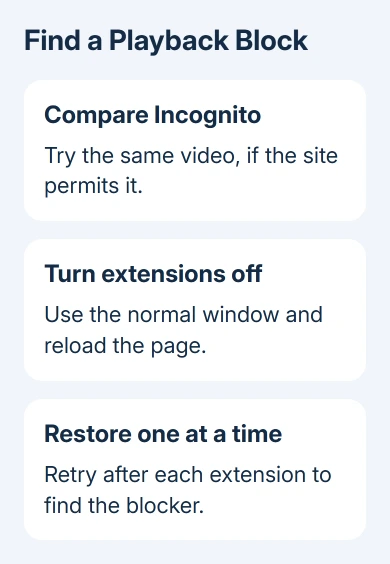
Pay attention to ad blockers, privacy tools and extensions that alter video players. An extension you've allowed in Incognito can still affect that comparison, so check its Details > Allow in Incognito setting before ruling it out.
Google's steps for video troubleshooting use this comparison to separate extensions and stored browsing data. A video that fails in both windows still needs the site-setting and connection checks that follow.
If only a Plex player keeps spinning, the Plex playback checks cover its server and playback choices. Those settings don't apply to an unrelated streaming website.
2. Allow JavaScript for a player that won't start
Many players need JavaScript, the code a webpage runs to operate buttons and load its video. If the page opens but its player controls don't respond, check whether Chrome is blocking it.
On desktop Chrome, open Settings > Privacy and security > Site settings > JavaScript. Select Sites can use JavaScript, or review whether the affected site is in the blocked list. Reload the video page after the change.
On Android, open Chrome > three-dot menu > Settings > Site settings > JavaScript and turn it on. Then return to the video and reload. The desktop setting path doesn't match this mobile menu.
Chrome on iPhone and iPad doesn't provide the same JavaScript control in its settings. Continue with the app update, browsing-data and connection checks there instead of searching for the Android menu.
A player that now starts had been unable to run the code it needed. If it still won't play, keep JavaScript allowed and move on to stored data rather than repeatedly switching the same setting.
3. Remove the browsing data that can break playback
An old cookie or cached player file can keep a site in a broken state. Cookies store site information such as sign-in; the cache stores reusable page files. Clearing them lets the site load fresh copies of that information.
On a computer, choose three-dot menu > Delete browsing data. Choose a time range covering the problem, select Cookies and other site data and Cached images and files, and leave unrelated categories unchecked. Choose Delete data.
This signs you out of affected sites and can remove their preferences, so check that you have the account details needed afterward. Open the site again, sign in if needed and retry the same video.
On Android, use three-dot menu > Settings > Privacy and security > Delete browsing data. Choose Cookies and site data and Cached images and files, choose the time range to clear and confirm deletion.
In iPhone or iPad Chrome, use three-dot menu > Settings > Privacy and Security > Delete Browsing Data. Choose Cookies, Site Data and Cached Images and Files, then confirm. Labels can vary with the version.
If playback works afterward, restore only the extensions you need. If it doesn't, the browser update and another working network are more useful than deleting the same data again.
4. Update Chrome and check paid-video restrictions
On Windows, Mac or Linux, open Help > About Google Chrome from the three-dot menu. Let Chrome check for updates and choose Relaunch if offered. Save any unfinished web-app work before Chrome restarts.
On Android, update Chrome through Google Play. On iPhone or iPad, use its App Store page and tap Update if available. After updating, reopen the affected site and try playback again.
When paid video alone fails
For paid movies or subscription video, read the player's error as well. Some services need protected content, which is media whose playback depends on the site's permission and rights checks.
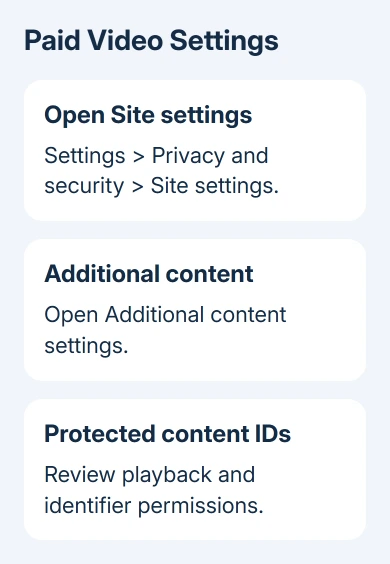
On desktop, open Settings > Privacy and security > Site settings > Additional content settings > Protected content IDs. Review any block on protected playback or the identifiers the site needs.
Use the streaming service's supported-browser requirements if its error persists. If a private window can't sign in or meet the service's playback rules, that alone doesn't tell you Chrome is broken.
Don't install Flash Player to repair an old video page. Flash content is no longer supported in Chrome, and a site that still depends on it needs an updated player from its owner.
5. Check the connection before resetting desktop Chrome
Try another video site and another working network. If several sites also fail in a different browser, the connection or service needs attention. Restore the internet connection before trying a browser reset.
For a failed home connection, follow the provider's modem and router restart instructions, then retry. Ask the administrator about video filtering when an employer or school supplies the network; leave its equipment alone.
If playback works until Chrome loses focus, use the background-video checks. That symptom needs power and tab-behavior checks rather than another attempt to clear cookies.
If the problem happens only on desktop Chrome, open Settings > Reset settings and choose Restore settings to their original defaults. Review the effects, then confirm Reset settings.
This disables extensions and resets site-related settings. Saved passwords and bookmarks stay in place, so you don't need to rebuild those after the reset.
Send a single failing site's support team the player error and clip address. For failures across sites, choose Chrome's Help > Report an issue and include your Chrome version, operating system and what happened during each check.
The Short Version
Compare Incognito, extensions and JavaScript, then clear browsing data and update Chrome. Check protected-content permissions for paid video. Try another network before a desktop reset or a report about the remaining playback error.
Checked November 12, 2026.