

Crashes that keep coming back in PowerPoint, on a blank slide, halfway through a paste or while it just sits open, often come from an add-in (a small extra program that loads inside it). Start there. Reinstalling Office can wait.
On many older laptops the culprit is the Send to Bluetooth add-in that came with the Bluetooth software. Turning it off under File > Options > Add-ins ended the crashes for several PowerPoint 2010 owners on Microsoft's forum.
Safe mode tells you quickly whether an add-in is involved. Later fixes cover Office repair, the default printer, a damaged Windows profile and, on a Mac running Windows, a keyboard setting that crashed PowerPoint the moment you typed.
In this guide
1. Open PowerPoint in safe mode
Hold Ctrl while you start PowerPoint and click Yes when it offers Safe Mode. The other way in: press Windows key + R, type powerpnt /safe and click OK.
Work in it the way you normally would. If PowerPoint stays up in safe mode but keeps crashing in normal mode, blame something it loads at startup. Add-ins top that list, so go to fix 2.
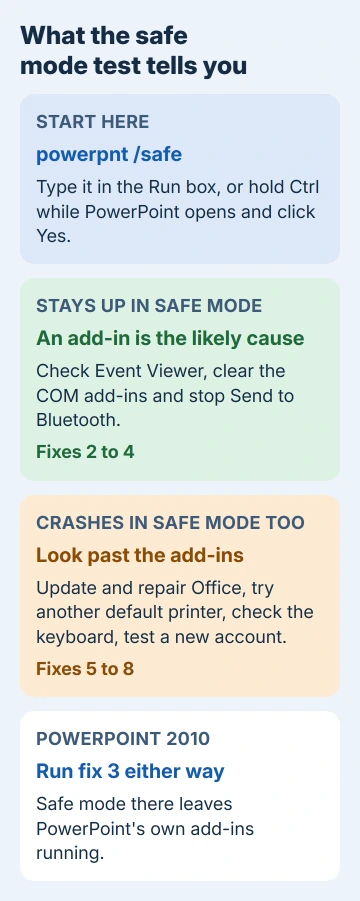
Crashes in safe mode as well? Jump to fix 5. One exception: on PowerPoint 2010, an adviser on that forum pointed out that safe mode "won't disable them in PowerPoint," meaning the add-ins. So on 2010, run fix 3 whichever way the test goes.
2. Look for msctf.dll in Event Viewer
A PowerPoint crash usually leaves an entry in the Windows Application log that points to what to switch off. Search Start for Event Viewer, open Windows Logs > Application and find Error entries with Event ID 1000 naming POWERPNT.EXE.
Look at the Faulting module name line. Microsoft's own article on the add-in ties msctf.dll and ntdll.dll on that line to Send to Bluetooth.
The person who started that forum thread saw exactly that: "Faulting module name: MSCTF.dll". A clean log doesn't let the add-in off the hook, though. It can crash PowerPoint without leaving an entry.
Both DLLs (shared program files) belong to Windows itself, so replacing them won't help. Stopping whatever crashes inside them will.
3. Switch off the COM add-ins
- In PowerPoint, go to File > Options > Add-ins.
- In the Manage box at the foot of the window, choose COM Add-ins and click Go.
- Clear the box next to Send to Bluetooth, or clear every box for a clean test. Click OK and restart PowerPoint.
- If the crashes stop, tick the add-ins again one by one, restarting PowerPoint after each, until the crash returns. The last one you ticked is the culprit.

Three owners said this ended their PowerPoint 2010 crashes. One wrote: "disabling the Bluetooth add in fixed my issue with PowerPoint 2010."
Some entries belong to PowerPoint itself, so switch the innocent ones back on afterward. While you're there, check PowerPoint Add-ins and Disabled Items in the Manage box. Disabled Items shows anything PowerPoint shut off after a crash.
An add-in can also fail without a crash, showing a VBA box at every start instead, and the Class not registered fix follows the same safe mode hunt.
Store add-ins sit in yet another list, under Home > Add-ins, and managing PowerPoint add-ins covers removing those.
4. Keep Send to Bluetooth from loading again
The add-in isn't part of Office. It comes with the Bluetooth software many PC makers preinstall, so reinstalling Office leaves it in place. The person who started the thread had already reinstalled Office four times.
The cleaner fix is a newer version of that Bluetooth software from the laptop maker's website. No update? Switch the add-in off in the registry for every account on the PC, after saving a copy with File > Export in Registry Editor.
- Close every Office program, press Windows key + R, type regedit and press Enter.
- Go to HKEY_LOCAL_MACHINE\Software\Microsoft\Office\PowerPoint\Addins. With 32-bit Office on 64-bit Windows, use HKEY_LOCAL_MACHINE\Software\Wow6432Node\Microsoft\Office\PowerPoint\Addins.
- Select BtOfficeAddin.BtOfficeIntegration.1, double-click LoadBehavior, change it to 0 and click OK.
If your Word, Excel, Outlook or OneNote crash too, each has a matching Addins key.
5. Update Office, then repair it
On Microsoft 365 and PowerPoint 2016 or later, go to File > Account > Update Options > Update Now. Updates replace out-of-date files, and a fix for your crash may already be waiting.
Next comes a repair, which you run from Windows rather than PowerPoint. Right-click Start and open Installed apps (Windows 10 calls the list Apps and Features), find your Office in the list, then pick Modify.
Pick Online Repair there. Quick Repair finishes sooner but only swaps out damaged files.
PowerPoint 2010 lost all support in October 2020, so no new fixes are coming for it.
6. Pick a different default printer
PowerPoint loads your default printer as it works, so a bad printer driver can bring it down. Switching to a plain built-in printer can stop that kind of crash. Updated drivers didn't help in that forum thread, so treat this as a test.
On Windows 11, open Settings > Bluetooth & devices > Printers & scanners and stop Windows from choosing the default printer for you. Windows 10 has the same page under Settings > Devices.
Then pick Microsoft XPS Document Writer or Send to OneNote, click Set as default and use PowerPoint for a day. If the crashes stop, update or reinstall the old printer's driver before switching back.
7. Mac with Boot Camp? Add the US keyboard
One owner's PowerPoint 2010, running in Windows through Boot Camp on an older Intel Mac, crashed "as soon as I'd type a key into a slide". The trigger was Boot Camp drivers 3.1 and later. Adding the plain US keyboard layout fixed it.
On Windows 11, head to Settings > Time & language > Language & region, open the three-dot menu next to your language, choose Language options, then Add a keyboard > US. Windows 10 puts the same button under Time & Language > Language.
Windows 7 used the older route: Control Panel > Clock, Language, and Region > Change keyboards or other input methods > Change keyboards > Add, then US under English (United States).
8. Test a fresh Windows account
An adviser on the forum said another user stopped the crashes with a new Windows profile: "The old profile was apparently corrupt." Testing takes about ten minutes.
Windows 11 has the option at Settings > Accounts > Other users > Add account. On Windows 10, look under Settings > Accounts > Family & other users. Log in to that new account and use PowerPoint there for a while.
Stable there? Then your old profile is the damaged part. Move your files across, or have a technician repair the old profile.
When PowerPoint still crashes
If a crash took unsaved work with it, recovering an unsaved PowerPoint file shows where AutoRecover keeps its copies.
A crash that only comes when music is set to play across slides has its own causes, and the audio across slides crash page covers them.
Then contact Microsoft Support through support.microsoft.com with the Event ID 1000 details, such as the faulting module name and the exception code. On PowerPoint 2010, moving to a supported version is the practical answer.
The Short Version
Start PowerPoint with powerpnt /safe. If it's stable there, clear the COM add-ins under File > Options > Add-ins and bring them back one by one. Send to Bluetooth is the classic culprit, and msctf.dll in Event Viewer points to it.
Then update and repair Office, try another default printer, add the US keyboard on a Boot Camp Mac and test a new Windows account.
Checked November 20, 2026.
 If you have any business, I can build it online






