To save a PowerPoint presentation as a video on Mac, open File > Export. If MP4 and MOV are missing there, check the version and active license. In the original Office 2016 case, buying a subscription hadn't changed the retail installation.
Buying a subscription doesn't always mean the open app is using that license. Check that before reinstalling the apps or changing a presentation.
In this guide
1. Open Export rather than Save As
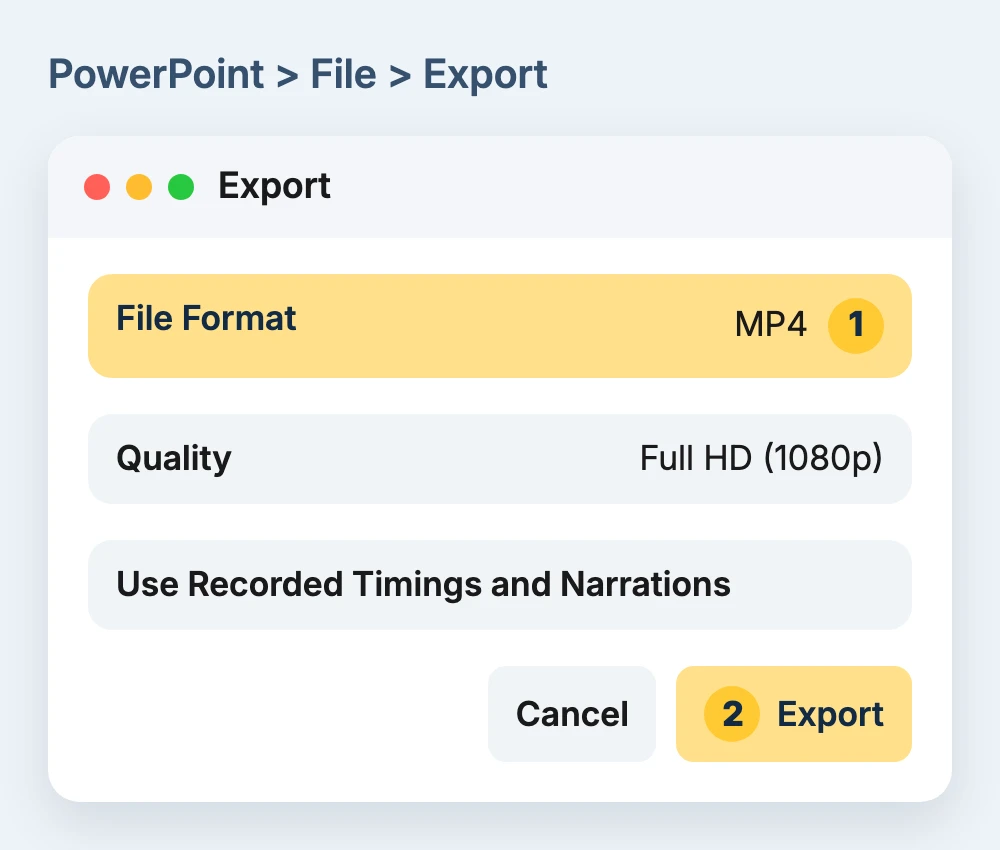
Launch desktop PowerPoint on the Mac and open your deck. Choose File > Export from the menu bar, then open File Format. Look for MP4 or MOV in that list.
Save As doesn't offer the movie options in the current Mac procedure. If that dialog only lists presentation and document formats, check Export before assuming video export is missing.
If File itself seems to be missing, look for File in the screen's Mac menu bar. The PowerPoint Mac File menu guide shows where to look.
When MP4 or MOV is available, select one and continue to the export check. If neither appears in Export, leave the presentation intact and check the app details next.
The Windows app uses File > Export > Create a Video. Don't look for that exact panel in the Mac app or assume its absence is a damaged installation.
2. Read the app version and the active license
Choose PowerPoint > About PowerPoint in the Mac menu bar. Note the version and the license information shown. Note both details, since an older installation can have the right version number but the wrong license.
Microsoft's Mac movie export requirements list Microsoft 365 for Mac version 15.23 or later, with a subscription license.
For the 2019 Mac release, the minimum listed version is 16.19. The current help page also covers the 2021 and 2024 Mac editions. Don't read the old subscription rule as a ban on every later one-time purchase.
For an Office 2016 installation, movie export can still be unavailable even when the version number looks recent. The thread's owner had bought a subscription but was still dealing with the retail version.
One owner later confirmed that technicians set up the correct version and restored video export. The fix was to correct the installed product and license, rather than change an option in the presentation.
If the account has an eligible subscription but About PowerPoint still reports a different license, continue with activation. If the version is too old, install the available app updates first.
3. Update and activate the eligible installation
For a Microsoft-installed copy, choose Help > Check for Updates, then let Microsoft AutoUpdate apply the available update. For an App Store download, use App Store > Updates.
Quit and reopen PowerPoint after the update completes. Recheck About PowerPoint, then return to File > Export. Changing an account in a browser doesn't update the running app's export dialog.
Sign in to Office using the subscription's own account. Personal and organizational subscriptions can use different email addresses on a single Mac.
If the license still doesn't match the subscription, ask Microsoft support to correct the Mac Office activation. Have the subscription details and the version and license from About PowerPoint ready.
The old thread includes advice to delete Office Group Containers folders. Those folders hold data for other Office apps too. Leave those folders intact while checking movie export.
I'd resolve the license mismatch before uninstalling Office. In the original thread, reinstalling alone initially left the owner with the same missing formats. A repeated install doesn't help if it activates the wrong product again.
4. Make a short export before committing the full deck
Once the movie formats appear, choose File > Export, select MP4 or MOV, and pick the video quality. Higher quality produces a larger movie, so choose a quality suited to the screen where you'll play it.
Select Use Recorded Timings and Narrations when the video should follow an existing recorded presentation. Without recorded timings, set how long each slide should remain on screen in the export options.
Choose Export and let the conversion finish. Open the saved movie in a video player before sending it. Check the beginning, a slide change, and a part with recorded speech.
Recorded narration in exported Mac videos requires version 16.19 or later in the subscription requirements. MP4 export in an older build doesn't necessarily include its narration.
If speech plays in the deck but is missing from the finished movie, use the PowerPoint narration export guide. That deals with a silent result after successful movie creation.
Keep the original presentation as well as the movie. The movie is for playback; it doesn't replace the editable slides, their notes, or the recording work you may need to change later.
5. Check the movie's limits before sharing it
The Mac export guidance warns that other embedded media files won't play in the exported movie, even though narration recorded in Slide Show can. Check any slide containing its own video or audio clip carefully.
The guidance also warns that some transitions differ and animation effects don't play in the movie. If the movie doesn't match the slideshow, review those limits before repeating the export with a different filename.
MP4 has broader playback support, while MOV needs a player that supports QuickTime movies. Pick the format your receiving device or service accepts, then verify the actual exported file there when possible.
Get the license and export dialog checked together
Contact Microsoft support when an eligible, updated Mac installation still has no MP4 or MOV choice. Send the version, active license, and a cropped view of File Format that hides private filenames.
Say whether a new blank presentation has the same choices. Ask support to check activation and the product installed on the Mac. That tells support the export choices are missing, rather than suggesting a problem playing an existing video.
The Short Version
Use File > Export, then inspect File Format. If MP4 and MOV are missing, check the version and license, especially with an Office 2016 retail installation. Correct activation first, then verify a short movie and its recorded audio.
Checked November 27, 2026.
 If you have any business, I can build it online