PowerPoint can keep listing a font in Replace Fonts because the template still contains its name. Check the slide masters first. A single-byte error stops the replacement, while a font missing from the choices needs an installation check.
For a stubborn double-byte error, one owner fixed hidden references in a separate PowerPoint XML copy, then saved it back as a presentation. Use this advanced method on a copy after the normal controls fail.
In this guide
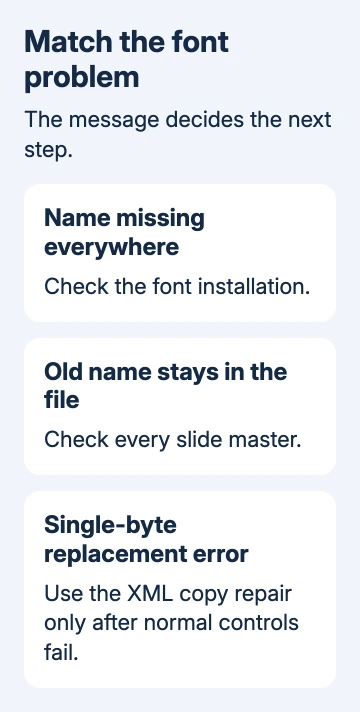
1. Match the failure before replacing anything else
Save a separate working copy of the presentation. Write down the exact old font name and the replacement you want. A family name with a weight such as Light or Medium may be a separate entry that needs its own replacement.
Open Home > Replace > Replace Fonts in desktop PowerPoint for Windows. Select the old font family under Replace, choose the installed replacement under With, and select Replace.
Microsoft's font replacement instructions distinguish changing selected text from replacing a family across the presentation. Use the family replacement when the same font appears on many slides.
If the new font can't be selected anywhere, check its installation first with the missing PowerPoint font checks. Editing the presentation's internal text won't install a font on your computer.
If replacement runs but the old name remains, continue to the masters. If PowerPoint reports that a single-byte font can't replace a double-byte font, keep that exact message for the XML step.
Single-byte and double-byte are older labels for sets of characters. The file may keep separate fonts for East Asian text or scripts with more complex letter shapes, as well as its font for ordinary Latin text.
2. Change the masters that still name the old family
Choose View > Slide Master. Look through the large parent master thumbnails and their smaller layouts. Select the title or body text using the unwanted font, then change its family.
On Slide Master > Fonts, select the heading and body font combination you want. If the file combines several templates, change each additional master too. One changed master doesn't update every unrelated master.
Choose Close Master View, return to the affected slides and save. Reopen Replace Fonts and check the old names again. A shorter list means some references changed, even if one stubborn family remains.
For the ordinary whole-deck workflow, the all-slide font guide explains master defaults and directly formatted text. Don't delete useful layouts just to make the font list shorter.
The owner who confirmed the XML workaround had already checked slides, notes and masters. Their file still contained Helvetica Neue references in font attributes for other writing systems, which normal visible-text changes hadn't cleared.
If the old names are gone and the file saves, you can stop here. If the same replacement error survives, use the advanced copy method rather than repeating Replace Fonts with the same pair.
3. Save a PowerPoint XML copy on Windows
Use File > Save As > Browse and look in Save as type for PowerPoint XML Presentation (*.xml). Give it a new filename in a separate folder. This is a PowerPoint save format, not a renamed .pptx file.
Keep the original presentation untouched, particularly if it contains macros or special features. The confirmed workaround used a .pptx presentation; don't rely on it to keep the macros in a macro-enabled deck.
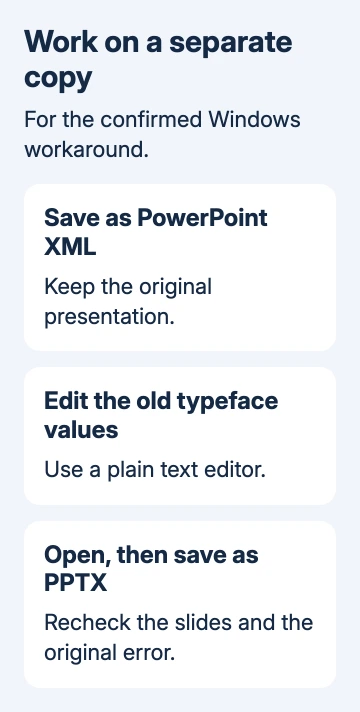
Close PowerPoint after saving the XML copy. Open that .xml file in a plain text editor, such as Notepad. Don't use Word to edit the code, because the file must remain ordinary XML text.
Use the editor's Find command for the full unwanted family name. Check each result before replacing it. Font settings use a typeface value. A font's name could also appear in ordinary slide text, especially in a presentation about fonts.
The owner found old names in a:ea and a:cs entries. Those entries name fonts for East Asian text and scripts with more complex letter shapes. A presentation can contain those entries even when its visible slides use English text.
If the save-type list doesn't offer PowerPoint XML Presentation, stop this method. Don't substitute an unrelated XML format or change the filename extension and expect the same file structure.
4. Replace the unwanted typeface names in that copy
Change the old font name inside the relevant typeface values to the exact name of your installed replacement. Leave all other XML names, quotation marks and punctuation unchanged.
For example, the confirmed owner replaced separate Helvetica Neue Light, Medium and base-family references with Calibri. Your file can use different names, so use the names in your copy rather than pasting names from that owner's file.
Replace each exact unwanted family entry, then search again to see what remains. Avoid a broad replacement of a short word that also appears in slide text or another family's name.
Save the XML file and close the editor. Open that file in PowerPoint. If PowerPoint reports unreadable content, return to the untouched original and ask the template owner to help with the copy.
If it opens normally, choose File > Save As and save a new PowerPoint Presentation (*.pptx). Reopen the new .pptx and retry the operation that previously failed: font replacement or saving with your required font settings.
The owner reported that this sequence cleared their problem. They later suggested editing a theme file too, but didn't report trying it successfully. Stick with the XML presentation copy they said worked.
5. Check the saved deck before sharing it
Compare the repaired presentation with the original in Slide Show. Pay special attention to long titles, tables, symbols and text in other languages. Different character widths can change wrapping even when the size stays the same.
A font that displays English may lack characters used elsewhere in the deck. If letters disappear or turn into empty boxes, choose a family that contains them. Clearing the warning isn't the only check.
For an embedding warning, turn the embedding option you want back on and save again. Turning embedding off lets a file save in some cases, but it doesn't remove the hidden references or supply fonts to another computer.
If the error persists, give support or the template designer your original file, both font names, app build and error message. I'd have the designer fix a shared company template once so each colleague doesn't need to edit XML.
The Short Version
Check masters when Replace Fonts leaves old names behind. For the confirmed double-byte case, use a separate PowerPoint XML copy, replace the unwanted typeface references and save back to .pptx. Review the actual slides before sharing.
Checked November 26, 2026.
 If you have any business, I can build it online