Stuck print jobs and conflicting printer drivers can make the Print Spooler keep stopping. Clear the pending jobs, restart the service, and check whether it fails again when a particular printer or document is used.
The spooler is Windows' print-job service, so a crash can affect several printers at once. Check whether it fails before printing begins or stops only after receiving a document.
In this guide
1. Empty the queue before sending another document
Close the print dialog in the app that's waiting. Repeatedly pressing Print can leave more copies of the same troublesome job queued, making it harder to see whether the service is working again.
In Windows 11, open Settings > Bluetooth & devices > Printers & scanners. Select the affected printer, then choose Open print queue. Cancel the waiting jobs until the queue is empty.
In Windows 10, use Settings > Devices > Printers & scanners. Select the printer and choose Open queue, then cancel its pending documents. Check other printer queues if several have jobs waiting.
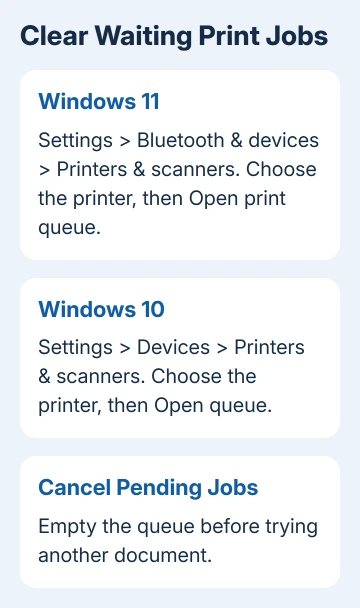
Microsoft recommends clearing pending jobs and checking drivers in its spooler repair instructions. A queue that stays empty gives the service a chance to restart without immediately retrying the same work.
If cancellation won't finish or the queue window won't open, continue to the restart. Note which printer had the waiting job. You'll need that detail if the crash returns only when you use that printer.
If the actual symptom is a busy service consuming processor time, the separate Spooler SubSystem App high-CPU checks cover that behavior. These steps address the service stopping.
2. Restart the service and watch when it stops
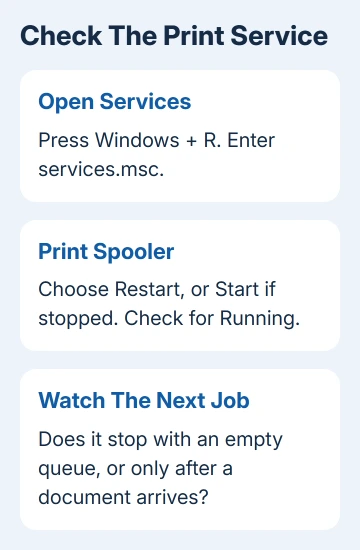
Press Windows + R, enter services.msc, and press Enter. Find Print Spooler in the Services list. Right-click it and select Restart; if it is stopped, choose Start instead.
Approve an administrator prompt if required. The service should show Running after it starts. If an error dialog appears instead, record its complete text and number before closing it.
If queued documents wouldn't cancel and the service fails again, double-click Print Spooler in Services and select Stop. Open %WINDIR%\system32\spool\PRINTERS through Windows search and remove the files inside that folder.
This cancels pending print jobs; keep the PRINTERS folder itself. Return to the service's properties, set Startup type to Automatic, select Start, and confirm with OK. Windows may request administrator approval.
Leave the queue empty briefly and check the status again. A service that stops before you send any document points toward a service, driver, or system problem rather than that document's content.
If it remains running, send a small, ordinary document once. Watch the queue and the Services window. A crash at that point tells you which printer and job were in use when the service stopped.
If only one app triggers the failure, try a small document from another app. If every app triggers it with the same printer, move to that printer's driver. Don't keep adding larger jobs while testing the service.
I'd note the exact time of the next stop. That makes the matching error much easier to find in Windows logs than searching through unrelated events from several days of normal use.
3. Replace the troublesome or duplicate printer driver
A driver is the software that translates an app's print request for the printer. Old or conflicting printer components can crash the spooler even when the printer itself has power and a working cable or network connection.
Open Start, type Device Manager, then select the matching result. Expand Print queues or Printers. Look for old, duplicate, or no-longer-used entries that belong to equipment you recognize.
Uninstall the printer entries you no longer need, then install the current driver for your exact printer model from its manufacturer's support site. An administrator may need to handle this on a work PC.
Device removal and removing a stored driver package aren't always the same operation. If an old package remains in use or won't uninstall, have IT or the printer maker guide that removal rather than deleting files from Windows folders.
Choose the replacement package by the complete printer model and Windows version. Software for a similar printer won't give you a reliable comparison, especially if the crashes began after you installed new printer software.
After installation, open the correct printer queue and try one small job. If the service stays running with that printer now, keep the new driver rather than returning to the old duplicate setup.
To add the printer again, follow the Windows printer setup steps. Confirm that the app's print dialog selects the intended entry rather than an older copy with a similar name.
4. Check a spooler that stops without a print job
Open Event Viewer from Start. Check Windows Logs > Application and Windows Logs > System around the time you recorded. Look for an application crash or service error connected with the spooler.
Save the event details, including any named component or error number. A printer driver named in a crash gives the printer maker something specific to check; the printer's offline icon alone doesn't provide that information.
Also check whether Windows is unstable in other ways. Repeated app crashes or resource errors need checking too. The printing failure could be part of a wider Windows problem.
On an organization-managed PC, ask IT whether a policy intentionally disables the spooler. Some security configurations stop the service, and repeatedly starting it won't help if that policy keeps stopping it.
Security software can also interfere with print components. Ask IT to review its logs and approved printing configuration. Don't turn off protection or add a broad folder exclusion just to see whether a document will print.
5. Escalate with the failed job and crash details
If crashes continue with a current driver and empty queue, give the manufacturer your printer model, driver version, Windows version, and event details. Explain whether it stops as soon as you send a document.
For a shared office printer, ask whether other computers fail too. If only one PC is affected, check its setup. If several computers fail through the same print server, have your administrator check the server itself.
Provide a harmless sample document if one file consistently triggers the crash. Keep private customer or work information out of a support attachment. A sample that triggers the same failure lets the support team see what goes wrong.
The Short Version
Cancel queued documents and restart Print Spooler. If it stops again, compare an empty queue with one small job, then check drivers and event logs. Send support the printer model, crash time, and error details.
Checked November 12, 2026.