A blinking red printer light usually signals missing paper, a jam or a cartridge problem. Check its label and error number before pressing Reset: the same color means different things on different models.
On a Canon PIXMA, an orange Alarm lamp can look red. Count its flashes between pauses and check whether the power lamp flashes alternately with it.
In this guide
1. Identify the warning before changing anything
Find the full printer model on its front or rear label. Then note which light blinks: Alarm, Error, Paper, Ink, Toner or another labeled indicator. A Wi-Fi light isn't the same warning as a paper light.
Watch a complete repeating cycle without holding any buttons. Write down the flash count, the pause and whether another lamp joins in. A short phone video can help you count the same sequence accurately.
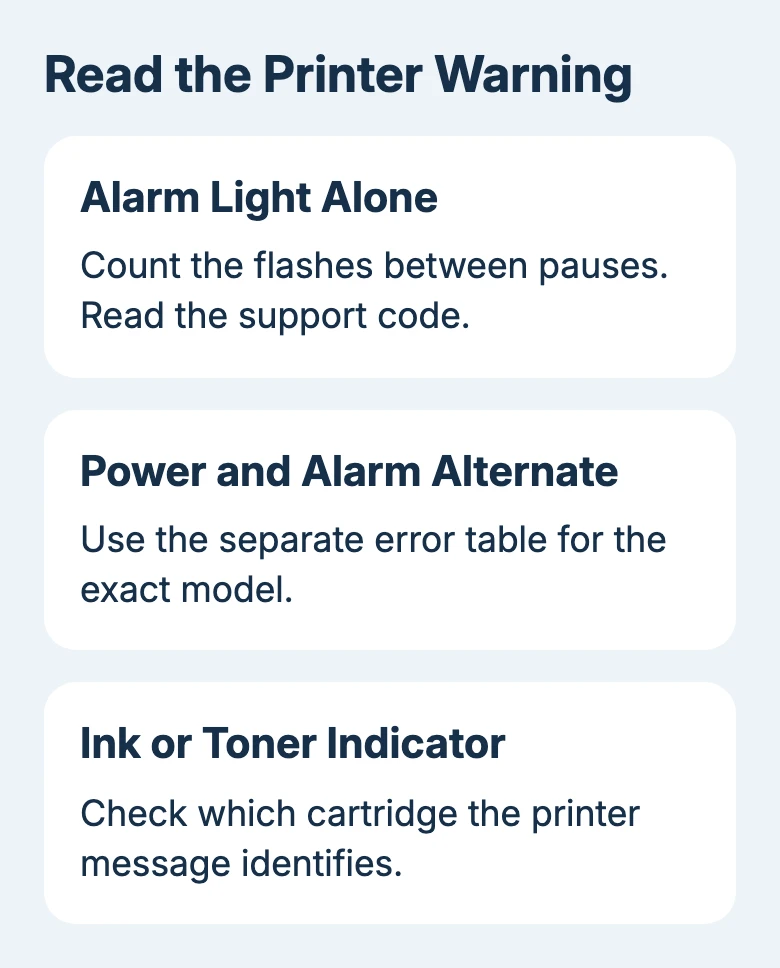
Read the computer's printer message if one is already displayed. On the Canon MG3600 series, a support code accompanies many lamp warnings. That number can separate several causes that share one flash count.
Canon's MG3600 lamp table lists several causes per count. Two Alarm flashes can mean missing paper, failed feeding or a paper-size mismatch. Three can mean a closed output tray or a jam. Read the support code to choose the action.
I'd record that combination before switching the printer off. A changing pattern after a button press is harder to describe to support, and a generic reset can erase useful setup without clearing the original fault.
The numbered examples in this guide apply to the MG3600 series. For a different Canon, Brother, Epson or HP model, use its own light table. Don't use the MG3600 flash counts to diagnose another printer.
2. Restore paper feeding when that is the reported error
For an MG3600-series 1003 warning, load paper in the front tray as directed by its manual and use the indicated Black or Color button to continue. Check that the paper is seated and the guides fit the stack.
Keep the stack within the tray's loading limit. Straighten folded or curled sheets and remove anything that doesn't belong in the paper path. A printer can't feed a sheet that its rollers can't reach correctly.
If two flashes accompany 2100 or 2101, compare the loaded paper size with the print settings. Adding more paper won't fix a size mismatch; choose settings that match the paper you intend to print on.
For three flashes with 1250, open the paper output tray. The printer needs somewhere to send the sheet. Once the tray is open, follow the message to resume the job rather than changing cartridges.
Try one page after fixing the problem shown by the code. If it feeds and exits normally and the warning clears, the paper problem is resolved. If the warning returns, record its current code before continuing to the next section.
3. Clear a jam through the route named by the support code
On the MG3600 series, 1300, 1303 and 1304 describe jams in different places. Use the removal instructions for the code shown rather than pulling at the first edge of paper you can see.
For 1300, the paper may be stuck at the output slot. Hold the sheet with both hands and pull it slowly without tearing it, following the model's instructions. If it won't come out easily, stop and use its internal-jam procedure.
If paper tears, the remaining piece can keep the warning active. Check the accessible path described in the manual, then close every cover you opened during those steps before resuming.
If you switched the printer off while clearing a 1300 jam, resend the job afterward: switching it off clears the print data. Otherwise, reload paper and use Black or Color to resume.
A repeated jam in the same location needs more than clearing the visible sheet. Tell the maker which paper you're loading, where it stops and whether the sheet is wrinkled. Ask for the feed-path checks for that model.
4. Match a cartridge warning to the correct cartridge
Four Alarm flashes with 1687 on the MG3600 series mean a FINE cartridge isn't installed correctly. Open the paper output cover as its cartridge instructions describe and confirm the cartridge's lock lever is fully raised.
Five flashes can have several cartridge-related codes, including a missing or unrecognized cartridge. Read that code before buying ink. An unrecognized cartridge needs different handling from an empty one.
Check that the replacement fits your exact model and whether its protective tape was removed as directed. Don't touch the nozzle surface or the cartridge's contacts.
For this series, 1688 with 16 Alarm flashes means ink has run out. Use a compatible replacement and follow the installation prompts. The Canon cartridge replacement steps cover the handling involved.
For a Brother laser with a toner message instead, use the Brother toner checks. A toner or drum warning shouldn't be treated as an inkjet-cartridge warning just because its light is red.
5. Use the service table for alternating lamps
Alternating ON and Alarm flashes on the MG3600 series have their own table. They aren't the same as Alarm-only flashes. Ten alternating flashes with B202, B203, B204 or B205 call for repair.
An ink-absorber warning needs its own instructions. Clearing a counter doesn't remove waste ink. Give support the code and ask about absorber service before attempting another model's button sequence.
Contact the printer maker's support team with the model, flash pattern, support code and the steps already tried. Ask for the matching error procedure or a repair estimate if that procedure ends in service.
If the hardware warning clears but Windows still can't print, move to the Windows printing checks. Then check the print queue and connection.
The Short Version
Match the printer's light sequence to its own error table. Use the support code to choose between feeding, jam and cartridge repairs. Alternating power and Alarm flashes have a separate table and may need service.
Checked November 29, 2026.
 If you have any business, I can build it online