Deleted iPad notes normally remain in Recently Deleted for 30 days. Open Notes, show the folder list, and check that folder first. If the notes vanished without being deleted, check the account they're stored in before trying a restore.
Notes in iCloud, a mail account, and On My iPad need different recovery steps. A missing account or a shared note removed from your list can explain an empty Recently Deleted folder.
In this guide
Start with Recently Deleted in Notes
Open Notes and show the Folders list. If a note fills the screen, use the folder or back control until you can see the folders. On a wide iPad window, that list may already be in the sidebar.
Select Recently Deleted and look for the missing note. Deleted iCloud notes normally go there. The folder appears only while it contains deleted notes, so a missing folder doesn't tell you why the note disappeared.
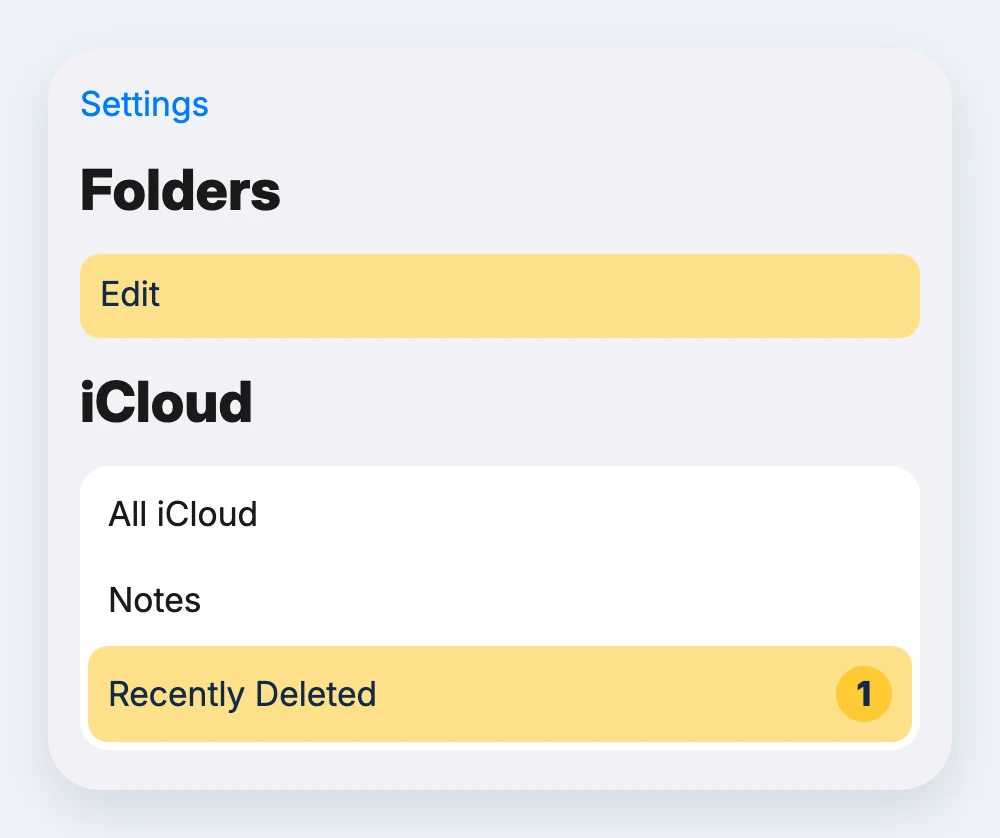
Apple's own iPad note recovery instructions say recovery is available for 30 days. Notes that have already been permanently deleted aren't kept there for another 30 days.
Open the note to inspect the contents before moving it. A similar title can belong to a different note, especially when several notes start with the same meeting name or date. Check the actual passage you're trying to recover.
Move the note back into a normal folder
In Recently Deleted, swipe left on the note and tap Move. Choose an existing folder or create one when offered. From the notes list, you can also tap Edit, select the note, then tap Move.
Open the destination folder and reopen the recovered note. Check its text, handwriting, and any attachments. Once it's back in a normal folder, it won't be sitting in Recently Deleted waiting to be removed.
Be careful to select Move, not Delete. Deleting a note from Recently Deleted permanently removes it, so that's the wrong action when you're trying to bring it back.
An iCloud note's deletion and recovery sync across that Apple Account. An iPad and iPhone showing the same deleted note aren't separate backups. After recovery syncs, the note should return to its chosen folder on both.
For an independent copy after recovery, the iCloud Notes export guide covers saving readable files. Exporting is a separate job from moving a note out of Recently Deleted.
Check the account when Recently Deleted is empty
Return to Folders and look at the account headings. A Gmail note isn't stored in iCloud just because both appear in Notes. Check each account's folders before assuming the note was deleted.
Open Settings > Apps > Notes > Notes Accounts. Tap the mail account that held your notes and check that Notes is on. On older iPadOS releases without the Apps grouping, begin at Settings > Notes > Accounts.
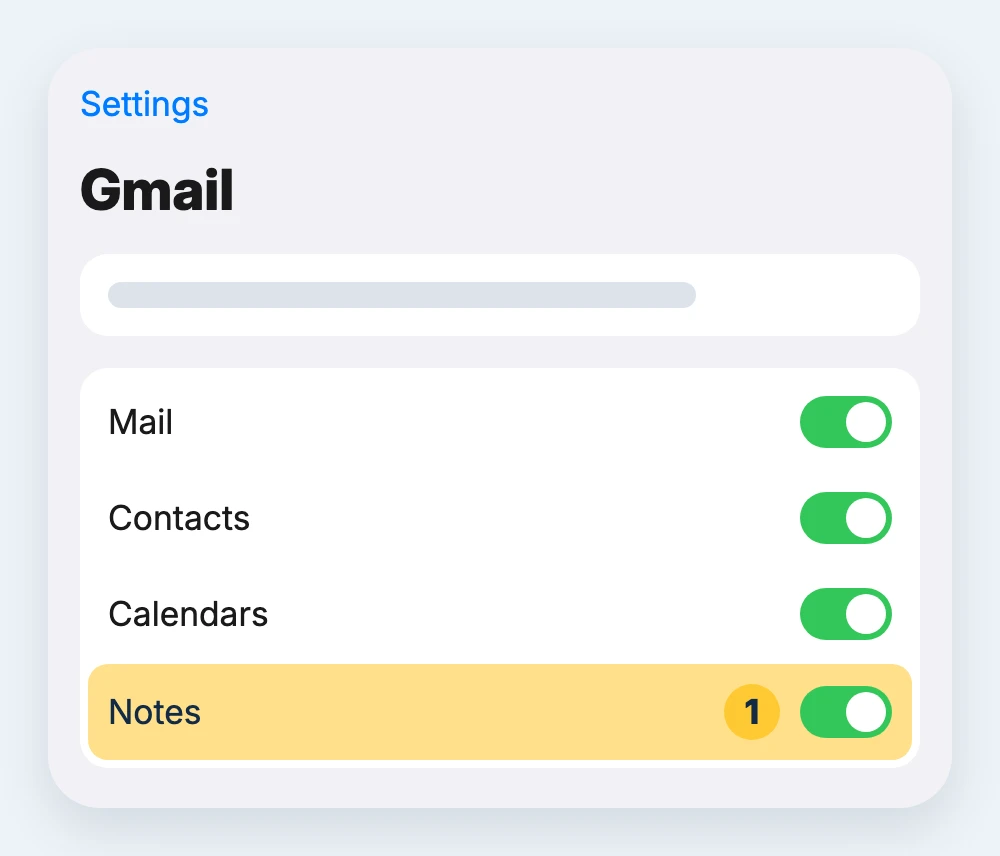
Add a removed account through Notes Accounts > Add Account and sign in. Use the original address; a different one won't retrieve that account's notes. Return to Notes and let its folders load.
If the folders reappear with the missing note, the notes were hidden because the account wasn't showing. If the account appears with Notes switched on but the note stays missing, check that account's trash and the search options next.
I'd check the account before trying any whole-device restore. It can bring back notes that weren't erased, without replacing your current iPad contents.
Look in Mail for Gmail or Yahoo notes
Open Mail, show the mailboxes for the account that stored the note, and check its Trash folder. A deleted note from a third-party account will usually be kept in that account's trash rather than iCloud's Recently Deleted folder.
When you find it, copy its text, create a new note in Notes, and paste the text there. Choose the account and destination folder for that new note, then read the copied passage to check it.
Each mail service decides how long to keep items in Trash. The 30-day iCloud Notes window isn't a promise about Gmail, Yahoo, or a work mail system. If the item isn't there, ask that provider about its deleted-item recovery options.
Mention any other missing mail-account data when you ask for help. Restoring a missing account can bring several notes back at once. One deleted note missing from an otherwise working account needs that provider's recovery help.
Search for a moved, locked, or shared note
In Notes, open the list and use Search. Type a memorable phrase and select All Accounts to include every account in the search. Scroll to reveal Search if it isn't visible immediately.
Locked notes can only be searched by their titles. If you remember words inside a locked note rather than its title, open the likely notes and check them yourself. An empty result won't tell you whether those words are inside a locked note.
Check other folders too. A note moved into another folder won't appear in Recently Deleted because it wasn't deleted. The iPad Notes guide explains the difference between an iCloud folder and notes kept locally on the iPad.
For a shared note you don't own, deleting it removes it from your list and doesn't put it in your Recently Deleted folder. Reopen the original sharing link. If the owner stopped sharing it, ask them to share it again.
When none of the recovery routes contains the note
Contact Apple Support for an iCloud note after checking Recently Deleted, accounts, and search. Give the account type, deletion date, and whether it was shared or permanently deleted. Ask about Notes recovery for that account.
For Gmail, Yahoo, or work notes, ask the account provider or administrator. Explain whether you removed the account, deleted the note inside Notes, or emptied its trash. Explain exactly what happened so they can check your recovery options.
Don't erase the iPad solely to search for an iCloud note. Notes that sync through iCloud aren't the same as notes saved in a device backup. A full restore won't necessarily bring back a note whose deletion has already synced.
The Short Version
Move a note from Recently Deleted into a normal folder. For mail-account notes, enable Notes for the account or check Mail trash. Search all accounts, check locked titles, and reopen shared notes with their original link.
Checked November 29, 2026.
 If you have any business, I can build it online