

Findquest stays locked in Edge because it installed itself as a browser policy. That's what the "managed by your organization" label means, even on a home PC no company has ever touched.
Edge won't remove an extension that a policy forces on it, so the Remove option stays gray, and resets or reinstalls leave it in place.
The fix is a malware scan, then deleting Edge's policy keys in the registry. Once the extension is gone, the boyu.com searches go with it.
In this guide
Why the Remove button doesn't work
Policies are settings an employer normally pushes to its PCs, and Edge obeys them over anything you click. Browser hijackers like Findquest write their own policy into the Windows registry, usually one called ExtensionInstallForcelist.
In edge://extensions, Findquest has a briefcase icon beside it. Hover over it and you'll see the "managed by your organization" message.
Resetting Edge or reinstalling it doesn't touch the registry, so the policy, and Findquest with it, survives both.
Once the policy is gone, Edge uninstalls the extension by itself. Anything taken off that force-install list is removed automatically, so you don't have to fight the gray Remove button.
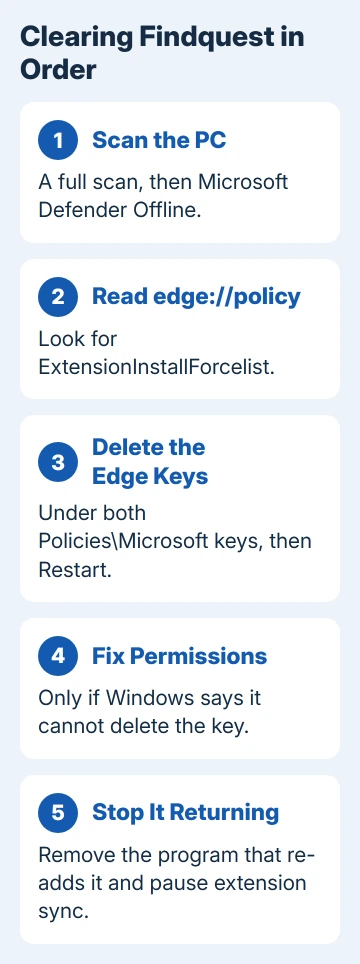
1. Run a full scan first
Something put that policy there, and it can put it back. Open Windows Security, go to Virus & threat protection > Scan options, choose Full scan and select Scan now.
Then run Microsoft Defender's offline scan from the same list. It restarts the PC and checks it before Windows loads, when hiding software can't defend itself. Our guide to the Windows virus scans explains how to read its result.
2. See what edge://policy lists
Type edge://policy into the address bar. A home PC normally has no Edge policies at all, so anything listed there was written by software.
Look for ExtensionInstallForcelist or ExtensionSettings. Their value holds the extension's ID, a long string of letters. Turn on Developer mode in edge://extensions and the same ID appears under Findquest.
Work and school PCs also carry real policies here, set by the IT department. On a managed PC, show the IT team what you found and let them decide what to remove.
3. Delete Edge's policy keys in the registry
Close Edge, press Windows key + R, type regedit and press Enter. Back up first with File > Export, choosing All under Export range, so you can put everything back if needed.
Paste HKEY_LOCAL_MACHINE\SOFTWARE\Policies\Microsoft into the path box under the menu bar and press Enter. If you see a key named Edge under Microsoft (keys look like folders in the left pane), right-click Edge and choose Delete.
I'd delete the whole key rather than hunt for single values inside it, unless you set Edge policies yourself.
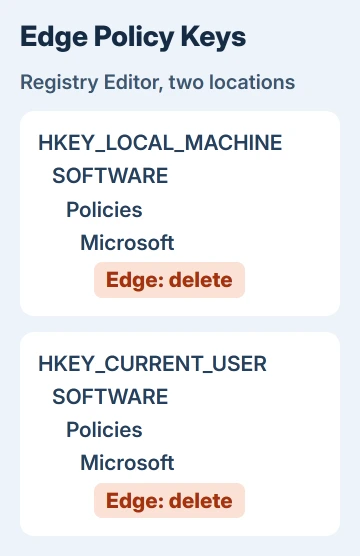
Do the same at HKEY_CURRENT_USER\SOFTWARE\Policies\Microsoft. Then restart the PC with Restart, not Shut down, because Shut down on Windows 10 and 11 can keep parts of the system in a saved state.
Prefer a command? The Edge extensions FAQ gives these two, to run in PowerShell opened as administrator:
reg delete HKCU\SOFTWARE\Policies\Microsoft\Edge /f
reg delete HKLM\SOFTWARE\Policies\Microsoft\Edge /f
Open Edge afterward, and you should find Findquest gone or removable, with the managed label gone too. This cleared Edge for one owner, though not Chrome, which keeps policies of its own.
4. When Windows says it can't delete the key
Some hijackers lock their key, so Windows answers your delete with "Cannot delete Edge: Error while deleting key." One owner beat the lock by changing the key's permissions first.
Right-click the Edge key, choose Permissions and look for any entry set to Deny. Change those entries to Allow with Full Control, select Apply, then delete the key again.
That owner wrote that the change "allowed me to finally delete the policies which has removed the extension and the organization." If the entries are locked and won't change, select Advanced and make your account the Owner first.
5. Back again within the hour?
A returning Findquest means a program on the PC is writing the policy again. Open Settings > Apps > Installed apps (Apps & features on Windows 10), sort by install date and uninstall anything you don't recognize from around the day it appeared.
One owner had to remove a program called NV optimizer along with it. Another saw the extension back an hour after deleting the policies, which is what a helper program re-adding them looks like.
Edge sync can also bring it back from another PC signed in to your account. Turn off Extensions in Settings > Profiles > Sync while you clean up; one owner did that on every device, and theirs stayed gone.
6. Chrome caught it too?
Findquest often hits Chrome at the same time, and Chrome keeps its policies under HKEY_LOCAL_MACHINE\SOFTWARE\Policies\Google instead. One owner deleted the extension's folder under Google there, and the hijacked search went with it.
They lost their saved tabs in the process, so note anything open first. Our page on Chrome's search engine changing by itself covers the Chrome side in more detail.
When it still won't go
Report the extension from Edge with Settings and more > Help and feedback > Send feedback, and include its name and ID. That's the report to send when an extension can't be removed.
After that, a local repair shop can clean the PC for you. Resetting Windows with Keep my files is the last resort, so back up your files before you start it.
The Short Version
Findquest locks itself in with an Edge policy. Run a full and an offline scan, then delete the Edge key under both Policies\Microsoft locations and restart. Fix permissions if deleting fails, and remove the program that re-adds it.
Checked November 19, 2026.
 If you have any business, I can build it online






