

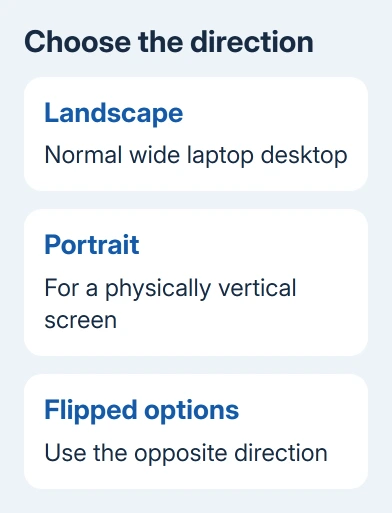
A laptop screen rotates through Settings > System > Display > Display orientation in Windows. Choose Landscape to straighten a sideways desktop, or Portrait for a screen you've physically positioned vertically.
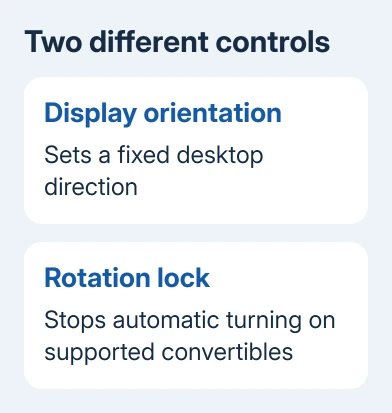
This changes the whole desktop. For a convertible that turns as you hold it, check Rotation lock instead. Use Display orientation for a fixed direction and Rotation lock when the picture keeps turning by itself.
In this guide
Select the intended display
Press Windows + I, select System, then open Display. Windows 11 uses this path, and Windows 10 keeps the controls there too. Alternatively, right-click the desktop background, then select Display settings.
With no external monitor, you're changing the laptop panel. With another screen attached, select its numbered rectangle in Display settings first. Otherwise, you can accidentally turn the laptop's picture instead of the monitor's.
Select Identify if the numbered rectangles aren't clear. A number appears on each screen so you can match the real monitor to its settings. Leave that screen selected while you change its orientation.
If both screens show identical content, check the projection mode with Windows + P. Duplicate repeats the picture. Extend gives each screen desktop space, useful for a horizontal laptop beside a vertical monitor.
I'd select the monitor by its number before touching the orientation menu. It's an easy detail to miss when Settings opens on the laptop but you intend to change the external monitor.
Set the orientation and confirm the result
In Windows 11, find Scale & layout, then open Display orientation. On Windows 10, the same Display page contains the orientation control; some instructions call it Orientation. Choose the direction that matches the screen's position.
- Landscape is the normal wide desktop on a laptop.
- Portrait turns the desktop for a vertical display.
- Landscape (flipped) turns the wide desktop upside down.
- Portrait (flipped) uses the opposite vertical direction.
After choosing an option, check that the picture faces the right way before confirming. Select Keep changes when it's right. Choose Revert if the result is awkward or the screen is facing the wrong way.
For an accidentally sideways desktop, try Landscape first. Leave the computer in its normal position while changing the setting. The pointer can feel strange with a sideways picture, so take your time reaching the menu.
For a vertical monitor, match the setting to its physical position. Turn the monitor only if its stand supports that movement. A standard laptop hinge opens and closes; it isn't a swivel mount for turning the panel sideways.
Check a familiar window's title bar and text after turning the picture. The desktop should fill the screen in the intended direction. For text that's upright but too small, change Scale separately.
Microsoft explains in its display instructions that orientation is separate from resolution. Resolution controls the number of pixels; it doesn't straighten an upside-down desktop.
Use Rotation lock when a convertible keeps turning
A Windows tablet or a laptop that folds into tablet mode can support automatic screen rotation. In that case, the desktop can turn when the device changes position even though you've already chosen a useful orientation.
For Windows 11 hardware that supports it, open Quick Settings with Windows + A and look for Rotation lock. Turn it on to hold the current direction. Windows 10 places that control in Action Center, also opened with Windows + A.
The control depends on whether your device supports rotation and how it's positioned. A standard laptop without automatic rotation may lack it. You can still choose Landscape in Display settings without a Rotation lock button.
On a convertible, try its supported tablet position if you can't use the rotation controls in laptop mode. Follow the model's hinge or detachable-keyboard instructions. Don't bend a standard laptop past its normal range.
Test by changing how you hold the device. With rotation locked, the picture should keep its direction. Turn the lock off when you want the screen to follow the device again, such as while reading in tablet mode.
Skip an old shortcut that your graphics software dropped
Some keyboard guides recommend Ctrl + Alt with a direction key. That shortcut doesn't work on every Windows computer. It depends on the graphics software; no response doesn't mean the keyboard or screen has failed.
Intel removed rotation controls and rotation hotkeys from certain Graphics Command Center versions, including the change described for version 1.100.4779.0. Its replacement instruction directs users to Windows settings.
Use the orientation menu rather than installing old graphics software for one shortcut. The visible menu also confirms which screen you're changing. Replacing a graphics driver is a much bigger step than this task needs.
If the machine is actually a Chromebook, use its Chromebook rotation controls. The Windows menu names and keyboard advice don't apply to ChromeOS, even when the computer looks like an ordinary laptop.
Get help when Windows can't change the picture
If the orientation control is missing or immediately resets itself, note your laptop model, Windows version and any connected monitor. Restart the computer, then revisit the selected display.
For a managed work laptop, ask your IT team whether display settings or graphics drivers are controlled. For a personal machine, ask the laptop manufacturer's support team about its graphics driver and rotation support for the exact model.
A picture with lines, cracks or dark patches needs a different check. Turning the desktop won't repair a damaged panel. The broken laptop screen guide explains using another monitor when the built-in panel can't show a usable picture.
The Short Version
Open Display orientation for the selected screen. Landscape restores a normal desktop. For a convertible that turns itself, check Rotation lock. Use the settings menu when an old shortcut does nothing.
Checked November 15, 2026.
 If you have any business, I can build it online






