

Background software can freeze Save As in several apps. Check startup programs, particularly a printer update notifier, then check whether a clean boot stops the freezing. Ending File Picker UI Host only closes the stuck window.
The important difference is whether one program freezes or several unrelated programs do. If Save As hangs in both a photo viewer and a browser, check what they share in Windows. A damaged photo alone wouldn't explain both apps freezing.
In this guide
1. Check a printer update app before changing Windows
On Microsoft's forum, an owner traced their Save As freeze to SoftwareUpdateNotification, a Brother printer startup app. Disabling it restored saves. A clean boot led them to it; file repairs and app updates hadn't helped.
Open Task Manager with Ctrl + Shift + Esc. In Windows 11, select Startup apps. On Windows 10, open More details if needed, then select the Startup tab.
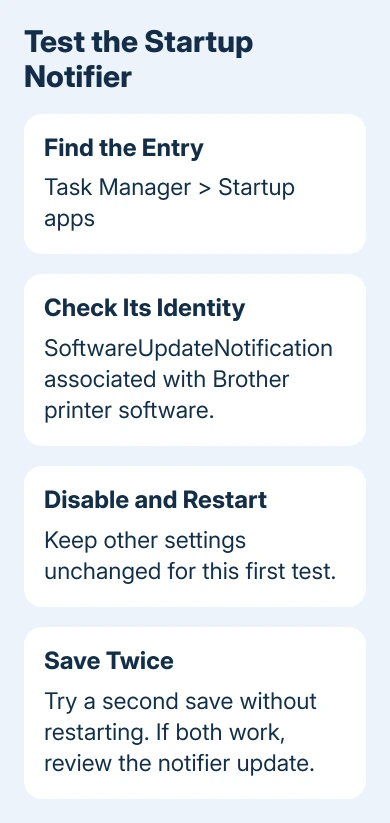
Check SoftwareUpdateNotification by publisher or file location to identify the printer app. Select the matching entry, choose Disable, and restart the computer. This changes automatic startup; it doesn't uninstall the printer.
Reopen the app that froze and save a small file to Documents. Then save a second file without restarting. The owner could sometimes save once before the next save froze. Check both saves before judging the change.
If repeated saves now work, leave that notifier disabled while checking for an updated version of the printer software. Test printing separately before assuming all printer functions are unaffected.
If the entry is absent, don't disable other apps just for having Update in their names. That owner's fix was for this specific Brother app. Use the clean boot procedure to test other background apps.
2. Test Save As without background extras
A clean boot temporarily stops nonessential services and startup apps. It tests Save As without those extras. I'd try this before moving to another Windows profile when several apps share the frozen file window.
Keep a record of what's enabled before making changes. On a work computer, ask IT to handle this test so required security and management software stays under their control.
- Open Start, type msconfig, and select System Configuration.
- Select Services, then check Hide all Microsoft services.
- Select Disable all, then Apply.
- Open Startup > Open Task Manager.
- Disable the startup items that are currently enabled, recording each one.
- Close Task Manager, choose OK in System Configuration, and restart.
Use Microsoft's clean boot procedure for the complete Windows 10 and 11 sequence. Keep every setting under Boot unchanged.
Now repeat the same saves, in the same app and local folder. A different file, app or destination would muddy this comparison with the clean boot.
If saves work, restore the disabled items gradually as described next. If freezing persists, return to the recorded settings and compare accounts. Leaving everything disabled won't help when saves still freeze.
3. Bring back the working startup configuration
When saves work during the clean boot, reenable groups of the recorded items, restarting and trying repeated saves after each change. Testing half a group at a time can cut down the number of restarts needed.
If freezing returns, disable that group and test smaller groups from it. Continue until reactivating one item makes saves freeze. Then you can update that item or leave it disabled while using the others.
For services, return to System Configuration > Services and keep Hide all Microsoft services selected while working with the non-Microsoft list. For startup apps, use Task Manager's Enable and Disable controls.
Restore other items to their recorded states afterward. Use the clean boot page's normal-startup instructions when ending the test, then check that the suspect item hasn't been reenabled.
The owner wasn't sure the printer software caused the original fault. They confirmed that disabling its startup entry and restarting restored saves. Check the same before-and-after behavior on your PC.
Send the software publisher the app name, version, and result of enabling it again. Those details help the publisher check the fault. You don't need to blame the printer hardware or remove every printer driver.
4. Compare accounts if a clean boot changes nothing
Try the same app and a small local file in another Windows account. If needed, use the steps to add a separate Windows account while keeping your original account and files in place.
If saves work in the second account, settings or software tied to the first account need attention. Keep the original profile and give support that comparison before migrating documents and settings.
If both accounts freeze, and several apps are affected, repair Windows system files using an administrator Command Prompt. Run these commands in order, letting DISM complete before you enter the SFC command:
DISM.exe /Online /Cleanup-Image /RestoreHealth
sfc /scannow
Restart after repairs and test again. The original owner had damaged files repaired but Save As still froze, so you still need to try saving again after a successful repair message.
5. Send the remaining pattern to support
If the whole Explorer window also hangs outside Save As, compare that behavior with the File Explorer not responding guide. A search-index freeze and a startup-software conflict need different repairs.
If only one app freezes, send its publisher the app version, file type and save location that trigger it. For failures across apps after a clean boot, give Microsoft Support those details plus the account comparison and repair results.
Mention whether the first save succeeds and the second hangs. That detail separates the original pattern from a window that won't open at all, and it gives support a short test they can repeat.
The Short Version
Start with Brother SoftwareUpdateNotification if present, then try repeated saves after restarting. Otherwise, test with background extras disabled. Restore useful startup apps and check another account before migrating a profile.
Checked November 17, 2026.






