Old per-user Segoe icon fonts can leave Windows 11 showing squares after an upgrade. Check the same controls in a fresh account first. If they work there, remove only the conflicting font copies installed in your original profile.
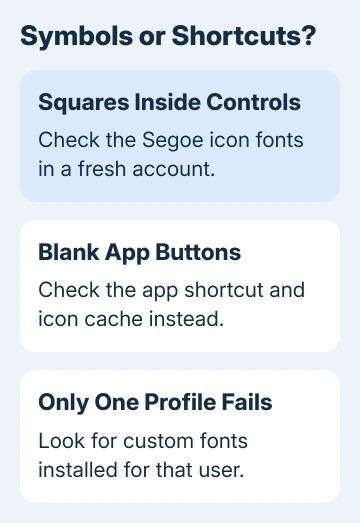
This is especially relevant after installing Windows 11-style icons on Windows 10. Missing symbols inside buttons are different from blank app shortcuts. Clearing the app-icon cache won't remove a conflicting font installation.
In this guide
1. Compare the same missing symbols in another account
Note where the squares appear, such as Task Manager's action buttons or the notification panel. Check the same locations after each change. A working sidebar doesn't mean every symbol in the font is working.
Microsoft's Segoe Fluent Icons reference explains that this font supplies interface symbols. Segoe MDL2 Assets is an older icon font; ordinary Segoe UI text uses a different font.
Create a temporary account through Settings > Accounts > Other users > Add account. On older Windows 11 layouts, the page can be called Family & other users. Follow the account-creation prompts.
For a local account, choose I don't have this person's sign-in information, then Add a user without a Microsoft account. The Windows account instructions explain the available account types.
Sign out completely from your original account and sign in to the temporary one. Open the same Windows controls and compare their symbols. Don't install your custom fonts into this fresh account before making that comparison.
If the symbols work there, the trouble follows your original profile. If they fail in both accounts, skip the per-user removal and use the system-file route in step 5. A shared failure needs a wider repair.
2. Identify the fonts installed only for your profile
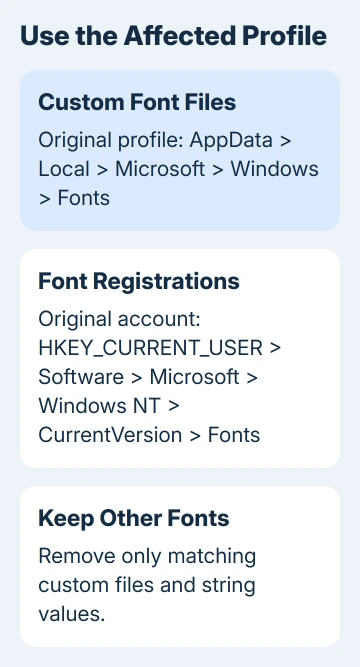
Return to the affected account. Press Windows+R, enter %LOCALAPPDATA%\Microsoft\Windows\Fonts, and press Enter. This is the per-user font folder, separate from C:\Windows\Fonts.
Look for the icon fonts you previously downloaded or installed. Use their font details and your installation history to identify them. Don't remove unrelated custom fonts just because their filenames look similar.
One owner in the original thread had installed older Fluent Icons, MDL2 Assets, and a modified emoji font on Windows 10. After upgrading, some Windows 11 controls displayed squares while others still looked normal.
The symbols worked in that owner's test account. Removing the conflicting files from their original profile fixed the display. Their later reply also described removing the matching per-user registry entries.
The Windows font installation guide explains the difference between installing for one user and installing for all accounts. This repair targets the first case, rather than replacing Windows' system fonts.
Before changing anything, back up the custom font files you've identified in a separate folder, outside the Fonts directory. Write down their names so support can identify exactly what changed if the repair needs more work.
3. Remove only the conflicting per-user font copies
Open Settings > Personalization > Fonts and find the custom font you identified. If Windows offers Uninstall for that installed copy, use it. Check the location and font identity before confirming removal.
If Windows says the file is in use, fully sign out from that affected profile. Use a separate administrator account to access the original profile's folder and remove the identified custom files there.
The path is C:\Users\ORIGINAL-PROFILE\AppData\Local\Microsoft\Windows\Fonts. Replace ORIGINAL-PROFILE with the actual original profile folder. Typing %LOCALAPPDATA% from the temporary account opens the temporary account's folder instead.
Don't take ownership of C:\Windows\Fonts or delete its Segoe files. The confirmed repair removed downloaded copies from one user's profile; it didn't replace protected system fonts or empty an entire font collection.
Sign back in to the original account and inspect the controls you noted. If the symbols return, removing those per-user copies has fixed the display. Finish by checking their matching registration entries in the next step.
If you can't tell which files belong to the fonts you installed, stop and ask support to identify them. Don't delete every file with Segoe in its name.
4. Clean up the matching per-user font entries
While signed in to the original affected account, press Windows+R, enter regedit, and press Enter. Approve the prompt, then navigate to this key:
HKEY_CURRENT_USER\Software\Microsoft\Windows NT\CurrentVersion\FontsThis key belongs to the account running Registry Editor. Opening it from the temporary account would show that account's font registrations, so confirm which account you're using before editing.
Select the Fonts key and choose File > Export to save its backup. In the right pane, inspect each relevant entry's name and data. Match it to the custom font file you removed.
Delete only those matching string values. The original owner kept their other custom fonts and removed the entries for the three fonts they'd changed. Deleting the entire Fonts key would discard unrelated registrations too.
Close Registry Editor and restart Windows. Return to Task Manager and the notification panel to check the exact symbols that failed. If text and symbols display normally, leave the remaining fonts alone.
5. Do both accounts need system repair?
For squares that appear in both accounts, search Command Prompt from Start. Select its Run as administrator option. Run these commands in order, waiting for the first to finish before starting the second:
DISM.exe /Online /Cleanup-Image /RestoreHealth
sfc /scannow
The system-file repair procedure repairs Windows components. It isn't a substitute for removing an older font registered only in one profile.
In the original case, SFC, DISM, restoring default font settings, and reinstalling downloaded icon fonts hadn't helped. Because the symbols worked in another account, repeating those repairs wasn't the answer for that owner.
If the symbols are still missing, open Get Help. Include your Windows build, which controls are affected, whether they worked in the other account, and the repair commands' final messages.
For blank application buttons instead, use the taskbar icon-cache guide.
The Short Version
Compare the missing symbols in a temporary Windows account. If they work there, back up and remove the original profile's conflicting custom fonts and matching current-user font values. Use system repair when both accounts fail.
Checked November 16, 2026.
 If you have any business, I can build it online