

Send to > Mail recipient uses the registered desktop mail client, not the MAILTO setting for email links. Correcting that registration restored classic Outlook for an owner whose files still opened Notes after changing MAILTO.
First check which action fails. A web email link, an .eml file and Explorer's Mail recipient command don't all use the same Windows app setting.
In this guide
1. Match the failed action to its mail setting
Open Settings > Apps > Default apps. Search for MAILTO in the file-type or link-type search field. Click the listed app, pick your installed Outlook edition, and confirm.
This chooses the app that opens when you click a link to write an email. If those links now open the right app, the MAILTO choice has worked. It doesn't tell you which program Explorer will use to attach a selected file.
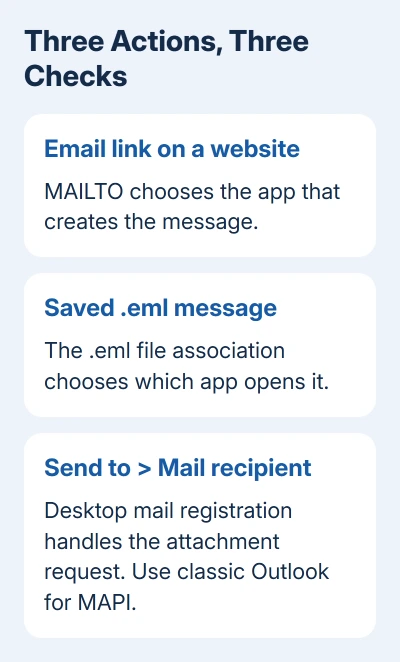
For saved messages, search for .eml in Default apps and choose its app separately. The Windows default-app guide explains the separate choices for files and links.
Now right-click an ordinary document in File Explorer. Windows 11 puts it under Show more options > Send to > Mail recipient. On Windows 10, Send to is in the traditional right-click menu without that extra step.
If the wrong desktop email program opens only through Send to, continue by checking which desktop mail app is registered. The command uses MAPI, a Windows interface that lets desktop programs ask a mail client to create a message.
Don't reset all Windows defaults to repair this one action. That would also disturb your browser and file choices without necessarily correcting the registered desktop mail app.
2. Confirm classic Outlook can create a message
Launch Outlook from Start rather than from the failed shortcut. Classic Outlook has the File tab and its traditional account settings. New Outlook's interface and links to other desktop programs work differently.
Create a message and attach the same document manually. Stop before sending it. If that works, your account can attach that file; the remaining problem is how Explorer passes it to the mail app.
If Outlook won't launch, use the Outlook opening checks first. A registration change can't make a broken Outlook installation open successfully.
Microsoft's Outlook comparison lists MAPI as unsupported in new Outlook. Use this fix for installed classic Outlook.
For new Outlook, create a message there and use its attachment control or drag the document into the message. Don't register a classic mail client that isn't installed just to make an old Explorer command appear compatible.
If you have both editions installed, choose which one should handle Explorer attachments. Test classic Outlook directly before selecting it in the registry. That way, the wrong edition won't look like another failed default-app setting.
3. Read and back up the current desktop mail choice
Open Command Prompt from Start under your normal Windows account. Enter:
reg query HKCU\Software\Clients\Mail /veThe result shows the default value for the current user's registered desktop mail client. In the reported case it showed HCL Notes, even though Outlook had already been selected for MAILTO and .eml.
Write down the returned value. A message that the key or value can't be found means there isn't a value at that location to read; it doesn't tell you whether Outlook is registered correctly elsewhere.
Before editing, press Windows + R, type regedit, and press Enter. Browse to HKEY_CURRENT_USER\Software\Clients\Mail, right-click that Mail key, choose Export, and give the exported backup a recognizable name.
That backup saves the key as it is now. On a managed work PC, have IT handle restricted registry changes. They should check the current user's desktop mail registration, rather than changing MAILTO again.
4. Set the current user's client to classic Outlook
Close the unwanted email app and any unsent test messages. In the normal Command Prompt window, run:
reg add HKCU\Software\Clients\Mail /ve /d "Microsoft Outlook" /t REG_SZ /fThe command writes Microsoft Outlook as that key's default text value. It changes the desktop mail-client choice for the current user; it leaves your email address, mailbox and installed Outlook edition as they are.
The asker in the default-mail thread confirmed this registry change fixed it. Their Office repair hadn't corrected the choice.
Run the query from step 3 again and check that the result now reads Microsoft Outlook. Return to Explorer and repeat Send to > Mail recipient with one small document.
Classic Outlook should open a new message with your file attached. Close the draft if you were only testing. Don't send a message just to prove which app received the file.
5. Have IT check the machine setting if it still fails
The thread's adviser also suggested checking the equivalent machine-wide mail-client value when the user value wasn't enough. The asker didn't confirm that second change worked, so it isn't a certain next fix.
On a work PC, give IT the current-user query result and ask them to inspect HKEY_LOCAL_MACHINE\Software\Clients\Mail, classic Outlook's installation and any mail policies. This is more useful than another general default-app reset.
For a personal PC, give Outlook support these details: Windows version, classic or new Outlook, which app opens, and whether manual attachment works. Mention that MAILTO works if it does.
The Short Version
Set MAILTO for email links. For Explorer's Mail recipient action, confirm classic Outlook works, back up the current-user mail key and correct its desktop client value. Use manual attachment with new Outlook.
Checked November 17, 2026.






