
A Sent via iCloud collection stuck on Saving Photos hasn't finished adding pictures to your library. Open its original link in Safari and try Download instead. This uses the browser to receive the shared files.
An expired link needs a new share from the sender. A collection that opens but won't save needs connection and storage checks. These are different from your own iCloud Photos library being paused during its regular sync.
1. Open the original link and check whether it still works
Return to the message or email containing the shared collection. Open its original iCloud link rather than a screenshot of its preview. Check whether you can see the photos or whether the page reports that sharing is unavailable.
If the message's collection view keeps returning to the same saving screen, copy the actual link and paste it into Safari's address field. A working browser view gives you another route to the photos and videos.
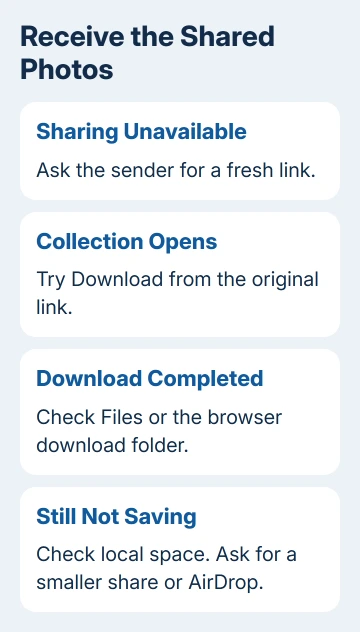
Apple says iCloud links expire after 30 days, unless the sender stops sharing sooner. Restarting won't reopen a removed collection.
Request a new link from the sender if it has expired or sharing has stopped. Be specific: ask them to select the original photos again and create a new share, rather than forward the same expired message.
If the pictures open, keep that link available while you check that the files save. A visible preview means the collection can be viewed; it doesn't confirm that full copies are already saved on your device.
2. Download from the link instead of repeating the stuck save
In the working link's page, look for its Download option. Select just the items you need if the page gives you that choice. The exact choices can differ between a phone browser and a computer.
The iPhone sharing guide describes an iCloud Link as a way to view or download shared photos and videos. It isn't limited to adding a collection through the Messages preview.
Allow the browser download to finish, then check its destination. On an iPhone or iPad, look in Files > Browse > Downloads, including Downloads under iCloud Drive or On My iPhone, depending on where you've set Safari to save downloads.
On a Mac or Windows PC, inspect your browser's download list, then the chosen download folder. A completed download can be a file or a compressed collection rather than a new album automatically added to Photos.
If the result is a ZIP file, open it to extract the contents before looking for individual pictures. On iPhone and iPad, tap the archive in Files, then open the folder created from it.
To put a downloaded picture into the iPhone's photo library, open it and use its Share control, then the available Save Image or Save to Photos action. Check the saved picture in Photos before removing the downloaded file.
I'd try a small selection first when the collection includes long videos. If it saves, you can receive the rest in manageable groups rather than start the whole collection over after every failed attempt.
3. Check device storage and the connection
Open Settings > General > iPhone Storage, or iPad Storage on an iPad. Look at the available space and the recommendations. Receiving full photo and video files needs local space even when their previews are already visible.
Device storage and iCloud storage are separate. Buying more iCloud storage doesn't create free space inside a full iPhone. Start with the storage page for the receiving phone or tablet.
Use a recommendation you understand, or remove an unneeded downloaded file after checking its contents. Don't delete the only copy of a photo collection to make room for a download that hasn't completed yet.
Check the connection by opening another website, then try the collection on a different working Wi-Fi network if available. A page loading its first thumbnails doesn't mean every large video can finish downloading over that connection.
If Safari itself can't load unrelated pages, deal with that connection problem first. If websites work but only this collection fails, ask the sender whether sharing is still active and try a small new selection.
4. Have the sender verify originals or use another transfer
Ask whether the sender can open the originals and play the videos. For items still uploading, check their iCloud Photos sync status before making another share.
The sender's upload and your save are different operations. Resetting your phone won't complete an upload that hasn't reached the sharing service. Have the sender resolve the unavailable original before making another link.
If you're together with Apple devices, ask for the selected files through AirDrop instead. That sends the files without using the iCloud link. Keep Wi-Fi and Bluetooth on and approve the transfer on the receiving device when asked.
For moving your own pictures to a Mac, the iPhone-to-Mac transfer choices cover cable imports too. Importing by cable puts a copy on the computer without another iCloud share.
Keep the sender's originals until you've opened the received photos and played the videos. Confirm that the files you need are present, rather than judging success by a thumbnail count or a disappearing progress message.
5. Separate a stuck collection from ordinary photo syncing
If the pictures are already in Photos but haven't appeared on another device using your account, the shared-link download may be finished. Check that device's library status and account before asking for a new share.
If Messages still says Saving Photos, check for pictures already received before retrying. Their capture dates can be older than today, so a date-sorted library may place them among older photographs.
If neither route works, record the iOS or iPadOS version, exact message, and whether a new small share works. Tell Apple Support that an iCloud Link won't save, and include those details.
Ask for help downloading the collection or adding it to Photos. That helps support separate an expired share, the sender's upload and the problem saving it on your device.
The Short Version
Try Download from the original iCloud link when Saving Photos stalls. Expired links need a new share. Check local space, connection and the saved-file destination, then ask for a smaller resend or AirDrop if needed.
Checked November 9, 2026.

Isaac Smith is the founder and editor of PC Glance, a website that covers computers, laptops, and technology. He is a tech enthusiast and a computer geek who loves to share his insights and help his readers make smart choices when buying tech gadgets or laptops. He is always curious and updated about the latest tech trends.