

Windows 10 stuck at Setup is starting has reached the installer. Disconnect unnecessary devices and retry, then rebuild the installation media if it hangs again. The moving hourglass alone can't tell you why it's stuck.
Watch for two related cases: Setup can return to Install now or show a missing-media-driver message. Note which one you see. Try a fresh installer or check the error before considering any step that erases your disk.
In this guide
1. Retry with only the devices Setup needs
Keep the charger connected on a laptop. Disconnect printers, extra external drives, USB accessories and the dock. Leave the Windows installation stick connected, along with the keyboard, mouse and display needed to use Setup.
Microsoft recommends removing nonessential external hardware when installation or upgrade errors occur. Trying Setup without those devices helps you check whether they're involved. It doesn't mean one of them is broken.
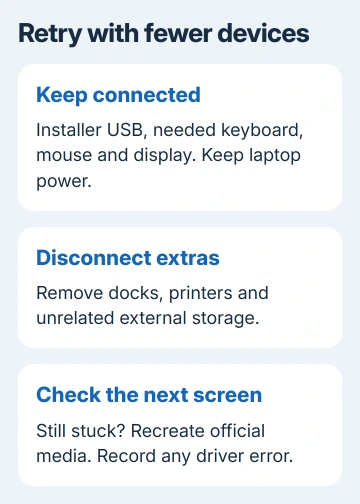
If the screen stays unchanged and Setup hasn't started copying files, restart the PC and select the installation USB again. Use a direct USB port instead of a hub or dock for this retry.
Continue through the language and keyboard screen, then select Install now once. Progress to the license, product-key or installation choices shows you've passed the original stopping point. If it hangs again, continue with fresh media.
A short pause at this screen can be normal. Use these checks when Setup repeatedly stops there and never reaches an installation choice. No single time limit tells you when this screen is stuck.
2. Recreate the installer on a working PC
Use a working Windows computer and open the official Windows 10 download page. Find Create Windows 10 installation media and select Download Now, rather than the separate Update now choice.
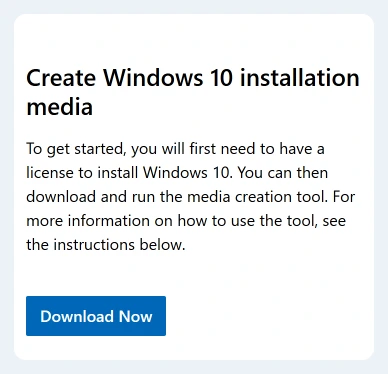
Choose an empty USB drive holding 8 GB or more. The creation process erases it, so confirm which stick you selected and save anything needed elsewhere.
Run the Media Creation Tool, accept its terms and choose Create installation media for another PC. Choose the PC's language, edition and architecture (32-bit or 64-bit), then USB flash drive and your intended drive.
Remove the USB after the tool reports it is ready. If rebuilding it fails, try a different USB drive. That replaces both the stick itself and the installation files on it.
Simply copying an ISO file onto a plain USB isn't the same preparation process. The Windows 10 ISO instructions explain the difference between saving a disc image and making media the PC can start from.
Restart the target PC from the completed USB and check whether Install now advances. I'd try this before changing storage settings in firmware, because it doesn't alter how the existing Windows installation accesses its drive.
3. Match the next message instead of repeating the same fix
If Setup is starting returns to Install now, the installer hasn't started the installation. Recreating the installation media is still a sensible next step. Don't treat the loop as a request to delete partitions or enter a new product key.
One owner on Super User fixed that exact return-to-Install-now loop by burning an official Windows 10 image to DVD. Their USB attempt still failed, but installation from DVD completed without changing the PC's hardware.
Try a DVD if your computer has a suitable drive. The owner's result doesn't mean USB installation can't work on that model. Use current official Windows 10 media, rather than seeking the owner's old release.
If a media driver is missing message appears, write it down. Setup has produced a more specific error than an endless starting screen. Ask the PC maker about installation-media and storage-controller requirements for the exact model.
If Setup reaches the drive list but the SSD is missing, it may need a driver for that model. Get the maker's Windows 10 steps before loading drivers or changing RAID, VMD or AHCI, which control how the PC accesses storage.
4. Check whether you meant a repair installation
Starting a PC from the USB and running setup.exe inside an existing Windows session are different routes. If the old Windows desktop still opens and you want to keep programs, start from that desktop instead of booting the stick.
Open the USB in File Explorer, run setup.exe, then review Change what to keep. Continue only when the summary offers the files and apps you intended to retain. Back up personal files before starting an installation.
The Windows 10 USB reinstallation guide covers that choice in detail. Starting the PC from the stick offers different keep-apps choices from an installation started inside Windows.
If the desktop won't start, this route isn't available. Stay with the booted-installer checks and preserve the disk until your files are safe. If you reach the partition screen later, don't delete the listed partitions just to get past it.
5. Read the setup log before another attempt
At the stalled installer, press Shift + F10 to open Command Prompt. Some laptops require Fn as well. Enter this command to look for the early setup logs:
dir X:\Windows\PantherIf present, open the error log and then the activity log:
notepad X:\Windows\Panther\setuperr.log
notepad X:\Windows\Panther\setupact.log
The setup-log location reference lists this folder before Setup can access the disk. The log location changes as installation progresses, so a missing file here doesn't mean your disk has another problem.
Note the last error and its time. Give that information to your manufacturer or a repair technician with the model, installer source and results from the replacement stick. A specific log entry is more useful than another unattended wait.
Decide whether to keep installing Windows 10
The regular Windows 10 support period ended on October 14, 2025. Reinstalling doesn't restart support. Check whether the PC has Extended Security Updates that cover it, or whether it can move to a supported operating system.
If fresh media and fewer devices still produce the same stop, ask the maker to check Windows 10 support, the storage driver and hardware diagnostics. Supply the setup error and results from the different media.
The Short Version
Disconnect extra hardware and retry with fresh official media. Distinguish a frozen screen from a loop or driver error. Use setup.exe inside Windows for a repair installation, and check logs before repeating a failed attempt.
Checked November 11, 2026.
 If you have any business, I can build it online






