

Windows 11 currently requires a Microsoft account to set up Home or a personal-use Pro PC. For a local Windows sign-in, finish setup first, then switch your account in Settings.
Older bypass commands aren't dependable across current installations. Choose the next step by the screen you're on: first-time setup or an existing desktop.
In this guide
Check which account screen you're seeing
Full-screen setup on a new PC or after reinstalling Windows differs from adding an account in Settings. The account requirement applies to initial setup. Once you're at the desktop, you can manage local user accounts in Settings.
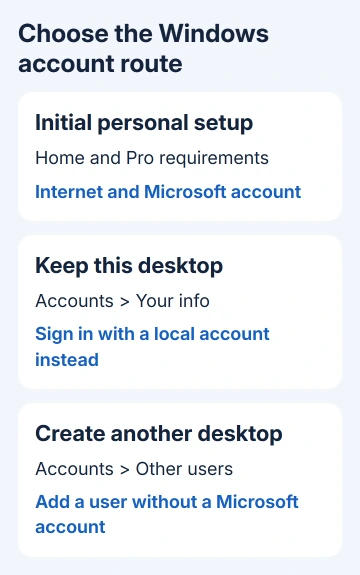
If the desktop is already available, reinstalling Windows isn't necessary to get a local sign-in. Convert your existing profile to keep this desktop, or add a separate local user to give another person their own space.
Check Settings > System > About > Windows specifications when Windows opens. Note the edition and version. Home, Pro, and organization-managed installations can present different choices, so those details help explain a missing option.
A workplace or school's setup can ask for an organization account and apply its policies. Ask your IT administrator how to complete that screen. A local personal account doesn't replace the organization's enrollment process.
Finish personal setup when the account is required
For a personal Home or Pro installation, connect to the internet and complete the account sign-in requested by setup. Use an account you control and can recover, because this is the account being connected to the new Windows profile.
Microsoft's Windows 11 setup guide explains the need for connectivity and a Microsoft account for those personal installations. Buying Pro alone doesn't remove that personal-setup requirement.
Don't use an invented email address or another person's credentials to get through this screen. If the account password is the problem, use the sign-in recovery options before continuing with the installation.
During setup, read the prompts about backup and syncing so you know which services you enable. Switching the Windows sign-in later is a separate action from managing OneDrive, browser sync, or an Office subscription.
I'd finish the required setup and make the supported account change afterward. That gives you a local Windows sign-in without relying on a bypass that might stop working after a setup update.
When setup reaches the desktop, let pending setup tasks finish before changing account details. The next steps change the sign-in for your existing Windows profile, keeping your current files and desktop.
Change this Windows profile to a local sign-in
- Open Settings > Accounts > Your info.
- Select Sign in with a local account instead.
- Follow the identity check and select Next when prompted.
- Enter the local username, password, and password hint requested by Windows.
- Select Next, then Sign out and finish.
- Sign back in with the local account details you just created.
Choose a password you can remember and keep the information you'll need to recover access somewhere secure. A local account's password isn't recovered through the Microsoft account's online password reset.
This changes how the existing Windows profile signs in. It doesn't create a second desktop for another person. Reopen Your info afterward to check that Windows now identifies the profile as a local account.
If the opposite link, Sign in with a Microsoft account instead, is available, the profile already uses a local account.
If the expected conversion control is missing, use the missing local account option checks. Check the exact wording and whether an organization manages the PC before searching other sign-in menus.
Don't remove the Windows user account to disconnect its Microsoft sign-in. Deleting a Windows user can also delete their locally stored information. Use the conversion control for this job.
Add a local user when a separate desktop is the goal
For another person or a separate Windows workspace, create a new account instead of converting yours. On Windows 11, open Settings > Accounts > Other users and choose Add account.
In the account window, select I don't have this person's sign-in information, then Add a user without a Microsoft account. Enter the requested username and password, then complete the security questions when Windows asks.
These choices appear when you add a user after Windows setup is complete. Their presence here doesn't mean the same choices must appear during first-time personal setup.
Sign out and select the new user on the sign-in screen. A fresh desktop is expected because this is a separate profile, not your old one with a different sign-in method.
The Windows user account guide covers choosing account access for a shared PC. A standard account is usually the sensible choice for everyday use; administrator access should be given for a reason.
Leave the original working administrator account in place while checking the new user. Test the new profile's login and open the apps that person needs before considering any later cleanup.
Check OneDrive and app accounts separately
A local Windows account doesn't mean every application is signed out. Office, Microsoft Store, OneDrive, and a browser can keep their own sign-in, so check the app when your aim is to disconnect a particular service.
For example, an Office subscription can still require its licensing account even while Windows itself uses local credentials. Signing out of the app has a different effect from changing the Windows account.
Review where important documents are stored before disconnecting a sync service. Files visible in a cloud folder aren't all necessarily stored as complete local copies. Open the files you need and use that service's download controls first.
Likewise, converting Windows doesn't delete the online Microsoft account or its email. It changes this PC's Windows sign-in. Account deletion is a separate, much broader decision.
If Windows won't offer the documented local controls on a personal unmanaged PC, contact Microsoft Support with the edition, version, and Settings page. For a managed PC, ask IT whether adding or switching to a local account is allowed.
The Short Version
Personal setup requires Microsoft's online sign-in for Home and Pro. Afterward, convert the profile in Accounts > Your info, or create another local user through Other users. Manage app sign-ins separately.
Checked November 15, 2026.
 If you have any business, I can build it online






