The SMTP error Client was not authenticated to send anonymous mail during MAIL FROM often means an app isn't signing in to smtp.office365.com. Set the app up to sign in, or use an approved direct-send setup for internal mail only.
Start with the app's outgoing server and sign-in settings, since changing the port alone won't fix the sending method. The error ends with a long Outlook hostname naming the responding server. Don't enter it as a replacement SMTP address.
In this guide
1. Check how the application is trying to send
Open the application's email settings and note the SMTP server, port, TLS/STARTTLS setting, and authentication method. Include the sender address and whether the intended recipients are inside or outside your organization.
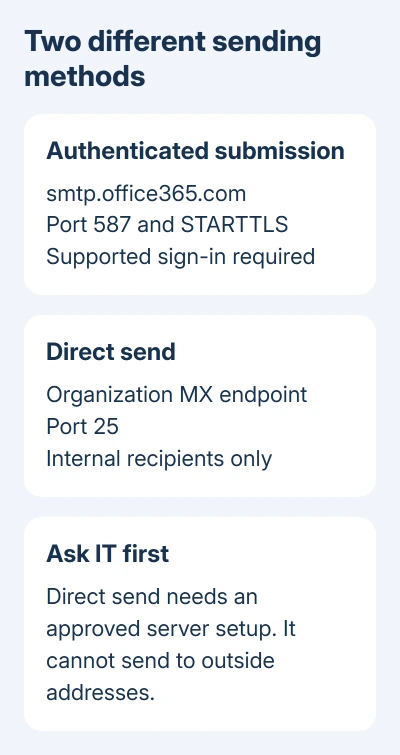
With smtp.office365.com, the app is using Microsoft's server for sending mail from a signed-in account, called client submission. The app must support signing in to that server. Typing a sender address in From doesn't sign the app in.
The organization's MX endpoint, its server for receiving mail, ends in mail.protection.outlook.com. It's used for other sending methods. It isn't interchangeable with smtp.office365.com, though both belong to the same mail service.
Microsoft explains in its application email troubleshooting that this error can appear when an app tries direct send through a server that requires it to sign in.
The original question involved email sent from a database. Give these settings to the application's developer or database administrator. Outlook's desktop profile doesn't control a database's SMTP connection.
2. Configure authenticated submission when the app supports it
For client submission, use smtp.office365.com, normally port 587, with TLS/STARTTLS enabled. Ask the software maker how its version signs in to Microsoft 365, preferably with OAuth, which uses sign-in tokens instead of your password.
The sending account needs a suitable Microsoft 365 mailbox. Check the full sign-in address as well as the From address. If the app signs in as one mailbox and sends as another, the account may also need Send As permission.
Don't assume that a username and password box means the app supports modern sign-in. Old software can offer only basic authentication, which sends account credentials and can be blocked by the organization's policies.
Ask the vendor for the exact Microsoft 365 setup supported by the installed release. If it supports only an older sign-in method, use an approved alternative instead of cycling through new passwords.
After correcting the settings, send one short message to an internal recipient who can confirm receipt. Then test an external recipient if the application needs that ability. Keep the time and result of each attempt for IT.
If the error changes to a sender-permission error, report the new code. If the app can sign in but can't send from the chosen address, you'll need to fix that sender permission next.
3. Have IT check whether SMTP AUTH is allowed
Even correct application settings can fail when the organization or mailbox blocks SMTP AUTH, the authenticated SMTP sending feature. This is a server policy check for a Microsoft 365 administrator.
An administrator should sign into the Microsoft 365 admin center, then open Users > Active users, select the sending user, and choose Mail > Manage email apps. The relevant mailbox option is Authenticated SMTP.
That checkbox isn't the only control. Organization settings, security defaults, and authentication policies can prevent the connection too. Give IT the app name and authentication method so they can check all the settings involved.
I'd ask for a supported sending method before requesting any policy change. Turning on a mailbox option won't make a password-only app support OAuth, and weakening a company-wide policy is a different decision.
If IT intends to keep SMTP AUTH disabled, ask whether the app should use an approved relay or another supported mail service. The correct replacement depends on who needs to receive the mail and what the app supports.
4. Use direct send only for the internal-only case
Direct send doesn't authenticate as a mailbox. It sends to Microsoft 365 as an external mail server would, so it needs the organization's exact MX endpoint and port 25.
Get that endpoint from the administrator. It generally ends in mail.protection.outlook.com, but don't build it by guessing from the email domain. Use the value recorded for the organization's accepted domain.
The sender must use an accepted domain in that organization. Direct send delivers only to recipients hosted in that Microsoft 365 organization. It won't relay messages to outside Gmail, Yahoo, or customer addresses.
The current device and application setup options recommend direct send only for advanced customers whose legacy software can't use the other methods.
Ask IT to approve this setup and handle the sending domain's mail protection settings. Changing the server address alone doesn't finish setting up an app to act as a mail server.
If internal messages arrive but outside messages fail, that's the direct-send limit. Keep the successful result, then ask IT for authenticated submission or an approved relay that supports the recipients the application actually needs.
5. Check transport problems after choosing the right method
For direct send, the network must allow outgoing port 25. Some internet providers block it. If the application can't connect at all, ask the network administrator to check whether the machine running the app can connect on that port.
For authenticated submission, check the app's support for TLS 1.2 or later and install its supported updates. A TLS failure is different from an anonymous MAIL FROM rejection after a connection has already reached the server.
Keep the complete error rather than just its final server name. The first SMTP code, the wording, and whether the connection reached authentication help the administrator distinguish these cases.
For a separate desktop issue, the Outlook outgoing-server controls show where classic Outlook keeps its editable server settings. Those controls don't change a separate application's configuration.
If Outlook itself is also failing to deliver ordinary email, use the Outlook sending checks for that mailbox. Keep that mailbox result separate from the database or app test.
Why does the error survive corrected settings?
Give IT the app version, host, port, sign-in method, From address, recipient domain, and complete timestamped error. IT can then confirm that your chosen sending method is allowed by the organization's current policy.
They can also use Run Tests: Send email using Microsoft 365 from the official device-setup troubleshooting page. The diagnostic requires an administrator account, so send the details to IT rather than sharing the account password.
The Short Version
Use supported authentication with smtp.office365.com, or an approved MX endpoint for internal direct send. Ask IT to check SMTP AUTH policy, sender permission, and the chosen method's network requirements.
Checked November 17, 2026.