
Your own PC says "Some settings are managed by your organization", and no job or school is behind it. It shows on the Windows Update page, the lock screen or the background page, with switches grayed out under it.
I would read that line as a pointer, not a threat, because it means a policy value exists for that page. On a home PC you can usually find the exact one.
On Microsoft Q&A, an October 2025 question about a locked background drew 10+ same-question votes, and the Windows Update version on Super User has 129,583 views.
What the message is really telling you
Windows shows it when a Group Policy is set for that page, or the registry value behind one. Ours: Windows Update's message file here pairs "Some settings are managed by your organization." with a "View policies" link.
That link opens your "Configured update policies" page, which lists what is set.
On its Windows Update settings page, Microsoft says a registry policy "overrides the preferences that are set by the local administrative user". Once the keys go, your own choices are "used again".
So your "organization" is a value in the registry, and a Microsoft MVP on Q&A named two common sources on personal laptops. One is a Windows tweaker that flipped a policy, and the other is the laptop maker, before it shipped.
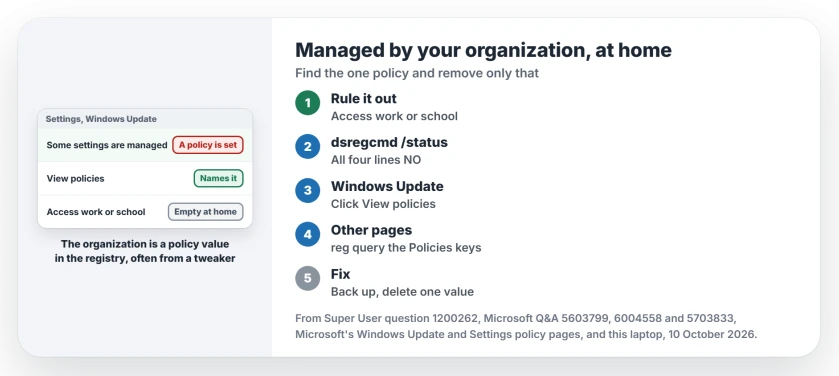
Status: Microsoft's Windows Update and Settings policy pages, Q&A and Super User owners and this laptop's own keys, checked 10 October 2026. Removing one policy brought the switch back.
Ran a debloat script? It may have set policies this way. The debloating page lists what such tools should leave alone on your PC.
First, rule out a real organization
Open Settings, Accounts, then Access work or school. A work or school account there can push real policies to your PC, and Q&A advisers start almost every answer with it.
Disconnect it only if it is yours to remove. If a school or employer set the PC up, their policies come back anyway.
Ours: dsregcmd /status needs no admin rights. On this laptop it shows AzureAdJoined, EnterpriseJoined, DomainJoined and WorkplaceJoined as NO, so run it and read the same four lines on yours.
Find the one policy behind it
On the Windows Update page, click View policies under the message. It lists each policy that is set.
For any other page, open Command Prompt and run these lines. They list your policy values and change nothing.
reg query HKLM\SOFTWARE\Policies /s
reg query HKCU\Software\Policies /s
reg query HKCU\Software\Microsoft\Windows\CurrentVersion\Policies /s
Match a name to the locked page. Windows Update values sit under WindowsUpdate, the key Microsoft names. Lock screen values sit under Personalization.
Microsoft documents a Settings Page Visibility policy as well. Its Settings app policy page says it lets administrators "hide pages from users". A page missing from your Settings points there.
Why I would not paste the long delete list
A fix copied across Q&A deletes every policy key at once. It is a list of reg delete lines. Two owners said it worked, and one owner wrote back "It is still there".
Ours: one of those keys here, Policies\System, holds Windows' default User Account Control values. EnableLUA is 1 and ConsentPromptBehaviorAdmin is 5. Another key holds an MdmHosts value under Appx.
A 2026 asker found that same MdmHosts line and suspected it. Their PC had no organization. Neither does this laptop, which carries the same line.
Wiping whole keys takes Windows' own values with the one you wanted gone. Back up the key first. Then delete only the value that matches your grayed-out page, and restart.
reg export HKLM\SOFTWARE\Policies "%USERPROFILE%\Desktop\policies-backup.reg"On Pro, use the editor instead
Windows Pro has the Local Group Policy Editor, gpedit.msc. Find the policy that matches your page and set it back to Not configured.
On Super User, the asker had a grayed-out "Give me updates for other Microsoft products" box. Configure Automatic Updates was set under Windows Update. After changing it, they wrote "the option is now enabled".
Windows 11 calls that box Receive updates for other Microsoft products. Windows Home has no editor at all, as the gpedit page explains, so on Home your route is the registry.
The Short Version
- The line means a policy value exists for that page, not that someone runs your PC.
- Check Access work or school and dsregcmd /status first.
- On Windows Update, View policies lists the exact policy.
- Find the value with reg query, back it up and delete only that one.
- Skip the long delete-everything list: those keys hold Windows' own settings too.
Where to Next
Found the value behind your message? Post its name in a comment and tell me which page it locked. I will map more of them here.

Isaac Smith is the founder and editor of PC Glance, a website that covers computers, laptops, and technology. He is a tech enthusiast and a computer geek who loves to share his insights and help his readers make smart choices when buying tech gadgets or laptops. He is always curious and updated about the latest tech trends.