

Power & battery settings can crash in Windows 11 when Sensor Service is disabled. Re-enable it first if other Settings pages still open. An owner reported that this stopped the crash; another reader later confirmed success.
A Settings window that closes on every page needs a different repair. Check which of these happens on your PC first. A problem on one page shouldn't send you straight to a Windows reinstall.
In this guide
1. Re-enable Sensor Service when only this page crashes
Press Windows + R, enter services.msc, and press Enter. Find Sensor Service, then double-click it. Check the Service name field: it should say SensorService, not Sensor Data Service or Sensor Monitoring Service.
Look at Startup type. If it's Disabled, note that setting, change it to Manual, then select Apply. Select Start if the control is available. Close the dialog with OK and reopen Settings > System > Power & battery.
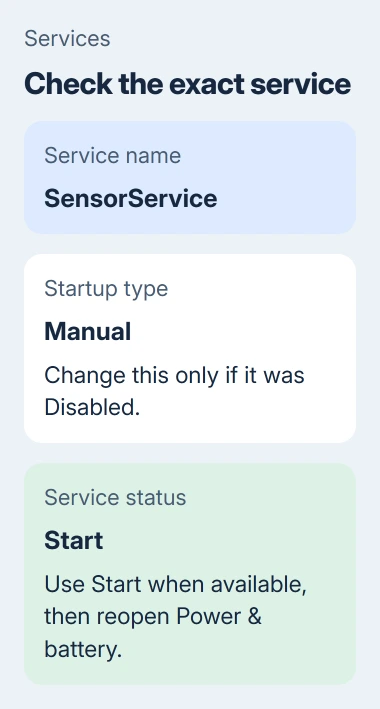
Manual allows Windows to start the service when needed; Disabled prevents it from starting. Don't change the neighboring sensor services just because their names sound similar. The fix that worked was for Sensor Service.
The original crash discussion contains the later success reply as well as the proposed fix. The asker also tried several general repairs that didn't help.
You'll know it helped when the page stays open and shows its power controls. Close Settings, return to the power page and check that it still loads normally.
If Sensor Service was already enabled, leave its startup choice alone. Stopped and Disabled mean different things: Manual startup allows a service to run only when needed. If it still crashes, check whether other pages work next.
2. Check whether the crash belongs to one page
Open Settings > System > Display, then Settings > Windows Update. These two pages let you check whether Settings works elsewhere. Note whether Power & battery closes the entire window or simply fails to load its contents.
Press Windows + R, enter ms-settings:powersleep, and press Enter. This opens the power settings address directly. If it still closes, the failure isn't just a missed click or trouble navigating through the System list.
If Settings won't open at all, use the Settings launch repair steps. Those cover the wider failure and ways to reach repair tools without relying on Settings.
A desktop without a battery can show a Power page instead of the laptop's Power & battery view. Match the page that actually crashes on your machine. A missing battery-usage chart on a desktop isn't this fault.
I'd keep this check short. Once you know only that page crashes, restarting unrelated apps won't tell you much more. The useful details are the page name, the service setting and the Windows build.
3. Record the Windows build and undo a service tweak
Press Windows + R, type winver, and press Enter. Keep the displayed build and version numbers for support. The saved discussion began in late December 2023; it doesn't identify every later build with the same symptom.
The person proposing the service fix blamed an update, but the discussion doesn't identify which update changed the service. Don't remove a current security update because an older thread mentions an update-related crash.
Think back to any debloat tool, privacy utility or service-optimization script used just before the problem began. If it disabled Sensor Service, use its own undo option for that change or keep the corrected service setting.
Reopen the service properties after a restart. If Startup type is back to Disabled, something is changing it again. Give an administrator the service name and when it changed, rather than repeatedly switching it back.
On a work laptop, ask IT whether a management policy controls the service. A service setting that you can't edit may require their account or a policy change. Changing system-file ownership won't unlock a service policy.
4. Repair system files if the service change didn't help
When the service is enabled and the page still closes, check Windows' own files. Microsoft's System File Checker instructions use DISM before SFC.
Search Start for Command Prompt, choose Run as administrator, and approve the prompt. Enter this command and allow DISM to complete:
DISM.exe /Online /Cleanup-image /RestorehealthAfter DISM completes successfully, run:
sfc /scannowLet SFC finish checking the files. Restart after repairs, then open the power page again. If DISM fails, save its error instead of treating the repair as complete.
These tools repair Windows components and protected system files. They aren't a confirmed cure for this particular page crash: the asker said the general repairs they'd already tried hadn't solved their problem.
If SFC reports damage it can't repair, follow the SFC repair-result guidance. The exact result matters more than running the same scan several times without changing anything.
5. Take the remaining crash to support with useful details
Search Start for Get Help and explain that Windows 11 Settings closes specifically on Power & battery. Include the build from winver, SensorService's startup setting, any service-start error and your DISM/SFC results.
Send IT the crash details for an organization-owned laptop. For a personal machine, use the maker's Windows support team or Get Help's support route. Ask for a review of the Settings crash before attempting a repair installation.
Support may suggest a repair install later if the Windows files or installation need repair. Back up your personal files before recovery work, and check whether your installed apps and personal files will both survive the suggested repair.
The Short Version
Check SensorService first when only the power page crashes. Re-enable it if disabled, then reopen the page. If that doesn't help, record the Windows build, check system files and take the remaining crash details to support.
Checked November 17, 2026.
 If you have any business, I can build it online






