To return to classic Outlook, turn off the new Outlook switch and choose Switch back to classic Outlook. Choose that rather than Use classic Outlook this time, which opens it once but leaves the redirection in place.
When that switch is absent, check the installation: classic Outlook may be missing. The free new Outlook app, the classic Office app, and the retired Windows Mail app aren't interchangeable, even for the same email address.
In this guide
Choose the option that keeps classic Outlook opening
Open the new Outlook window and look at its upper-right corner for the switch. Selecting it presents a choice between returning to classic Outlook and using classic Outlook for this session.
Select Switch back to classic Outlook, then complete the feedback prompt. The next attempt to launch classic Outlook should open the classic app instead of sending you into new Outlook again.
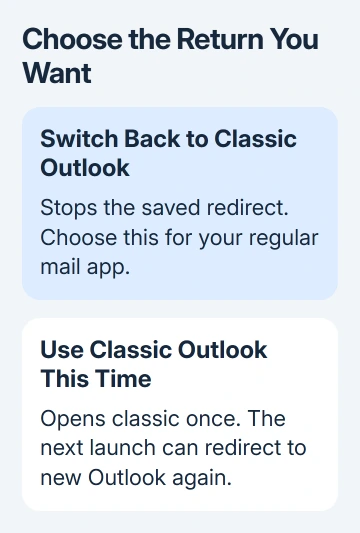
The wording matters. Use classic Outlook this time works for a quick comparison or a task that needs classic Outlook, but it doesn't change what opens next time. That saved choice can explain why new Outlook keeps opening again.
Microsoft's instructions for leaving new Outlook explain both choices. I'd use the permanent switch if the aim is to work in classic Outlook every day.
After the change, close Outlook and reopen the classic app from Start. A fresh launch checks whether your choice was saved. Staying in the window that's already open won't tell you what happens next time.
Find the correct app in the Start menu
Press the Windows key, type Outlook, and look for Outlook (classic). Launch that entry. A separate entry for new Outlook can remain installed, and clicking its shortcut will still open that app.
In classic Outlook, the File tab helps identify the desktop Office interface. New Outlook's menus differ from the classic app's, so instructions that begin with File won't fit its window.
Right-click the classic app's Start entry to pin the right shortcut where you normally launch email. Remove the old taskbar pin if it keeps leading to new Outlook, then pin the classic app while it is running.
This shortcut check comes before reinstalling anything. A working classic installation doesn't need to be downloaded again just because the familiar blue icon on the taskbar points to the other app.
If the classic entry is present but immediately redirects to new Outlook, return to the switch procedure. If that switch is absent, use the saved-preference procedure after checking the installation.
Install classic Outlook if it isn't on the PC
Some newer Windows PCs include new Outlook without the classic app. There is then no classic program for the switch to open. A Store error can also appear when a classic shortcut points to an app that isn't available there.
Use the classic Outlook installation page. Find your language in the download list, choose its Download link, and follow the installer prompts. The current page can show a language table rather than a dropdown.
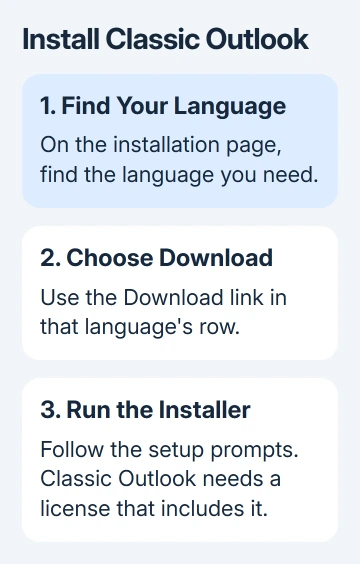
Downloading the installer doesn't give you a license for classic Outlook. Use the account and Office or Microsoft 365 license that includes classic Outlook. Don't assume the free new Outlook app supplies that license.
Ask the organization managing your PC to install classic Outlook with its Office license if setup is blocked. Include the actual installer error rather than asking for an older-looking inbox.
Once installed, search Start for the classic entry. Follow its account setup prompts if required, then check that the expected mailbox appears. Signing in to the wrong work or personal account can bring up a different mailbox.
Reset the saved switch when no toggle appears
Try this when classic Outlook is installed but its Start entry still opens new Outlook, and the new app has no switch. This setting chooses which app opens; it can't install a missing copy of classic Outlook.
- Close both Outlook apps.
- Open Start, search for Registry Editor, and open it.
- Navigate to
Computer\HKEY_CURRENT_USER\Software\Microsoft\Office\16.0\Outlook\Preferences. - Select Preferences, then use File > Export to save that key before changing it.
- Double-click the existing UseNewOutlook value and set its value data to 0.
- Close Registry Editor and launch Outlook (classic) from Start.
Leave unrelated values alone. If the key or value isn't there, stop rather than guessing which entries to create. Ask IT or Office support to check whether your organization's rules or your Outlook installation explain the missing setting.
I'd try the app and installation checks before this change. They tell you whether classic Outlook is missing or just opening the other app. Changing this Windows setting won't help if classic Outlook isn't installed.
Check mail and explain any remaining problem
Open the Inbox, Calendar, and a recent sent message in classic Outlook. Send a short message, then check it from the receiving mailbox. An app that opens correctly can still need account setup or time to synchronize its mailbox.
Keep new Outlook installed until your normal work is available in classic Outlook. Uninstalling it isn't the action that changes the saved switch, and it adds another change while you're checking the return to classic.
For an Office app that opens with errors, try the Office repair procedure. That can fix a damaged installation. Use it for installation errors, rather than for a working app that sends you into new Outlook.
Returning to classic Outlook means using the Office desktop app. Check the program's name when searching Start rather than opening a different mail app because its icon looks familiar.
If the requested change is only to make Outlook easier to read, check the Outlook appearance options separately. Changing colors or message layout doesn't switch between the two programs.
On a company-managed PC that keeps switching, ask IT to check the new Outlook migration policy and your classic Outlook license. For a personal installation, give Office support the Start app name and the result of the toggle.
The Short Version
Choose Switch back to classic Outlook, then open Outlook (classic) from Start. Install classic if it's missing. Use UseNewOutlook = 0 only for an installed classic app that still redirects without a toggle.
Checked November 13, 2026.
 If you have any business, I can build it online