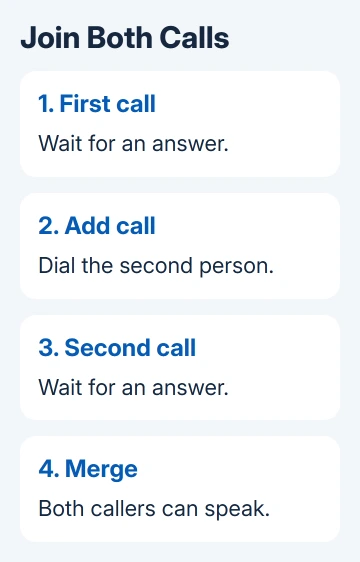
A three-way call on Android starts with a regular call. After the first person answers, tap Add call, dial the second person, then tap Merge. Switching between calls leaves someone on hold until you merge them.
Samsung Galaxy phones usually show Merge; Google's Phone app calls it Call merge. Your carrier must support conference calling on that line. If the button is missing, check with your carrier rather than trying different phone numbers.
In this guide
Get the first person on the line
Open your usual cellular Phone app. Dial a number or choose a contact, then wait for them to answer. Tell them you're adding someone else, since the next step interrupts their conversation while you place another call.
Keep the call controls visible. If the display has gone dark near your face, move the phone away and wake the screen. If you've returned to the Home screen, tap the ongoing-call notification or call bubble to reopen the controls.
Three-way means three people in total, including you. The other two don't need Android phones or the same carrier. You're calling their ordinary phone numbers, so someone can join from an iPhone or a landline that accepts the call.
These steps work for voice calls through your phone network. A WhatsApp, Meet, or other app call has its own participant controls. Opening Android's Phone app during one of those calls won't turn it into a cellular conference.
Add and merge the second call
On a Samsung Galaxy using Samsung Phone, follow this order after the first person answers. Samsung's conference-call instructions use these controls.
- Tap Add call on the active-call screen.
- Enter the second person's number or select their contact.
- Tap the Phone button to dial them. The first call is put on hold while this call connects.
- Wait for the second person to answer. Explain who is joining before combining the calls.
- Tap Merge. Speak to both people and have each respond, so you know the calls have joined.
With Google Phone on a Pixel or another Android model, start the second call with Add call, then use Call merge when both calls are connected. Google says Call merge joins connected calls; Switch changes which person is on hold.
Some phones put additional controls behind More or change their positions during a call. Go by the labels on your call screen. The button may be in a different spot from the one in another phone's picture.
Switch or Swap changes which person you're speaking to. It doesn't join the conversations. If one person keeps hearing hold audio while the other can hear you, return to the controls and look for the merge action.
If the second person doesn't answer, end that outgoing call and return to the first one. Merging needs two connected calls. Check the contact before dialing again so you don't accidentally add the wrong person.
Join an incoming call when the line allows it
The third person can also call you while you're speaking to the first person. Where call waiting and conference calling are supported, answer the incoming call while keeping the original call on hold, then use Merge.
Read the answer options carefully. An option that ends the current call and answers the new one leaves only one conversation connected. For a conference, the original caller must remain on the line, even though they're temporarily on hold.
If the second call goes straight to voicemail, ask the carrier whether call waiting is active. Being able to dial out only tells you that basic calling works. Your line also needs to hold that call and accept another.
I'd use the outgoing Add call method for an important conversation. It lets you explain the plan to the first person and check the second person's identity before joining the conversation.
Handle a missing or unavailable Merge button
First, confirm that both calls have actually connected. A ringing second number isn't ready to join. Once the second person answers, reopen the full call screen and check the extra controls if Merge isn't immediately visible.
If the button stays unavailable, ask your carrier: Does this line support three-way or conference calling, and is the feature enabled? Give them the phone model, the SIM or eSIM line used, and any error displayed during the merge.
On a dual-SIM phone, note which line placed the calls. That line's service must support conference calls; a second SIM doesn't add the feature to your first line. Ask about the specific line rather than only the phone model.
Carrier support can vary by plan, region, and device. Don't keep changing unrelated Android settings if the service itself doesn't allow merging. The carrier can confirm the restriction or check the line if the feature should already work.
A phone that can't make the first ordinary call has a different problem. Start with its signal, account service, and calling connection. If incoming calls aren't ringing, check the separate Android ringing settings.
Keep one caller connected when another leaves
When you host the conference, hanging up can end the call for both other people. Tell them before ending it. If only one participant needs to leave, they can hang up while you stay connected to the remaining caller on supported services.
Some phones and carriers show a participant list with Drop call or End call beside a person's number. Use that individual control if it's offered. Don't assume the large red End call button removes only the person who spoke last.
Check your plan if minutes or international calling are limited. A conference can count as more than one connected call for billing. Joining the conversations doesn't turn a chargeable international number into a free call.
Recording is a separate feature with different limits. Read the Android call-recording options before relying on a recording button during a conference; a successful merge doesn't mean recording is supported.
If your carrier can't provide merging, arrange a group voice call using an app the group can access. The call goes through the internet, so each person needs that app and internet access.
The Short Version
After one person answers, use Add call to dial another, then join them with Merge or Call merge. Switch and Swap leave one caller on hold. Ask the carrier about conference calling if two connected calls won't merge.
Checked November 12, 2026.