Most installed Windows software needs to be reinstalled on the new PC, then signed in or activated again. Copying its desktop shortcut or Program Files folder usually leaves out parts the installer created.
List each app, its installer, and its license. You'll need to move the program, check that its license can transfer, and bring over your saved work separately.
In this guide
Make an app list before retiring the old PC
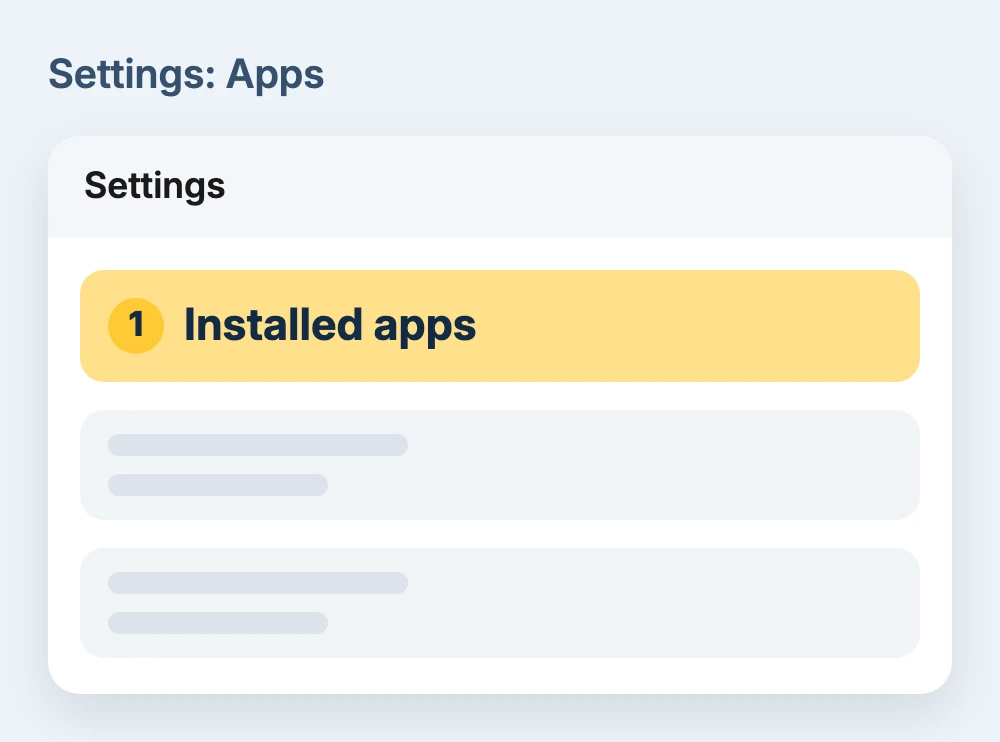
On Windows 11, open Settings > Apps > Installed apps. On Windows 10, open Settings > Apps > Apps & features. Note the apps you actually use, their publishers, and any version information the app's own About screen provides.
Put paid or hard-to-replace software first. Check which account owns the purchase, whether its installer is still available, and whether it has an in-app export or backup command.
That work is much easier while the old installation can still open.
A shortcut is just a way to launch something already installed. Copying it doesn't copy the application.
A copied program folder can also be missing shared components, background services, or settings. That's why running its executable file may show an error instead of opening the app.
A portable app is a possible exception. If its publisher describes it as portable and gives folder-copy instructions, follow those instructions. A small download size doesn't tell you whether an app can run without installation.
Before changing licenses, back up the documents, projects, and exports you need. Keep the old PC available until you've opened a file you actually use on the new one.
An app installing successfully doesn't mean your saved work has moved with it.
Reinstall Microsoft Store apps with the purchasing account
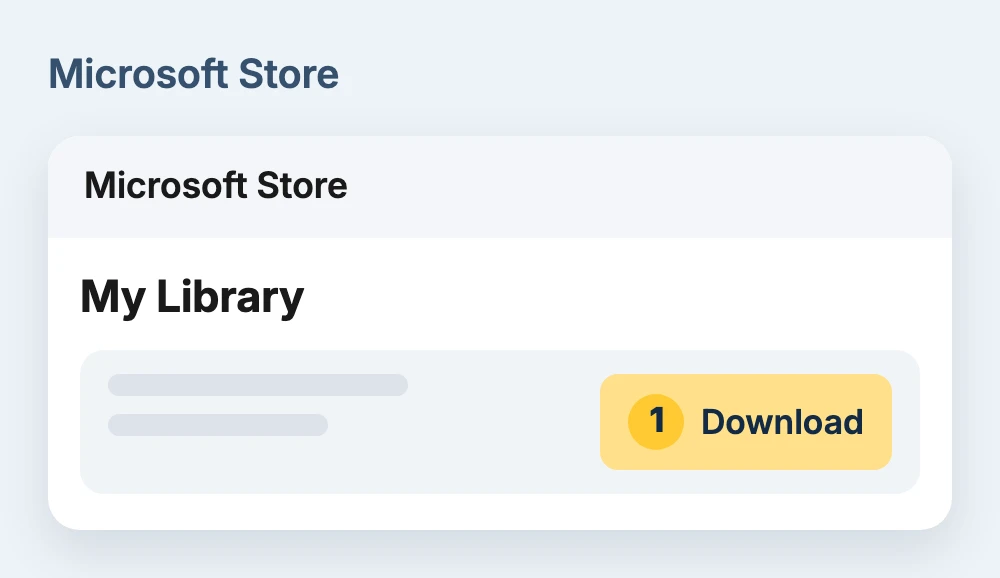
On the new PC, open Microsoft Store. Select the Store account recorded on your purchase receipt. Open its library area, then My Library when that label appears, and find the app or game you want to install.
Select the download control for an owned app. After installation, launch it through Start. Look for a separate in-app sign-in prompt. The Store account that owns the download and the account used inside a service can be different.
If the app is missing, check the account first. An app can also be unavailable because it was removed, isn't offered in your region, or isn't compatible with the new device.
Repeatedly signing in to the same wrong account won't restore a purchase.
Microsoft describes library and order-history options in its download and reinstall instructions. Check ownership before paying for another copy.
Install desktop programs from their original publisher
For software you got outside the Store, download the installer from its publisher or the retailer you bought it from.
An old installer saved on your backup drive can also be useful when the publisher still supports that version on the new PC.
Run the installer on the new computer and finish its setup before opening a copied project. Choose the version compatible with the replacement computer's Windows release and processor.
A familiar app name doesn't mean every available installer is the right one.
A work or school app may need your organization's software portal or a license assigned to you. For an app supplied by work or school, ask IT how to install it on the new PC.
Your personal Microsoft account won't transfer an organization's app license to another computer.
After installing, launch the program without importing anything first. If it opens normally, you can move on to activation and data.
If setup fails, keep the installer error and ask the publisher about that version's support on the new machine.
I'd install the most important paid app first. That lets you catch a missing installer or license problem while the old computer is still available, instead of discovering it after you've moved everything else.
Move the license according to the product's terms
Some subscriptions allow several devices; some one-time purchases allow only one. Check the publisher's account page or license terms before deactivating the old installation.
Uninstalling an app doesn't always free its license for another device.
For Microsoft 365, sign in to Services & subscriptions with the subscription account. Find the purchase, select Install, and follow setup on the new PC.
For Office 2024 or Office 2021 one-time purchases, the transfer terms allow moving it to another computer you own, with a normal 90-day interval between transfers.
A hardware failure is an exception to that waiting period. A transferred one-time Office installation must be removed from the old computer, and you can't keep copies there.
For other Office editions or a copy bundled with your PC, check that copy's license terms.
If activation fails after an allowed transfer, use the product's activation support. Have the purchase account, edition, and error message ready.
A new PC's Windows activation doesn't activate a separate Office license or another publisher's paid program.
If you're unsure about the operating system's license, check which Microsoft account holds the Windows license separately. An app transfer and a Windows license transfer follow different rules.
Restore app data after installation and activation
Copy your documents and project files using an external drive, OneDrive, or another supported way to transfer files. Then open them from inside the installed program.
Check a real document or project, rather than judging the move from the presence of a folder.
Use an app's export, backup, or migration feature for its settings and local databases. Those files can live outside Documents. The app's own instructions should tell you which folders or exports matter and when to import them.
Avoid copying the whole old Windows user folder over the new account. That can mix old settings with a different installation.
Transfer the files and supported app exports you need, then check that the program can save a new file as well as open an old one.
If you've used Windows Backup, remember that restoring app pins doesn't mean every installed program's files have been copied. A restored Store pin can start installation; a pin for another app can direct you to its web installer.
The Windows Backup coverage guide explains that distinction. It helps separate an expected reinstall from a backup that didn't restore the files or settings you intended to keep.
Finish the move before retiring the old computer
For each important app, check that it opens, accepts your license, and lets you open and save your work. Sign in to cloud services and confirm the expected content appears. Keep any required offline exports with your backup.
For an app with no installer or a license tied to the original device, contact its publisher and ask about reinstalling that exact edition on a replacement PC. Include the order number and old version.
File-copy tools can't grant transfer rights or replace a missing license.
The Short Version
List the apps, reinstall them from the Store or publisher, transfer licenses where allowed, and restore their data separately. Check that important files open and save before erasing the old PC.
Windows Backup app pins are a route to reinstallation, not a complete copy of installed software.
Checked November 29, 2026.
 If you have any business, I can build it online