A printer screen that goes dark between jobs may just be asleep. Wake the panel first; if it lights up but ignores touches, check for protective film, while a panel that stays dark needs a power check before any computer-side repair.
Check whether the printer still prints while its screen is blank. The printer can still receive work even when its display needs attention, so don't erase its network settings as the first response.
In this guide
1. Wake the screen using the control for your model
Touch the screen or use the wake control described in your printer's manual. For example, the Epson ET-16600 and ET-5800 family uses a press on the LCD to wake it from sleep.
A blank screen after an idle period isn't automatically a failure. If it wakes, shows its usual menus, and accepts a normal selection, the display is working. Watch whether it goes dark again only after the printer sits unused.
Don't hold random button combinations to wake it. A short wake action and a reset sequence can do very different things, and combinations intended for another model may change settings you need.
If the panel stays black, check whether the power indicator is on and whether the printer responds to a normal print request. That helps you tell a sleeping or failed display from a printer that seems to have no power at all.
If a message is visible but never changes, copy its exact text before restarting. A frozen menu, a paper warning, and a firmware recovery message lead to different next steps even though each can stop normal use.
2. Check power without clearing the printer's settings
Check the cable's connection at the printer, then reseat it at the wall outlet. If the model uses an external adapter, check its connections too. Choose the adapter your printer requires; a spare that fits isn't necessarily suitable.
If the lights, screen, and startup sounds are absent, try a working wall outlet. Check the power connections before spending time reinstalling computer software. That software can't turn on a printer that's getting no power.
If the printer responds to its power button, shut it down normally, wait for it to finish, then turn it on again. Watch whether you see the startup logo before the display darkens or whether it never lights at all.
For a frozen unit, follow its manual's power-disconnection procedure. Unplugging times differ between models, so check that printer's directions instead of using a universal reset recipe.
Leave a printer powered while it is actively installing firmware. Interrupting that operation can create a startup problem, so a visible update-progress screen needs its update instructions rather than the ordinary restart step.
If restarting brings back the same error, follow the message on the screen. For an Epson warning directing you to service, the Epson printer-error checks explain when restarting gives way to repair.
3. Fix a touch problem separately from a dark display
A screen that shows readable menus but won't accept touches has a different symptom from a screen with no image. Check for the shipping film, an added screen protector, or a sticker covering the touch surface.
Canon's TS6200-series instructions say to remove its original protective film before use. They also warn that added film or stickers can prevent proper touch operation. Remove those coverings, then try a normal menu selection again.
Keep that advice tied to the model. The fixed frame around the screen and the screen's own layers aren't shipping film. Don't pull at the panel itself or try to separate layers of the screen.
For cleaning, shut the printer down and follow its manual's display-care directions. Use its specified cloth and cleaner without wetting the edges. Pressing harder won't fix a screen that ignores touches.
After startup, compare a few areas of the screen. If one region responds while another doesn't, note that pattern for service. If every touch fails but physical buttons still work, report that difference too.
4. Send one page from Windows to check the rest
If the printer is already installed on your computer, send a test page without using its panel. That checks whether it still receives and prints a job, even if the display remains unusable.
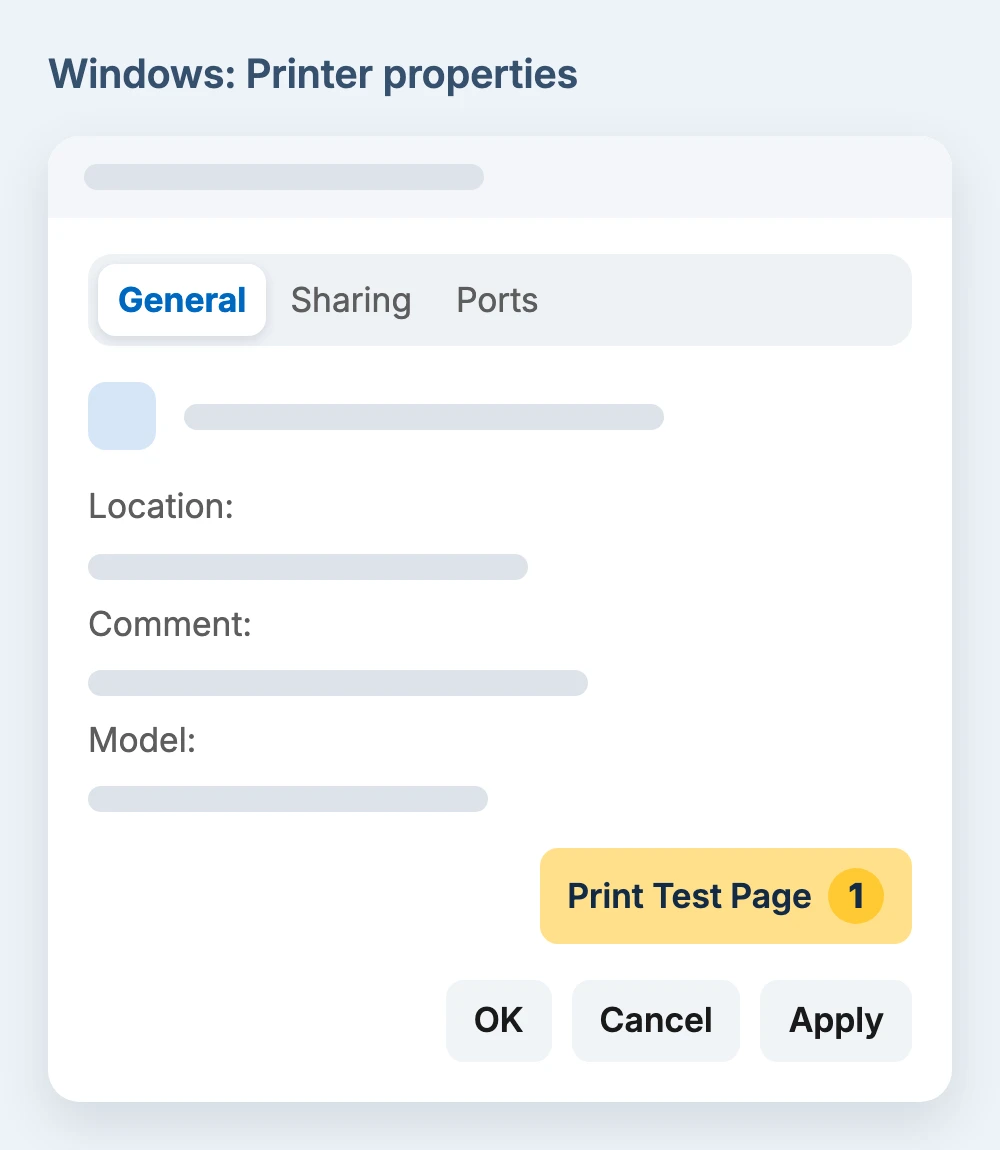
On Windows 11, open Settings > Bluetooth & devices > Printers & scanners. Select the printer, open Printer properties, and open General, where Print Test Page sends the check.
On Windows 10, use Settings > Devices > Printers & scanners. Select the printer, choose Manage > Printer properties, then use General > Print Test Page.
Those steps are in the Windows printing checks. Select the actual printer rather than choosing a PDF writer or a duplicate queue.
If a page comes out, the printer and computer can complete that job. That doesn't mean the screen is fixed. Describe the screen problem separately when asking for repair. Avoid resetting a working connection to try to fix the screen.
If no page comes out and Windows reports the printer as offline, use the offline-printer connection checks for that additional fault. A failed test page alone can't identify the display as its cause.
5. Give repair support the exact panel behavior
Arrange service when the panel stays blank after the correct wake and power checks, or still ignores touches after your model's touch-screen checks. Use the maker's support page for the full model number printed on the printer's label.
Report whether the power light comes on, whether a startup image appears, whether physical buttons work, and the result of sending a Windows test page. Include the exact frozen message if there is one.
If the failure began during a firmware update, say so before attempting another update. Ask whether that exact model has a supported recovery procedure when its panel can't be used. Don't install firmware from a similar model.
I'd compare the service estimate with replacement costs before buying another printer. Mention that the printer still prints despite its unusable screen. Repairing that fault is a different decision from repairing a printer with no power.
The Short Version
Try waking the screen before checking power. For unresponsive touchscreens, follow the model's film and cleaning directions. Send a Windows test page to check printing separately. A persistent panel fault needs service.
Checked November 29, 2026.
 If you have any business, I can build it online