TryHackMe RDP needs a running lab machine and a connection to its private network. Start the target, allow at least three minutes for boot, and check that the computer running your RDP client has the required lab VPN connection.
If the login is rejected, check the account details; if the connection times out, check the network. A frozen browser desktop has its own reconnect workaround too. Match the symptom before restarting the whole lab.
In this guide
1. Start or resume the machine before connecting
Open the room and check the target's state. Resume Machine brings back a hibernated instance with its state preserved. A terminated machine needs a fresh start; the old RDP window won't bring it back online.
After starting the machine, wait at least three minutes before retrying. Check the current target address in the room. Use that address, rather than an IP copied from an earlier session or the address assigned to your own VPN connection.
Follow any machine name or special network setup supplied by the room. Some exercises use several hosts, so the box you started isn't automatically the desktop the lesson asks you to open.
Windows 10 and 11 include Remote Desktop Connection. Find it through Start search. Enter the room's target address in Computer, then select Connect. The built-in client uses the same basic connection window on both versions.
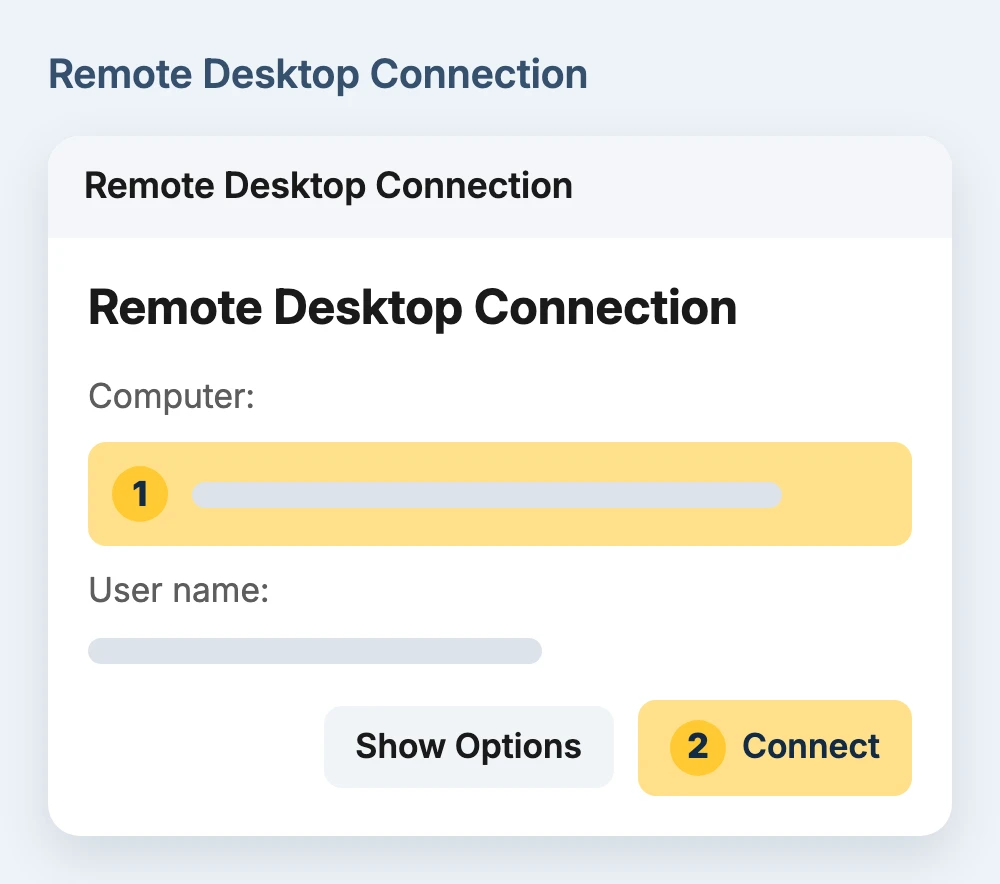
If a login prompt appears, the connection has got further than a timeout. Continue with the account checks. If it still cannot reach the computer, check where the VPN is running before changing the password.
For an ordinary PC outside a training lab, the general remote-connection setup covers host requirements. The hosted lab has its own network setup, so opening ports on your home router isn't the next step here.
2. Connect the RDP client's computer to the lab network
A VPN inside a virtual machine connects that virtual machine. It doesn't automatically connect your physical Windows PC to that network. Run RDP inside the connected virtual machine, or connect the computer running RDP to the lab VPN.
The provider's Windows VPN setup uses an account configuration file imported into the VPN client. Download the configuration for your account and connect it before opening the local RDP session.
Check the VPN client's connected state and its log. Importing a profile doesn't connect the VPN. If it fails to connect, fix that first; repeatedly opening Remote Desktop won't connect your computer to the lab network.
An in-browser AttackBox has its own network access. That doesn't connect a separate RDP app on your computer. Check where you're running RDP, especially when following instructions written for Linux.
For network-specific rooms, use the network profile the room requests. Don't stack unrelated VPN profiles and assume more tunnels mean more access. If another personal VPN is active, disconnect it temporarily and reconnect the lab profile.
If your local client still times out while the room's browser access works, record that difference. Check your computer's connection next, since the lab machine is still available through the browser.
3. Try the supported TCP profile if the VPN is blocked
Some school, workplace and public networks block the VPN's default UDP traffic on port 1194. When the VPN itself won't connect on that network, try the supported TCP connection on port 443.
Select your VPN region, change the protocol to TCP before downloading the .ovpn profile, then import that new file into the client and reconnect. The Squawker VPN client also supports TCP connections.
This is a change to the lab VPN connection, not an instruction to change Remote Desktop's port. Keep the RDP target and any port specified by the room as instructed. Setting the RDP target to port 443 changes a separate connection.
If TCP connects where UDP failed, retry RDP through that connection. If neither connects, give support the VPN client's complete error and your network type. TCP may work around a restriction, but some networks still block it.
The Windows VPN client explanation separates built-in profiles from services needing their own app. Use the client required by the lab rather than putting an OpenVPN profile into Windows' manual VPN form.
4. Use the account the room gives you
Once a login prompt appears, enter the lab's RDP username and password. The lab machine needs its own Windows account, rather than your website login. Read the current task for any domain or machine prefix it requires.
Microsoft says to check network access and login rights in its Remote Desktop guidance. If the login is rejected, check that you're using the requested account and that it has access.
Check capitalization, keyboard layout and spaces when pasting. If the prompt shows a saved username, switch to another account and enter the room's identity. Don't keep trying an account from a different exercise.
If the supplied credentials still fail after boot, save the exact rejection text. An access-rights error and a timeout need different help. Don't change the lab's authentication settings just to dismiss an unknown error.
5. Reconnect a frozen browser desktop without terminating it
For a Windows desktop that loads in the room's split-screen view and then freezes, use the built-in reconnect button if that room provides it. This restarts the connection without terminating the machine or throwing away its current state.
This issue happens when the network changes during Windows startup. The workaround applies to supported rooms with the reconnect control, including Active Directory Basics. Other unavailable labs can have different causes.
I'd try reconnect before terminating a desktop with unsaved work. If reconnect is unavailable or doesn't help, give support the room name, machine state, VPN state and exact error. Say whether RDP works locally, in the browser or neither.
Use the TryHackMe Customer Hub for help with that room's machine access. Report freezing in rooms outside the affected-room list so support can check the instance. Terminating the instance discards unsaved work.
The Short Version
Start or resume the target, wait for boot and use its current address. Run RDP through the required VPN, try TCP for blocked UDP, and use the room's Windows credentials. Use reconnect for a supported frozen browser desktop.
Checked November 27, 2026.
 If you have any business, I can build it online