Google Search on a Samsung phone can mean the Home screen bar, the Google app or browser searches. Restore a missing bar through Widgets, or use Show search on Home screen for the built-in bar on supported One UI 9 phones.
A browser using another search engine needs its own setting changed.
In this guide
Match the missing search to the screen
Start by opening Google from your apps screen and searching for something. If results appear there, Google Search is already working. The missing shortcut or browser preference is the part to change.
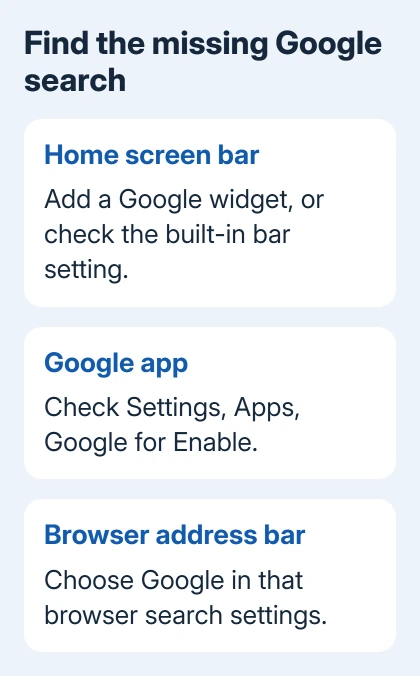
A search field that finds installed apps can be Samsung's device search rather than Google web search. The news page beside your Home screen is Discover, whose layout differs from the Google search widget's.
Google's widget instructions note that some versions of Discover no longer have a search bar. Adding a Home screen widget gives you a search box without changing the news feed.
Choose the section for the search control you need. There isn't one switch that changes the Home screen, Google app, Chrome and Samsung's browser all at once.
Restore the Google app if it's disabled
Open Settings > Apps and find Google. Tap it and look for Enable. If that button is present, tap it, then open Google from the apps screen again.
If the page offers Disable instead, the app is already enabled. Leave that button alone and continue to the widget or browser setting; Google doesn't need enabling.
When Google isn't installed, open Google Play Store, search for Google, and check that the publisher is Google LLC. Install it if offered, or use Update when the installed version has an update available.
Return to the Google app and try a typed search. Once that works, you have the app needed for its Home screen widget. The usual Google box doesn't require an unrelated search-bar app.
If a managed work or school phone won't let you enable the app, ask its administrator whether Google Search is restricted. If their policy has grayed out the control, reinstalling apps won't let you change it yourself.
Add the movable Google search widget
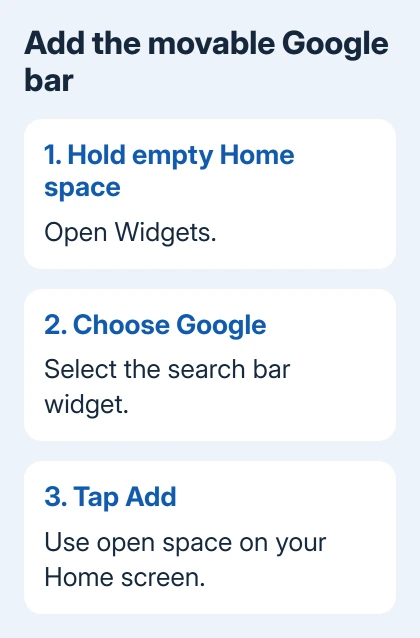
Hold a blank area of Home until its editing controls appear. Tap Widgets, then scroll to or search for Google.
Choose the Google search bar widget. On Samsung's widget picker, tap Add when offered. On versions that use dragging, touch and hold the widget, then place it in a free area of Home.
Leave enough space for the bar. If the current page is crowded, place it on another Home screen page first. Once added, tap its search area and type a query to check that it opens Google Search.
To move it later, touch and hold the widget and drag it to the new position. Resize handles can appear after holding it; use those to adjust the width where the widget allows it.
There is also an app route on versions that offer it: Google > profile picture or initial > Settings > Customize Search widget > Add. If Add isn't present in that version, use the Home screen's Widgets menu instead.
The Samsung tablet widget steps explain the same Home screen editing idea on a larger display. Widget choices and layout still depend on the installed app and device.
Turn on the built-in bar on supported One UI 9 phones
On supported One UI 9 devices, open Settings > Home screen > Show search on Home screen. Turn on the Search option for the Google search bar. Available switches can differ by model and region.
This is a built-in Home screen control, so its position is fixed. A movable Google widget is a separate choice. Keep that distinction in mind if holding the built-in bar doesn't bring up the widget menu you expected.
Samsung's search-bar guide describes how to tell them apart: holding a widget opens its menu, while holding the built-in bar opens Google Search.
Hold for one or two seconds for that comparison. A quick tap opens search on either type and doesn't distinguish the two types.
If Show search on Home screen isn't offered, use the widget procedure. Older software can lack that newer Home screen option.
Make Chrome search with Google again
Open Chrome, tap its three-dot menu, then choose Settings. Under Basics, tap Search engine and select Google. Return to a tab and enter a fresh query in the address bar.
The results should now open through Google. An existing results tab won't necessarily change just because you selected a new search engine, so use a new query to check the result.
This choice belongs to Chrome. It doesn't move the Home screen widget or change the search provider in another browser. Changing your default browser is also a different setting from changing Chrome's search engine.
If the search-engine control is managed by an organization, ask that administrator about the browser policy. For an ordinary personal phone, check the selected provider before clearing browser data or resetting the phone.
Change search in Samsung's browser separately
Open Samsung Browser, called Samsung Internet on older versions. In the current app, open Tools, shown as three vertical dots, then Settings and Address bar search engine. Choose Google if it's available.
Older Samsung Internet versions use a different menu icon. Look for Settings and the search-engine option inside that browser. The app name and menu design can change without changing Chrome's separate search preference.
Type a new search in the same browser's address bar afterward. That checks the setting you just changed, rather than a Home screen widget that opens another app.
When search still won't open
If the app opens but results won't load, compare a website in your browser using the same network. A wider connection failure needs a network check; moving the widget won't restore an unavailable internet connection.
If results work and only the Home screen control is missing, return to the matching widget or built-in-bar section. For an unexpected briefing panel, the Now Brief controls are separate from Google Search.
If it still won't work, send Samsung Support your model, One UI release and the screen you're having trouble with. Say whether Google opens from the apps screen and whether the missing item is a widget or built-in bar.
The Short Version
Enable Google if needed, then add its widget from Home. Supported One UI 9 phones also offer Show search on Home screen. Set the search engine separately in Chrome or Samsung Browser when address-bar results use another provider.
Checked November 10, 2026.