

TXT files that open in VS Code instead of Notepad need their default app changed. When Notepad is missing from the choices or Windows refuses to associate it, repair the installed Notepad app before trying the file type again.
Try opening the document through Notepad's File menu. If that works, Notepad can read your text file, and it's the double-click behavior that needs fixing. If Notepad won't start at all, fix the app first.
In this guide
1. Test Notepad's File menu
Search Start for Notepad and open it directly. Choose File > Open, browse to the affected text document, and select Open. This checks the app and the document without using the default app for .txt files.
If the file opens normally, leave it unchanged. Renaming it or copying its contents won't repair double-click behavior. Continue with the default-app setting in the next section.
If Notepad opens but only one document fails, try a small text file that you know opens elsewhere. If only one file fails, check its location, permissions, or contents rather than changing the app for every .txt file.
For a document on a disconnected drive or a work share, confirm you can still reach its folder in File Explorer. An unavailable location won't be repaired by selecting a different editor.
If Notepad itself fails to launch, skip the association setting for now and go to the app repair. Choosing a broken app repeatedly won't make the file open.
2. Choose Notepad for the .txt extension
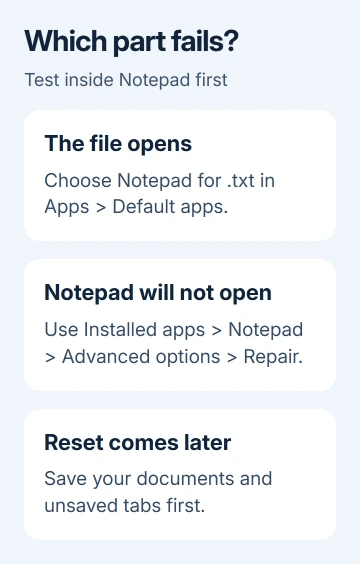
In Windows 11, open Settings > Apps > Default apps. Search for .txt in the file-type search box, select the matching result, and choose Notepad. Select Set default if that confirmation appears.
Microsoft recommends this extension-based method in its default-app instructions. Setting .txt affects text documents without changing your code or web-page defaults.
Windows 10 uses Settings > Apps > Default apps > Choose default apps by file type. Find .txt, select its current app, and choose Notepad. The list can take a moment to fill.
Close Settings and double-click the same document. Success means it opens in Notepad without another app-choice prompt. The file's icon might change too, but opening it is how you'll know the setting worked.
An alternative is to right-click the document and choose Open with > Choose another app. Select Notepad and use Always in Windows 11, or the Windows 10 checkbox for always using that app for .txt files.
If Notepad isn't listed, don't keep browsing to copies of notepad.exe. In the reported case, Windows wouldn't accept C:\Windows\System32\Notepad.exe as the default app. Repairing the installed app is the next step.
For several extensions that keep opening in the wrong programs, use the file-type defaults guide. Keep this repair focused on .txt when other defaults already work.
3. Repair Notepad without resetting it first
On Windows 11, open Settings > Apps > Installed apps, find Notepad, and select its three-dot menu. Choose Advanced options, then Repair if the button is available.
Windows 10 places an app's repair controls under Settings > Apps > Apps & features. Select Notepad, then Advanced options when offered. Older built-in versions don't all expose the same controls.
The app repair procedure applies only when Windows offers those options. If Advanced options is missing, don't try to make it appear by changing registry permissions.
Let Repair finish, launch Notepad from Start, and open the document again. Then return to the .txt setting and choose Notepad. If the document opens both ways, the app and the .txt setting are working together again.
I'd try Repair before Reset. It can fix the installed app without clearing its app data.
If Repair succeeds but the association still won't save, restart Windows once and retry the .txt choice. If Notepad still doesn't launch or remains unavailable, continue to Reset or reinstall rather than changing unrelated defaults.
4. Reset or reinstall the installed version
Save open documents before resetting Notepad. Copy out text from unsaved Notepad tabs as well: Reset clears app data, so don't rely on the app remembering those tabs afterward.
Return to Notepad's Advanced options page and select Reset. Confirm the prompt, wait for it to finish, then open Notepad from Start. Test one document before returning to Default apps.
If Windows offers Uninstall for Notepad and Reset hasn't helped, remove that app, then open Microsoft Store, search for Windows Notepad, and verify Microsoft is listed as its publisher before installing it.
Use Microsoft Store's app listing for this step. Replacing protected Windows files isn't part of a Notepad reinstall.
Some older Windows installations manage Notepad as an optional feature instead. If it isn't in the installed-app list, check Settings > Apps > Optional features on Windows 10 for its installed entry.
Follow the options your Windows version offers. Don't remove Windows components or take ownership of protected files just because instructions for a newer Store app show different buttons.
After installation, launch Notepad once, choose it for .txt, and double-click your document. If the file opens, the repair is complete. Keep VS Code installed if you still use it for other file types.
When Windows still rejects the choice
The original thread's accepted reply recommends System Restore, but the owner never confirmed that it fixed this error. Their last update said the registry file import failed. That download hasn't been confirmed to fix this case.
Avoid changing registry access permissions to force that import through. For a managed work PC, ask IT to check the Notepad app registration and any policy controlling file associations.
For a personal PC, open Get Help, describe the exact association error, and say whether File > Open works. That helps support tell an app problem from a default-app problem.
The Short Version
Start with Notepad's File menu, then set the .txt default. Repair the app if it's missing or broken. Save unsaved text before Reset. A failed registry download isn't a reason to alter Windows permissions.
Checked November 17, 2026.






