A Western Digital NVMe disk can block Windows 11 24H2 or blue-screen because of a known firmware fault. Check the model, then apply its SANDISK Dashboard firmware update before retrying Windows Update.
This affects specific 2TB models, not every WD SSD. If the capacity differs, the disk is missing, or Windows shows another update error, check that problem separately. Don't choose firmware just because the brand matches.
In this guide
1. Match the SSD to the affected models
Open Device Manager, expand Disk drives, and note the model. Then open Settings > System > About and check Windows specifications. This firmware problem affects Windows 11 24H2.
The critical firmware notice lists these affected drives and their corrective firmware:
| SSD, all 2TB | Corrective firmware |
|---|---|
| WD_BLACK SN770 | 731130WD |
| WD_BLACK SN770M | 731130WD |
| WD Blue SN580 | 281050WD |
| WD Blue SN5000 | 291020WD |
| SANDISK Extreme M.2 | 731130WD |
The problem involves Host Memory Buffer, a feature that lets the SSD use some computer memory. The affected firmware can cause blue screens, and Windows may hold back the upgrade until the drive is updated.
For a 1TB drive, an SN850, or a model absent from that table, don't install one of these packages manually. Check that drive's support page and use the error shown by Windows to choose the next repair.
This same firmware fault can block the upgrade or cause crashes after it. If your SSD isn't detected at all, start by checking that problem and getting help with the hardware.
2. Save your files before opening Dashboard
Make a second copy of important documents on another drive or in cloud storage before the firmware change. Open several of those copied documents; don't rely on the progress bar to confirm they saved correctly.
Download SANDISK Dashboard through the manufacturer's support page and install it in Windows. The current app supports compatible WD and SANDISK SSDs; its name doesn't mean a WD-branded drive needs a different program.
Select the physical SSD you identified. Compare its model, capacity and firmware version with your notes. If the computer has two SSDs, the Windows drive letter alone isn't enough to choose the correct one.
Dashboard can display information for the largest partition on a drive. A different letter from the one you expected doesn't automatically mean you're looking at another SSD. Use the model and capacity together.
If the drive is supported and appears normally, continue to its firmware controls. If it doesn't appear, fix that detection problem first. Reinstalling Windows won't help Dashboard see a drive through an enclosure it doesn't support.
I'd check the model in both Windows and Dashboard before doing anything else. That simple comparison prevents a repair for one product from turning into a firmware experiment on another.
3. Apply the firmware and complete the power-off
Choose UPDATE AVAILABLE or Tools, then UPDATE FIRMWARE. Read the selected drive information and choose PROCEED. Let Dashboard finish the update process without interrupting it.
When prompted, select SHUTDOWN NOW. The computer powers off; turn it back on to apply the firmware. Closing Dashboard or stopping after the download doesn't complete that final power cycle.
Reopen Dashboard and check the selected SSD's firmware version. The versions in the table identify the published fix; use the app's current compatible update if it offers a later version for that exact model.
If the update fails or the version hasn't changed after the requested shutdown, keep the error message. Use the support notice's link for firmware that won't download or install, rather than repeatedly launching the same failed update.
4. Retry Windows Update without forcing the upgrade
After applying the firmware, choose Settings > Windows Update > Check for updates. New download or installation progress, or a restart request, shows that Windows has moved past the earlier block.
Check whether Windows is holding back the upgrade or failing partway through installation. If the hardware isn't ready, check compatibility. For a numbered error after installation starts, use the repair for that error.
For a numbered failure, use the Windows update error guide to record the exact code and the stage that failed. The WD brand isn't enough to explain every installation error.
If the SSD firmware is current but installation still fails, Microsoft recommends Windows update troubleshooting.
In Windows 11, find the troubleshooter under Settings > System > Troubleshoot > Other troubleshooters > Windows Update. Follow the prompts, then check the failed update again. Record any message that remains after the repair.
Avoid bypassing a remaining hardware hold with installation media. Current SSD firmware clears this particular cause; another component or compatibility rule can still prevent the same computer from upgrading.
5. Check why Dashboard can't detect the SSD
Check Dashboard detection first if Windows still starts. Unsupported drives, storage drivers, enclosures and RAID arrangements can prevent the app from seeing the SSD.
Tell the PC maker whether the SSD is internal, in a USB adapter, or behind RAID. Keep its BIOS storage mode unchanged while checking; switching it can stop the installed Windows system accessing its boot drive.
6. Use the recovery route when Windows keeps crashing
If Windows blue-screens before Dashboard can run, the firmware notice allows a manual update from Safe Mode without networking using the correct downloaded firmware file. Ask SANDISK support for the file matching your exact model.
Save the file before restarting into Safe Mode, which has no networking. Use your account password there; Windows Hello PIN and fingerprint sign-in aren't available.
From a usable sign-in screen, keep Shift pressed as you choose Power > Restart. If the PC is encrypted, have its BitLocker recovery key ready before continuing into recovery.
Choose Troubleshoot > Advanced options > Startup Settings, then Restart. At the numbered startup choices, select 4 or F4 for ordinary Safe Mode. The networking option is a different choice.
The Windows startup settings instructions show those recovery controls. Follow the model-matched manual firmware instructions supplied with the file.
If the machine repeatedly restarts, the Windows restart checks help separate a visible stop error from a sudden power interruption. Give support the stop code when Windows displays one.
Send SANDISK support the SSD model, capacity, firmware and Dashboard error. For a Windows upgrade block that remains, give Microsoft or the PC maker those details plus your Windows version and update message.
The Short Version
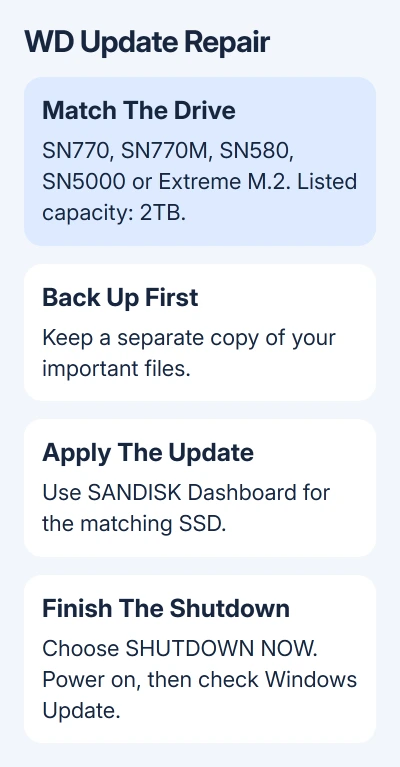
Match the SSD to the affected 2TB models, back up your files, and apply its Dashboard firmware update. Complete the requested shutdown, power on, and retry Windows Update. A different drive or a continuing error needs its own diagnosis.
Checked November 13, 2026.
 If you have any business, I can build it online