The Start button on Windows 11 is the four-square Windows logo near the bottom center of the taskbar. Click it to open apps, settings and power options. The Windows key opens the same menu.
Windows 10 put Start in the bottom-left corner, so the centered position can make it seem missing after an upgrade. A hidden taskbar or a folded-back convertible keyboard can also keep the button out of sight.
In this guide
Find the Windows logo among the taskbar buttons
Look along the bottom edge of the desktop for the row containing your pinned and open apps. In the usual centered layout, Start sits at the left end of that group. It isn't necessarily in the exact center of the display.
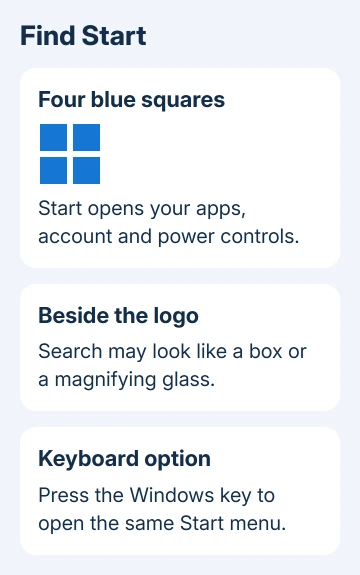
The search box or magnifying glass beside it is a different control. Search finds things directly; Start opens app shortcuts and account and power controls. Clicking Search doesn't mean Start has changed shape.
Move the pointer onto the four-square logo and pause. Its tooltip should identify Start. A single left-click opens the menu; another click closes it. On a touchscreen, tap the logo once instead.
Microsoft lists Start separately from Search, Widgets and Task View in its taskbar instructions. Neighboring buttons can vary.
The logo still looks the same even when your taskbar doesn't match a picture in an older guide. Your pinned apps, search display and taskbar alignment all affect what's next to it.
Open Start with the keyboard
Press and release the Windows key, usually near the bottom-left of the keyboard between Ctrl and Alt. That opens Start whether its taskbar button is centered or aligned left. Press the key again or press Esc to close the menu.
On a keyboard without a Windows key, try Ctrl + Esc. This is useful with older keyboards or layouts where the Windows key is hard to recognize. The menu you open is the same one the taskbar button opens.
Once Start is open, begin typing an app name such as Notepad, then select the result. Start accepts that search directly. This is often the quickest way to open an app whose pinned shortcut has moved.
If neither keyboard method opens the menu, try clicking the taskbar logo. If that works but pressing the Windows key doesn't, check the keyboard next. You've found the right button.
The Windows-key troubleshooting steps cover locks and keyboard settings that can stop that shortcut. A gaming keyboard's disabled Windows key won't remove Start from the taskbar.
Put Start back in the lower-left corner
The familiar left-hand position is a built-in setting. It moves the taskbar's app buttons with Start, so expect the whole group to shift rather than only the Windows logo.
- Right-click unused taskbar space and select Taskbar settings.
- Expand Taskbar behaviors.
- Find Taskbar alignment and choose Left.
- Close Settings and check the left end of the taskbar for Start.
Another route is Windows + I > Personalization > Taskbar. Use it when the empty space on the taskbar is hard to click. Open Taskbar behaviors from that page and change the same alignment control.
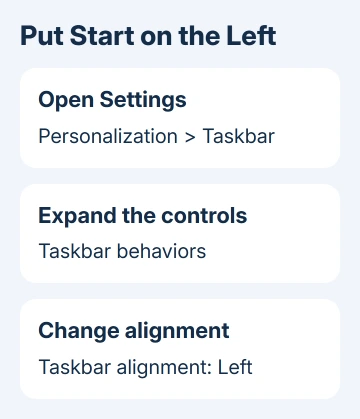
Choose Center again to restore the centered group. The choice changes placement, not your installed apps, documents or Start shortcuts. It also doesn't turn Windows 11 into the Windows 10 Start menu.
I'd use left alignment if reaching for the old corner has become muscle memory. It gives Start a predictable spot without installing a replacement menu or changing the registry.
For other layout choices, the Windows 11 taskbar settings guide explains which controls affect labels, pinned apps and the clock.
Bring back a taskbar that hides itself
A desktop with no bottom row can simply have Automatically hide the taskbar enabled. Move your pointer to the bottom edge and wait for the row to appear. On a touchscreen, bring it up from the bottom edge.
When the row appears, right-click empty space, open Taskbar settings > Taskbar behaviors, and clear Automatically hide the taskbar. Return to the desktop. The row should remain visible after the pointer moves away.
On supported 2-in-1 PCs, folding back or disconnecting the keyboard can collapse the taskbar. Swipe upward at the screen's lower edge to expand it, then tap Start. The compact row hasn't removed the button.
If your taskbar is on another screen edge, look there. With several monitors, check the main display too. Taskbars on extra screens depend on your settings; the keyboard shortcut saves you searching across displays.
If the row appears when you reach the edge, hiding explains the missing button. If the taskbar remains absent and Start won't open from the keyboard, Windows may have stopped responding; the button hasn't just moved.
Know which menu a right-click opens
Right-clicking Start opens a compact list of system tools. Windows + X opens that same list. Seeing Settings, Task Manager or other administrative shortcuts there is normal; it's a different menu from a regular Start click.
Use a left-click or the Windows key for the app menu. Use its power control to sleep, shut down or restart the PC. The account controls and app layout can vary between Windows 11 updates.
If Start opens but has different app groups from a friend's PC, that alone doesn't indicate a fault. Locate apps by typing their names instead of relying on the same shortcut order on every computer.
When the logo and both keyboard routes fail, save open work and restart through Ctrl + Alt + Delete, using the power control on that screen. On a work PC, report that Start fails by mouse and keyboard to IT.
If a personal computer's Start menu stays unresponsive after restarting, use Windows Search to open Get Help if available. Ask about the unresponsive menu and mention whether other taskbar buttons respond.
The Short Version
Find the four-square Windows logo near the bottom center, or press the Windows key. Use Taskbar settings > Taskbar behaviors > Taskbar alignment > Left for the old corner position. Reveal a hidden row before treating Start as broken.
Checked November 15, 2026.
 If you have any business, I can build it online