A Wi-Fi switch that stays gray, disappears or flips back off usually needs attention on the device itself. Restart the phone or computer first.
On Windows, check that the wireless adapter is enabled; on a phone, use its full Wi-Fi settings rather than judging only the quick-control icon.
Once nearby network names appear, Wi-Fi is on. A device that connects but has no internet needs connection troubleshooting, rather than more work on the switch.
In this guide
1. Check the actual Wi-Fi control
On Windows 11, open Settings > Network & internet > Wi-Fi. Windows 10 calls the category Network & Internet. Turn Wi-Fi on there and leave Airplane mode switched off.
Some laptops also have a wireless switch or a wireless-symbol key on the keyboard. Find that control in your laptop manual; there isn't one universal function-key combination.
If that hardware control has turned wireless off, the switch in Settings may not help.
On iPhone or iPad, open Settings > Wi-Fi. For Pixel and similar Android models, open Settings > Network & internet > Internet. Samsung phones normally use Settings > Connections > Wi-Fi.

A gray Wi-Fi symbol in iPhone Control Center can mean the phone disconnected from nearby networks. Check Settings before deciding Wi-Fi won't turn on. If the switch is dimmed inside Settings, tell support that's the switch you can't use.
Restart the affected device and return to that same settings page. Use Start > Power > Restart on Windows. On a phone, use its normal power menu. If nearby networks appear afterward, choose yours and test a webpage.
2. Enable the Windows wireless adapter
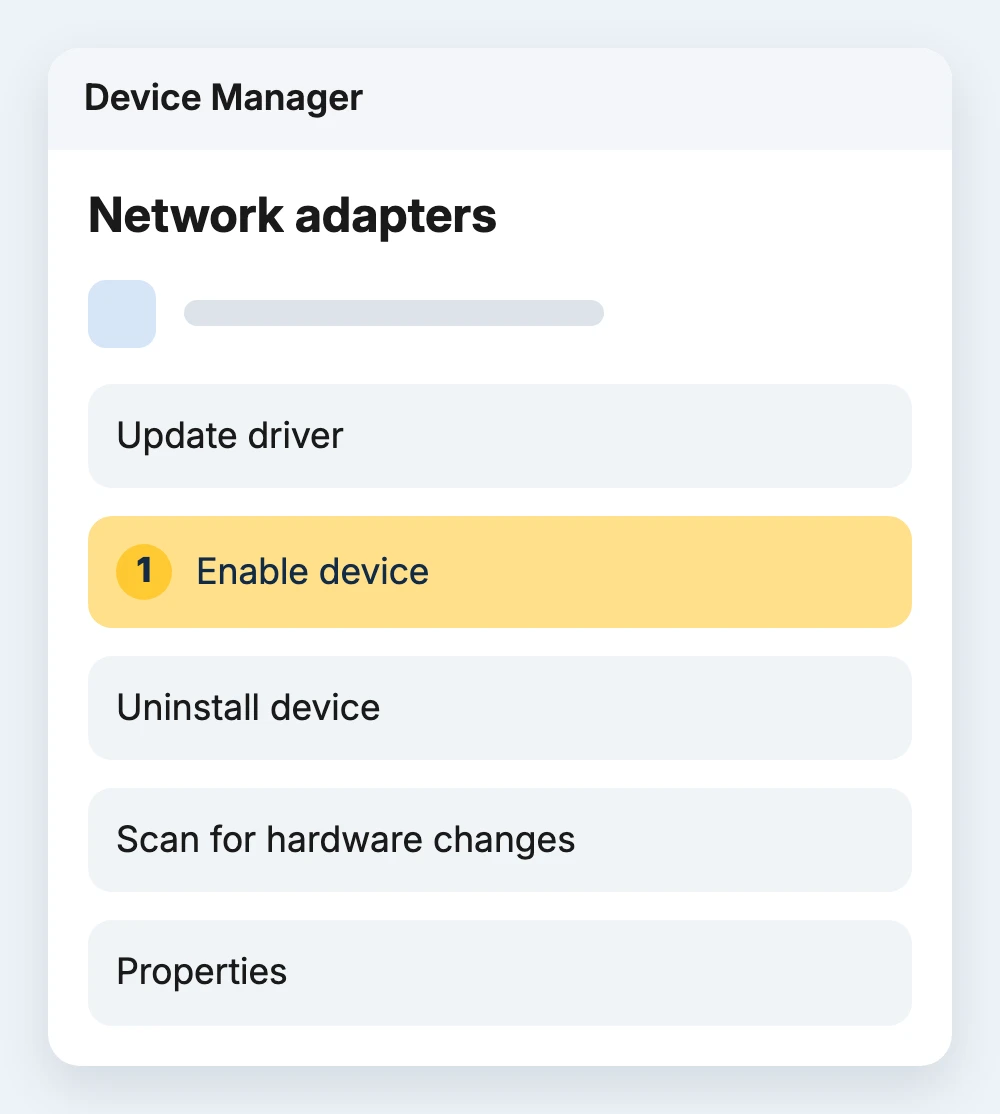
Right-click Start and select Device Manager. Expand its Network adapters category. Find the wireless or Wi-Fi adapter. Ethernet and Bluetooth entries aren't substitutes for the Wi-Fi adapter, so check the name before changing it.
Right-click the wireless adapter. If Enable device is offered, select it. If the menu offers Disable device, it's already enabled; keep it enabled and check the wireless service next.
Microsoft's Wi-Fi troubleshooting page includes this step for a missing Wi-Fi option. Reopen Wi-Fi settings after enabling the adapter and look for the network list.
If no wireless adapter is listed, Windows isn't detecting it normally. Get the Wi-Fi driver for the exact laptop model from its maker, using Ethernet or another computer to download it if necessary.
Match both the laptop model and Windows release when choosing the download.
For a desktop, also confirm it actually has Wi-Fi hardware. An Ethernet port provides a wired connection, not Wi-Fi. A missing internal or USB wireless adapter needs hardware or its matching driver, rather than another router restart.
For a listed adapter showing an error, note the error code in Properties > General. Include that code when asking the laptop maker for help. Our Windows network adapter guide covers the adapter side in more detail.
3. Restart the Windows wireless service
Press Windows key + R, type services.msc, and press Enter. Find WLAN AutoConfig, right-click it and select Restart. This service manages Windows wireless connections, so a stopped or stuck service can leave Wi-Fi unavailable.
Return to Settings > Network & internet > Wi-Fi and check the switch again. If it now stays on and lists networks, connect normally. If it connects, you're done with this check and don't need to reset your network settings.
If Windows refuses the service change or says an administrator controls the device, ask IT for help. Tell them the service name and that the Wi-Fi switch is missing. Don't change unrelated services while trying to restore wireless access.
Use Settings > Windows Update on Windows 11 for available fixes. Windows 10 keeps update controls under Settings > Update & Security > Windows Update.
A model-specific wireless driver from the laptop maker can matter when Windows doesn't detect the adapter.
4. Handle a dimmed iPhone or iPad switch
Apple's Wi-Fi connection steps specifically recommend restarting when the Wi-Fi setting is dimmed. Recheck Settings > Wi-Fi after the restart, rather than repeatedly tapping a switch that isn't available.
For a Face ID iPhone, press and hold Side plus Volume Up or Volume Down for the power slider. For iPhone 6, 7 and 8, plus the second-generation and third-generation SE, hold Side. On a first-generation SE or iPhone 5, hold Top.
An iPad without Home needs Top held together with either volume button. With Home, hold Top alone. Slide to shut down, wait 30 seconds, then power it back on with Side or Top, letting go at the Apple logo.
If the control remains dimmed, check Settings > General > Software Update using a working connection if one is available. Back up first, then install the offered update.
If Wi-Fi stays unavailable, ask support for help, especially if Bluetooth doesn't work either.
Settings > General > Transfer or Reset iPhone > Reset > Reset Network Settings is a later network troubleshooting option. On iPad, the menu says Transfer or Reset iPad.
It removes saved Wi-Fi networks and passwords, plus other network settings.
A network reset won't necessarily make a dimmed Wi-Fi switch work again. If it stays unavailable, use Apple Support and describe it as a Wi-Fi switch that cannot be enabled, instead of reporting a password failure.
5. Follow the Android route without erasing the phone
On Android, turn Airplane mode off and restart, then return to the full Internet or Wi-Fi settings page. Menus differ by maker, so use Settings search for Wi-Fi if the Pixel or Samsung path doesn't match your phone.
Search Settings for Software update, then install an available release for your model.
A model-specific software fault can affect the radio; the Pixel Wi-Fi and Bluetooth guide covers a separate Pixel update issue rather than a fix for every Android phone.
If Wi-Fi starts but only fails while certain apps are running, use the maker's safe-mode instructions to compare. Downloaded apps don't run during a safe-mode comparison.
If Wi-Fi works in safe mode, check your downloaded apps before replacing the router.
A switch that keeps reverting after a restart and update needs the phone manufacturer's support team or its authorized repair service.
Give the exact model, system version, whether Bluetooth works and whether the fault followed a drop or repair.
I'd stop before a factory reset unless support has a reason for it. If these checks leave the switch unusable, support needs to work out why. Erasing your personal data isn't the automatic next step.
The Short Version
Open the Wi-Fi settings page and restart the device. Windows needs an enabled wireless adapter and working WLAN AutoConfig service. A dimmed phone switch needs device troubleshooting and possibly repair.
Once network names appear, switch to troubleshooting the connection.
Checked November 27, 2026.
 If you have any business, I can build it online