Windows 10 can hang on Welcome because of a driver, service, or account problem. Restart once. If sign-in hangs again, try Safe Mode. It loads fewer drivers and services, helping you check whether one of them is blocking sign-in.
The Welcome message after entering a password is different from a setup page asking you to finish configuring Windows. A computer frozen at its manufacturer's logo also needs a different starting point.
In this guide
1. Restart once and remove extra USB devices
If the screen says an update is installing, leave the PC plugged in and let that process finish. A paused progress display isn't a reason to interrupt it. These steps are for a repeated Welcome hang after sign-in.
Press Ctrl+Alt+Delete and check whether Windows shows its security screen. If a power control is available, select Restart. Use a normal restart while Windows still responds, rather than cutting the power.
If the computer won't respond at all, hold Power down until the computer turns off. Disconnect extra USB drives, docks, printers, and other accessories. Leave the keyboard, mouse, and necessary display connected, then start it again.

Try signing in once more. If the desktop appears, reconnect accessories individually and check the next restart. If the problem returns with one accessory connected, you'll know which device or driver needs attention.
For a screen offering Microsoft services and setup choices, use the Welcome to Windows reminder settings instead. That page isn't the frozen sign-in screen this procedure addresses.
2. Open recovery without needing the desktop
At the sign-in screen, hold Shift while selecting Power > Restart. Keep Shift held as you choose Restart. Windows should open a blue recovery screen with options such as Troubleshoot.
If the hang prevents access to any sign-in controls, use the Windows Recovery Environment instructions. They describe entering recovery after failed starts.
Turn on the computer. When the Windows or manufacturer's logo appears, hold Power until the machine shuts off. Repeat that interrupted startup once more. On the third start, Windows should enter Automatic Repair.
Choose Advanced options to reach recovery. Use this fallback only when the normal restart route is unavailable; don't keep interrupting startup after recovery has opened.
An encrypted drive can prompt for its BitLocker recovery key, so locate that key before continuing. A Windows account password and the long BitLocker recovery key serve different purposes.
A computer that never reaches Windows loading needs the boot-screen checks. If its BIOS or UEFI settings don't detect the drive, repeatedly trying to sign in won't fix that hardware problem.
3. Start Safe Mode and use the account password
From recovery, select Troubleshoot > Advanced options > Startup Settings > Restart. After the numbered options appear, press 4 or F4 for Enable Safe Mode.
Choose 5 or F5 only when you need Safe Mode with Networking. Network availability still depends on the hardware and loaded drivers, so don't treat missing Wi-Fi in ordinary Safe Mode as another fault.
Microsoft's Startup Settings guide explains this limited startup. If you get past Welcome here, a driver or service that Safe Mode leaves out may be stopping normal sign-in.
Use the account's password, not its PIN or fingerprint. Those sign-in options aren't available in Safe Mode. For a Microsoft account, use its account password; for a local account, use that account's local password.
Once the desktop appears, copy important local files to a backup before deeper repairs. Keep the machine in this working session long enough to check what changed just before the failure.
If another existing account appears on the normal sign-in screen, try it too. If the second account works, check the first account separately. If both hang, continue with services, drivers, and recovery.
4. Test the startup software when Safe Mode works
Open Start, type msconfig, and open System Configuration as an administrator. A clean boot temporarily stops third-party services and startup apps from loading, so you can try signing in without that extra software.
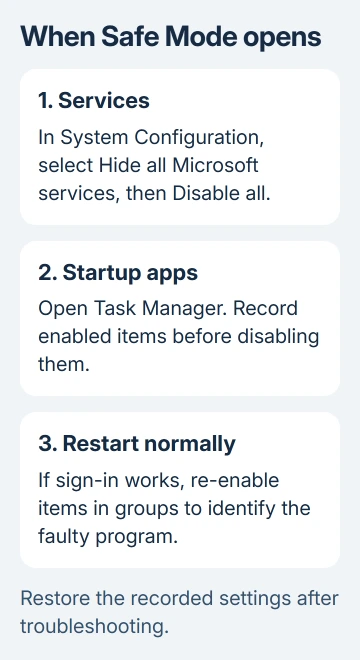
On Services, first check Hide all Microsoft services. Then choose Disable all, followed by Apply. This keeps the Windows service entries out of the group you're disabling.
On Startup, select Open Task Manager. Note the names of the enabled startup items. Select those items individually and choose Disable. Close Task Manager, select OK in System Configuration, and restart normally.
Don't change the advanced options on the Boot tab. They aren't part of this test. If your workplace manages these settings, ask IT to run this test.
If Welcome now finishes, restore small groups of the disabled items, restarting between tests. Test progressively smaller groups to find which service or startup app brings the hang back. Then update, repair, or uninstall that program.
If the test changes nothing, put the services and startup apps back as they were, using your notes. After troubleshooting, restore the other disabled items too, leaving only the identified faulty item disabled while you arrange its repair.
I'd use this comparison before removing several programs at once. A working sign-in after five unrelated removals doesn't tell you which program needs attention when it returns.
5. Undo a recent system change from recovery
When Safe Mode also hangs, or the problem began immediately after an update or driver installation, return to Troubleshoot > Advanced options. Choose the recovery tool that matches that recent change.
For a recent Windows update, select Uninstall Updates, then Uninstall latest quality update when available. Follow the prompts, restart, and check sign-in again. This tool can't remove every update.
For a broader recent change, select System Restore. Pick an available restore point dated earlier than the Welcome failure. Use Scan for affected programs when offered to see which installed programs the rollback affects.
System Restore changes system files, settings, and installed programs; it doesn't remove personal files. It still needs an available restore point. A blank list doesn't mean you should choose a later point that already contains the fault.
If neither route works, arrange a drive check through the manufacturer or your repair technician. Ask them to preserve your files before reinstalling. Include the last working startup date and whether Safe Mode or another account opened.
Free Windows 10 support finished on October 14, 2025. After recovery, check your extended security update coverage or a supported upgrade route. Restoring sign-in doesn't extend Windows 10's support period.
The Short Version
Restart, remove extra accessories, and try Safe Mode through recovery. If it works, check startup software. After a system change, try update removal or an earlier restore point. If sign-in still fails, ask for repair that saves your files.
Checked November 12, 2026.