Try running the Windows Update troubleshooter first for download error 0x80246019 on Windows 11 23H2. One owner got past the error after advice to troubleshoot or use an offline package, but didn't say which worked.
That old package won't bring Windows to a currently supported version.
By November 26, 2026, updates have ended for 23H2 Home, Pro, Enterprise and Education. Clear the failure so the PC can reach a supported release, rather than forcing the 2023 feature update onto it.
In this guide
1. Start the troubleshooter for Windows Update
In Windows 11, open Settings > System > Troubleshoot > Other troubleshooters. Select Run beside the Windows Update entry. Follow the prompts, including the Get Help workflow if Windows opens it.
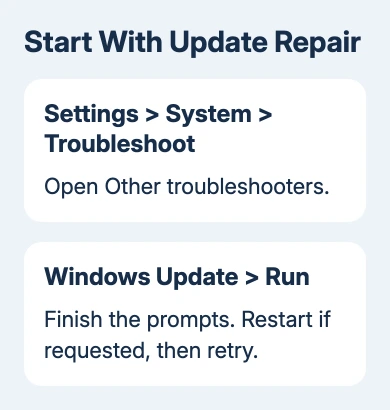
Let it complete, reopen Settings > Windows Update and request a fresh update check. If Windows requests a restart, restart before judging whether the repair worked. Read the update name as well as its result.
The asker said it worked while quoting both suggestions, so they didn't identify which action fixed it. A later owner said the troubleshooter hadn't resolved their failure.
Try this once, then follow the result. Let a successful download install and check your version afterward. For another 0x80246019 failure, move to the version check rather than repeating troubleshooting.
A different error deserves its own repair. Keep the code visible in Update history and use the Windows update error guide if the failure changes after troubleshooting.
2. Match the failed offer to your installed Windows
Press Windows + R, type winver, and press Enter. Read its Version field and the OS Build number. Windows 11 22H2 uses build 22621; 23H2 uses build 22631. Those numbers distinguish the old versions involved in this error report.
If winver already says 23H2 or a newer release, the old 22H2-to-23H2 enablement package isn't your next step. Return to Windows Update and identify the particular update that is failing now.
Open Settings > Windows Update > Update history and note its full name and KB number. A monthly quality update, a driver and a feature update can fail in the same settings area, but they don't use the same installation package.
For a computer your workplace manages, send these details to IT. They can control which Windows version it receives. Ask which supported release they plan to install before using a download meant for personal PCs.
If the computer is still on 22H2, plan a supported upgrade. The Windows version support guide explains why completing an old feature update alone doesn't keep a PC protected indefinitely.
3. Understand what the old offline package actually did
The historical workaround used KB5027397, the small package that enabled 23H2 features already delivered in 22H2's system files. It wasn't a complete Windows installer and couldn't upgrade every Windows version.
Microsoft's KB5027397 requirements specify Windows 11 22H2 plus KB5031455 or a later cumulative update. A restart is required after applying the package.
The thread supplied an x64 package link. That means it was for x64 processors, not every Windows computer. It shouldn't be treated as a universal download for Arm-based PCs or for machines already on another feature version.
The package isn't available through Microsoft Update Catalog, according to the vendor article. Searching there won't produce it. The thread's old direct link isn't a substitute for a supported current upgrade.
I'd leave that old download alone on a personal PC today. Its requirements explain why the workaround helped in 2023, but installing an ended release now doesn't solve the computer's ongoing update needs.
If IT is trying to reproduce the old failure, record those requirements and the exact starting build. The owner's brief success reply doesn't show that the offline package alone fixed every 0x80246019 download error.
4. Clear the current failure before trying a supported upgrade
Restart Windows and plug in the laptop. Choose a steady internet connection. Open Settings > Windows Update, resume updates if paused, and choose Check for updates. Install the supported feature update offered for the device.
Note whether the download starts, reaches a percentage or stops immediately. Check how much free storage remains on the Windows drive too. If Windows displays a storage warning, deal with the requested space before another attempt.
If downloading completes but installation fails, record the new stage and error code. System-file repair or upgrade logs may help more at that point than trying the old enablement package again.
On eligible PCs, open Settings > System > Recovery and locate Fix problems using Windows Update. Select Reinstall now there if it's available. The reinstall preserves personal files alongside Windows settings and the apps you've installed.
Back up documents before a repair installation. Leave power and internet connected until it finishes. Windows versions and workplace settings can affect whether this option appears; ask support for another route if it is missing.
Reinstalling the same Windows version won't restore updates after its support has ended. After it finishes, return to Windows Update and complete the supported feature upgrade offered for that PC, or ask IT to deploy the approved release.
When the update still won't download
Open Get Help and ask for Windows Update support with the exact code, update name and installed build. Include the troubleshooter result and say which stage fails now. Say if your workplace controls Windows updates.
Ask how to upgrade your installed version to a supported release. If a compatibility hold is blocking the upgrade, ask which driver or app caused it and how to fix it. Leave the hold in place until its cause is understood.
The Short Version
Try the Windows Update troubleshooter, then check the current version and failed update. The old KB5027397 workaround was limited to prepared 22H2 installations. Since 23H2 has ended updates, finish with a supported Windows release.
Checked November 26, 2026.
 If you have any business, I can build it online