Renaming the wrong folder in Windows 11 can start with Show more options > Rename in File Explorer's left navigation pane. Use the main pane or Shift + right-click > Rename to avoid that selection jump.
A folder-in-use, access-denied, or invalid-name message points to a different problem. Match the message before changing permissions or restarting Windows.
In this guide
1. Rename from the main pane instead of the folder tree
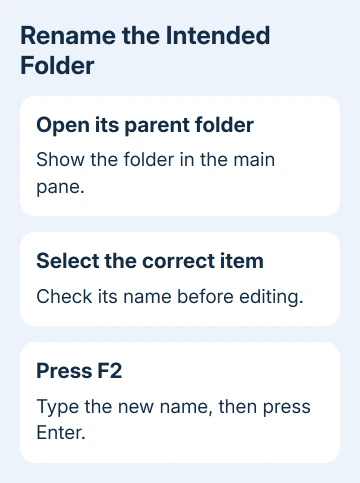
Press Windows + E to open File Explorer. Use the left navigation pane to open the parent of the folder you want to rename. Find the folder you want in the main area on the right and select it once.
Check the folder's current name, then press F2, type the new name, and press Enter. The name you chose should appear on that same folder. Open it once if needed to confirm that its contents are the ones you expected.
One owner in the folder-renaming thread reported that the right pane worked while the left navigation tree selected a different folder. Other replies describe the same contrast.
I'd use the main pane for a batch of important folder names. The selected item and its neighbors are easier to distinguish there than in a tree crowded with similar names.
If the new name is accepted and stays attached to the correct folder, the rename itself works. You don't need to change ownership of that folder to solve this particular selection problem.
2. Use Shift-right-click when working in the navigation pane
Select the intended folder in the navigation tree. Hold Shift, right-click its name, and choose Rename from the menu that opens. This reaches the older context menu directly instead of going through Show more options.
Before typing, look at the highlighted name. If another folder is selected, press Esc and return to the main-pane method. Don't save a new name while the wrong item is highlighted.
The owner confirmed that Shift-right-click worked, and a later reply said they had started using the same method.
This skips the move from Show more options to the older menu, where the selection was jumping.
After entering the new name, check the result in the parent folder. If this method still jumps on your PC, stop using the navigation pane for renaming and continue with the keyboard shortcut in the main pane.
3. Select once and use F2 without opening a menu
Click the intended folder once, then press F2. A box around its name should let you edit it immediately. Type the replacement and press Enter; use Esc to leave the existing name unchanged.
Microsoft lists F2 as the shortcut to rename the selected item. F2 works on whichever item is selected, so check the highlighted name before you type.
Some laptop keyboards use F2 for a hardware control. When pressing it changes brightness or volume, try Fn + F2 for the rename shortcut. The exact Fn behavior depends on the keyboard's function-key mode.
Clicking a name slowly twice can also enter editing, but it is easier to confuse with opening the folder. Clicking once and pressing F2 makes it easier to rename the folder without opening it accidentally.
If several items are selected, cancel and select only the intended folder. Explorer supports selecting multiple files, but use a single selection when one folder needs a precise new name.
4. Cancel a wrong selection before it becomes a wrong name
When the editing box appears on an unexpected folder, press Esc immediately. That cancels the edit without changing its existing name. Then click the parent folder and locate the right item in the main pane.
If you already committed a wrong name, stop renaming other items. If renaming was your last action, Ctrl + Z can undo it. Check the result before doing anything else, since Undo reverses the last action it can undo.
When the previous name isn't clear, avoid guessing based only on where the folder sits in the list. Open it, inspect its contents, and check any shortcut or project that points to it before assigning a replacement name.
Sorting can move a correctly renamed folder to a new place in the list. That movement happens after the name changes; the reported bug selects a different folder when you choose Rename, before you start typing.
That difference helps you judge the result. A folder moving alphabetically after a successful rename is expected. Cancel if the editing box appears on a different folder.
5. Follow the error message when no name is accepted
If the correct folder enters editing but Windows rejects the name, you've got past the menu's selection problem. Read the message rather than repeating the same rename method.
For a folder-in-use message, close documents and applications using that folder, then try again. For a permission message on a work or shared folder, ask its owner or IT administrator for the access needed to rename it.
For an invalid name, try a short name made of letters and numbers. Windows and synced folders have naming restrictions.
OneDrive also rejects certain characters and leading or trailing spaces, so a name accepted elsewhere may still cause a sync problem.
Check that you're renaming the actual folder rather than a displayed shortcut or pinned entry. Use the address bar to confirm its location.
The broader File Explorer guide explains navigation when the tree and main pane seem to show different things.
Report a selection jump that survives updates
Install updates through Settings > Windows Update and restart when requested. Try renaming a new, unneeded folder somewhere you have permission to make changes. Keep your working project folders out of this test.
If Show more options still selects another folder, open Feedback Hub from Start. Describe whether it happens in the navigation pane, the main pane, or both, and whether F2 and Shift-right-click work.
Include the release and build information available through Windows + R > winver. A screenshot showing the intended folder and the unexpected editing box can help, provided no private folder names are exposed.
The Short Version
For the navigation-pane selection jump, rename in the parent folder's main pane or use Shift-right-click. F2 avoids the menu entirely.
Cancel with Esc if the wrong name becomes editable, and treat permission or folder-in-use messages as separate problems.
Checked November 16, 2026.
 If you have any business, I can build it online