

KB5070311 has a confirmed File Explorer flashing problem in dark mode, fixed by KB5072033. Install the latest cumulative update offered to your PC in Windows Update instead of downloading that preview again.
Other listed problems affect the password sign-in icon, WSL networking through certain VPNs, and Azure Virtual Desktop RemoteApp. Each has a later fix, while a failed installation needs a different check.
In this guide
1. Read the installed KB number and release version
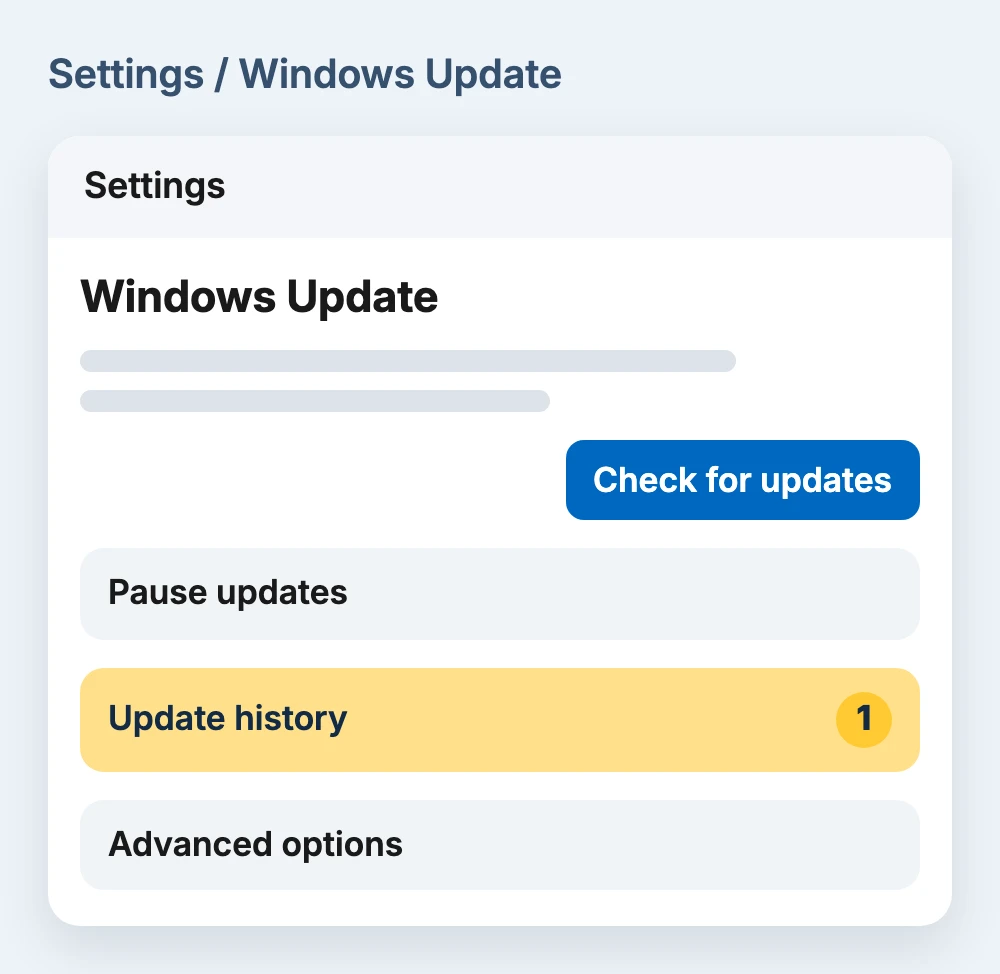
Open Settings > Windows Update > Update history and look for KB5070311. If it's marked successfully installed, check the symptoms that appeared afterward. A failed entry means Windows didn't finish applying that package.
Then open Settings > System > About and read Windows specifications. KB5070311 was released on December 1, 2025, for two Windows 11 releases: 24H2 and 25H2. The builds after installation were 26100.7309 and 26200.7309.
These numbers help identify the original update. They aren't a target to install on a PC already running a newer build. If your computer has been updated since December 2025, a later cumulative update may already include these fixes.
Microsoft says the faults in its KB5070311 issue list have later update fixes. Match your actual symptom before removing anything.
Return to the Windows Update page. Select Check for updates, then download the latest cumulative update available for your computer. Save your work before choosing Restart now when Windows requests it.
On a managed PC, update availability can be controlled by IT. Tell IT your installed build and exactly what goes wrong. They can check which approved repair applies. Don't manually install a different Windows version's package.
2. Fix the white flash when Explorer uses dark mode
The confirmed Explorer problem produces a brief white window before folders finish loading. It can happen when opening Explorer, visiting Home or Gallery, creating a tab, or changing the Details pane.
The same issue can appear after selecting More details during a file copy. The important detail is the brief white flash followed by the expected content, rather than a window that never responds.
KB5072033, released December 9, 2025, addresses this problem. Install the latest cumulative update available for your computer instead of reinstalling KB5070311 to repair this problem.
After updating and restarting, try the previously troublesome action again. Open Explorer in dark mode, visit Home, and create a new tab. Check whether you still see the white flash when you do those things.
If Explorer still hangs or won't open, record that as a different symptom. The published white-flash fix doesn't explain every Explorer failure. Include whether the folder eventually loads when you ask for help.
I'd try the current update before changing display drivers for this exact flashing symptom. An update specifically fixes this bug. Leave unrelated software alone while checking whether that fix works.
3. Use the invisible password button if sign-in is blocked
The password icon can be missing or invisible in Sign-in options on the lock screen. The button can still be present in its usual space. Hover over that area and select the placeholder to open the password box.
Enter the account password once the text field appears. This workaround is for a missing button, not a forgotten password or an account that won't accept the correct password.
This issue began with KB5064081 or later updates, rather than first appearing in KB5070311. It primarily affects enterprise or managed environments; personal Home and Pro devices are very unlikely to encounter it.
The listed fix is KB5074105, released January 29, 2026. After signing in, check the current cumulative update offered to the computer, or ask the administrator whether the build approved for your PC includes that repair.
If selecting the empty space doesn't produce a password field, tell IT exactly which sign-in methods remain visible. That helps them tell whether the button is invisible or your account or organization's sign-in rules are blocking access.
4. Match WSL VPN failures to mirrored networking
A different known issue affects Windows Subsystem for Linux, or WSL, when it uses mirrored networking with certain third-party VPNs. Linux can report No route to host while Windows itself still reaches the same destination.
That difference matters. A website failing in every browser on the Windows host is a broader connection problem. This issue affects connections from Linux through the VPN's virtual network connection.
The notice identifies Cisco Secure Client and OpenVPN among reported affected clients. The problem started with KB5067036 or later, so KB5070311 can be present without being the update that introduced it.
KB5074109, released January 13, 2026, addresses this issue. Ask IT to check the cumulative update on the host, the VPN client, and whether the affected WSL installation actually uses mirrored mode.
After updating, try connecting to the same work server or site from WSL using the same VPN. Include the comparison with Windows in your report.
Leave corporate routing and security tools to IT rather than disabling them to get a connection.
5. Separate RemoteApp failures from failed installation
The issue list also covers Azure Virtual Desktop RemoteApp connections that fail to start after KB5070311 or later updates. Full desktop sessions can still work. This is mainly an enterprise deployment problem.
The listed resolution is KB5074109. Give the Azure Virtual Desktop administrator the client computer's Windows build and whether RemoteApp fails while a full desktop opens. This tells the administrator which connection type needs attention.
If KB5070311 never installed, copy the error from Update history instead. A download or installation failure isn't evidence that the Explorer, password, WSL, or RemoteApp bug has occurred.
Use the Windows Update error-code checks for the displayed installation error. Run the Windows Update troubleshooter in Get Help, then retry the current offered update rather than repeatedly forcing this old preview.
For other version-specific failures, the Windows 11 25H2 problem list helps distinguish separate notices. A fault starting soon after installation still needs to match the affected symptom.
If the matching repair is installed but the fault remains, have Microsoft Support or IT review what still fails. Include your Windows version, current build, error text, and the exact action that fails after restarting.
The Short Version
Install the latest cumulative update offered to your PC. The fixes are KB5072033 for Explorer flashing, KB5074105 for the invisible password icon, and KB5074109 for these WSL VPN and RemoteApp faults.
An installation error needs its own repair.
Checked November 29, 2026.
 If you have any business, I can build it online





