

Missing Windows 11 Photos albums can mean the wrong app is open or the collection didn't transfer to a new PC. For albums made in the old Windows 10 app, open Photos Legacy first to check its collection and controls.
Installing Legacy can restore album creation without transferring old albums from another PC. Newer Photos releases also have account-based gallery features. Check the app and account before resetting or rebuilding a collection.
In this guide
1. Open the app that holds the old albums
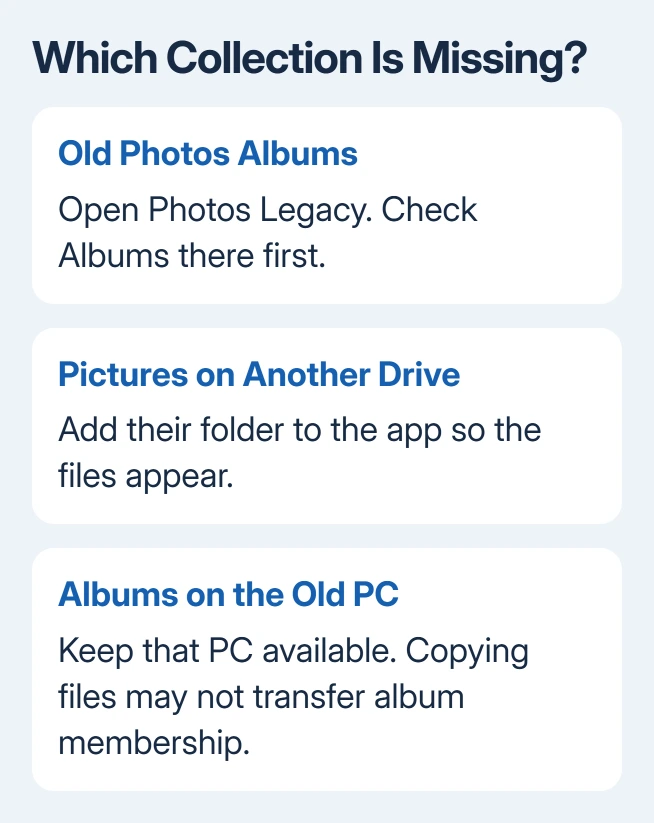
Search Photos Legacy from Start and open that exact result. If both Photos and Photos Legacy are installed, they can run side by side. Opening a picture in the default Photos app doesn't tell you which one holds the old album collection.
In current Photos, open Settings and look for the Photos Legacy section. Select Open Photos Legacy when offered. Microsoft's Legacy app instructions give this route and confirm that the two apps can coexist.
If Legacy isn't installed, search Microsoft Photos Legacy in the Microsoft Store app. Check that Microsoft is the listed publisher. Then launch it from Start, rather than assuming the regular Photos shortcut now opens the older app.
Look for Albums in Legacy. That's the first place to check for albums saved on this Windows installation. When you find one, open several photos inside it to check that the original files are still available too.
Check that the album opens its pictures, not just that its title looks familiar. If pictures are missing from the album, you'll still need to restore the original files or make their storage location available.
2. Check whether the pictures reached the new PC
Open File Explorer and locate the photographs themselves. Check Pictures, any external drive used for the transfer, and the OneDrive folder when that's where your pictures live. Open a few files outside Photos.
If they open normally, the photos arrived. Album organization is a separate problem from missing files. An album is a selection of pictures; copying its files doesn't necessarily carry the app's saved selection with them.
One owner confirmed Legacy let them create albums again, but said their Windows 10 albums hadn't moved to the new PC. The second problem remained unresolved in that discussion.
Keep the old PC intact during the transfer check. Open Photos Legacy there and inspect the albums you need. Use them as a reference for which pictures belong together before rebuilding a collection on the new computer.
If pictures never arrived, handle the transfer first. The phone-to-PC import guide helps when the originals are still on a phone. Adding another album can't retrieve files that aren't accessible to the app.
3. Add the folder containing your photos
In Photos Legacy, select Folders > Add a folder and choose the location containing your pictures. The default Pictures folder is already included, but a collection copied to another disk needs its own location added.
Wait for the collection to show those files, then open a known picture. If the image appears after adding its folder, the problem was the app's list of sources. The files didn't need to be imported again from the original camera.
Choose the folder containing the pictures, rather than a similarly named but empty location. External drives can also be absent after a restart or unplugged cable. Reconnect the drive before trying to build an album from its contents.
Use copy when you want a second set of files. Moving pictures changes their storage location; adding a folder to Photos only makes that location available inside the app. Keep those actions separate while recovering a collection.
If Legacy is exceptionally slow before you can use the collection, follow the Photos Legacy performance steps. Save your existing projects and album organization before considering an app reset.
4. Rebuild a missing album in Legacy
Select Albums, then +New album. Use the checkboxes to select the photos or videos you want, choose Create, and give the album a recognizable title. Start with a small collection so it's easy to check the result.
Close the album and open it again from Albums. Check that the expected pictures are present. That confirms you can create albums on this PC, even if a collection from the previous PC didn't transfer.
For a large old album, use its contents on the old PC as your reference. A folder containing copies of that album's pictures is also easier to carry between computers than an album whose list of pictures is saved only inside an app.
I'd protect the original collection before recreating it. Keep the old PC or its backup until you've checked the important albums on the new PC. Rebuilding names from memory is harder once that reference is gone.
5. Match newer gallery features to the right account
The October 2022 Photos redesign replaced the old album workflow with folders. Newer gallery updates have changed that again: the current Photos overview includes Albums with a personal Microsoft account.
That doesn't mean every old local album will appear in that newer gallery. Check the account shown in Photos and whether you're looking at a cloud collection or local folders. Changing sign-ins can change which pictures appear.
Work or school accounts have different gallery features from personal accounts. First identify the account that held the pictures and check their location in File Explorer or OneDrive, rather than switching sign-ins at random.
For an older Photos layout with Folders and no Albums, use Legacy's album tools. If a newer gallery has Albums, check its account and contents. Match the layout on your screen rather than an old Windows 11 screenshot.
When the collection is still missing
Use Get Help and explain what's missing: old local albums, missing image files, or a gallery under a specific account. Include the Photos version from Settings and whether those albums still open on the old PC.
Ask about saved album organization when the files are present, or file recovery when the pictures are gone. Legacy restored album creation for the original owner; that didn't automatically move their collections to the new PC.
The Short Version
Open Photos Legacy for old Windows Photos albums, and add the folder containing the pictures. Files and album membership are separate. On a new PC, Legacy can restore album creation without bringing back the previous computer's collections.
Checked November 17, 2026.






