When Shut down sends Windows 11 straight back to the sign-in screen, three things tend to be behind it: fast startup, an update waiting to finish, or a crash during shutdown that Windows hides by restarting.
Turning off fast startup is the first thing I'd try. It fixed this for one owner with an HP laptop, who had noticed that a shutdown typed into the terminal worked while the Start menu's Shut down didn't.
A PC that goes completely dark and then switches itself back on is a different problem. Something is waking it, and fix 5 covers that.
In this guide
Restart or wake-up: which one is yours?
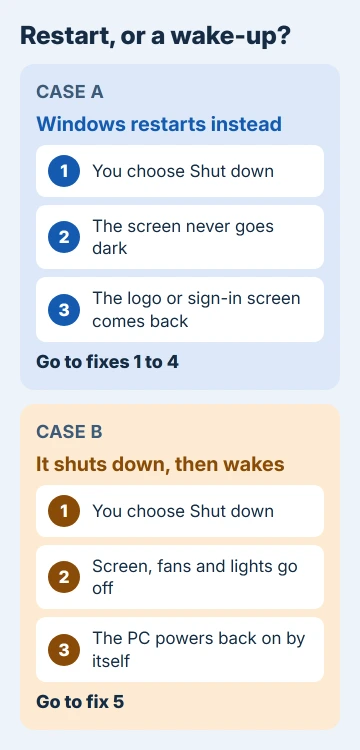
Watch the PC after you choose Shut down. If the screen never really goes dark and the maker's logo or the sign-in screen comes straight back, Windows is restarting instead of shutting down. Fixes 1 to 4 are for you.
If the screen, fans and lights all go off and the PC powers back on a few seconds or minutes later, it did shut down, and something turned it back on. Start with fix 5.
1. Turn off fast startup
With the feature on, Shut down is really a hybrid shutdown: Windows writes part of itself to the drive to speed up the next boot. Turning it off makes Shut down a plain, full shutdown.
Open Control Panel, set View by to Small icons and select Power Options. On the left, open the link that sets what the power buttons do, then select the shield link that unlocks the grayed-out options.
Clear Turn on fast startup (recommended) and select Save changes.
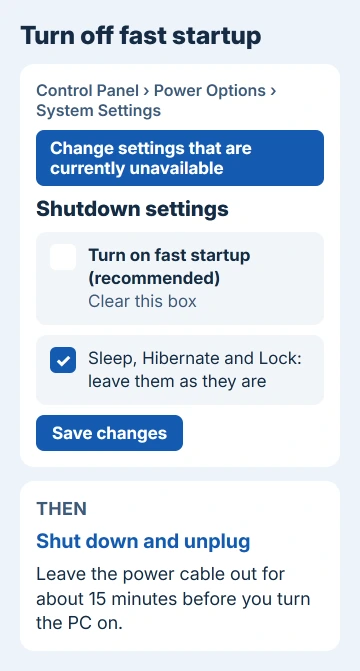
Now shut down, unplug the power cable for about 15 minutes, and turn the PC on. That's the routine an adviser gave that HP Envy x360 owner, who came back with "that fixed it, thanks!"
Fast startup is also why a restart can fix things a shutdown doesn't, if you've ever wondered.
2. Install the update that's waiting
A pending update can turn your shutdown into a restart while Windows finishes installing it. Open Settings > Windows Update, install whatever is listed, and restart until the page says you're up to date.
Update and shut down had a bug of its own: after updating, it didn't always shut the PC down. The October 28, 2025 preview update (KB5067036) for 24H2 and 25H2 PCs fixed it, and later updates carry the fix.
On work PCs, January 2026's security update made some Windows 11 23H2 Enterprise and IoT machines with Secure Launch (a startup security feature) restart instead of shutting down. Updates from February 10, 2026 fixed it.
3. Test with the shutdown command
Right-click Start, open Terminal, type shutdown /s /t 0 and press Enter. That asks for a full shutdown with no delay, without the fast startup step.
If the PC turns off properly this way, the Start menu's shutdown was the problem, so go back to fix 1 and check the box really stayed clear.
A desktop shortcut makes the command a one-click habit: right-click the desktop, choose New > Shortcut and enter shutdown /s /t 0.
If it restarts even now, as it did for one Acer laptop owner, something deeper is going on, so keep going.
4. Let a crash show itself
If Windows crashes while it's shutting down, a setting that's on by default restarts the PC at once, and the blue screen flashes past too fast to read. Turning it off makes the crash visible.
Press Windows+R, type sysdm.cpl and press Enter. On the Advanced tab, select Settings under Startup and Recovery, clear Automatically restart under System failure, and select OK.
Then shut down. A blue screen with a stop code means something, often a driver, is crashing at shutdown. Write down the code and any file name. Our guide to restarts with no blue screen shows how to find that crash in Event Viewer too.
After that, install the newest chipset, graphics and BIOS updates the PC maker offers for that model. If the stop code names a file, update whatever driver that file belongs to first.
5. Stop a device from switching it back on
For a PC that powers off and then on again, see which devices are allowed to wake it. Right-click Start, choose Terminal (Admin) and run powercfg /devicequery wake_armed.
Mice, keyboards and network adapters are the usual names on that list. In Device Manager, open each one's Properties, switch to Power Management, and clear the box that lets the device wake the computer.
powercfg /lastwake shows what woke the PC from its last sleep, which helps when the PC comes back on at a set time. Our wake-up guide goes through wake timers and the rest of that list.
6. Reset this PC, keeping your files
A reset is what finally worked for that Acer owner. They'd tried the power troubleshooter, a system file scan, a repair install, turning off fast startup and removing a VPN app.
After a factory reset, they wrote "I was able to shut down normally".
Back up anything important first, and if the drive is encrypted, have the BitLocker recovery key handy.
Then open Settings > System > Recovery, select Reset PC and choose Keep my files.
That option reinstalls Windows and keeps your documents and photos, but it removes your apps and settings, so have your app installers ready.
Cloud download pulls a new copy of Windows from the internet; Local reinstall uses the files on the PC and suits a slow connection. During the reset the screen can stay black for a long time and the PC may reboot on its own. Leave it alone until it finishes.
Still restarting after a reset?
Then the cause sits underneath Windows: the firmware (the BIOS), a device or the motherboard. Update the BIOS from the maker's website and unplug every USB device for one test shutdown.
If it still restarts, it's a job for the PC maker. Give them the model number and say that a reset didn't help. A laptop under warranty gets checked for free.
The Short Version
Turn off fast startup, unplug for 15 minutes and install any waiting update. Test with shutdown /s /t 0, turn off Automatically restart to catch a crash, and stop wake-armed devices. Reset PC with Keep my files fixed the toughest case.
Checked November 20, 2026.
 If you have any business, I can build it online