

A missing Windows 11 update offer doesn't mean the free upgrade expired. Recheck Windows Update and run PC Health Check. An old eligibility result, a compatibility hold or a work policy can hide the offer.
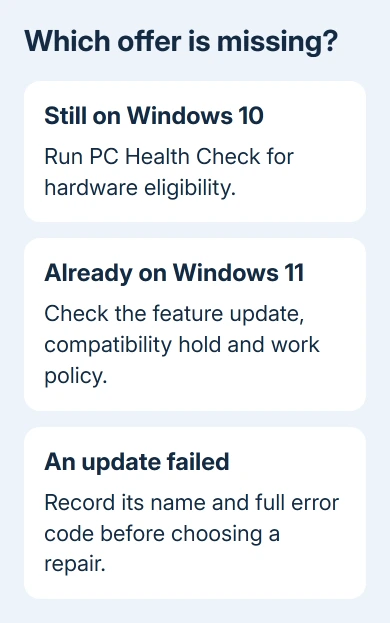
Check which offer disappeared. On Windows 10, a missing Windows 11 banner calls for an eligibility check. On a PC already using Windows 11, check the next feature update's rollout and compatibility status.
In this guide
1. Check the installed version and reopen Windows Update
Press Windows + R, type winver, and press Enter. Read the Windows name and version in the window. This keeps you from trying to upgrade to a system that's already installed.
On Windows 10, open Settings > Update & Security > Windows Update. On Windows 11, use Settings > Windows Update. Select Check for updates, and check whether you see an upgrade offer, an error or a request to restart.
If Restart now appears, save your work and restart before checking again. If updates are paused, choose Resume updates when you're ready to install them. An unfinished update and a missing upgrade banner need different actions.
The update-pause explanation covers that temporary setting. Resuming allows Windows to check again, but it doesn't remove a hardware requirement or a compatibility block.
If the screen shows a failed installation with a code, note the complete code and update name. The Windows Update error guide fits that situation better than repeatedly looking for the upgrade banner.
2. Run PC Health Check on a Windows 10 PC
Open Start, search for PC Health Check, and open it if installed. In its Windows 11 section, select Check now. Read the result, then choose the details option to see which requirement needs attention.
If it's missing, get it from the PC Health Check link in Microsoft's Windows 11 upgrade FAQ. Install the app and run the same check.
The app checks hardware eligibility. If the result says your PC meets the requirements, its hardware passed the check. Windows Update can still hold back a particular Windows version for other reasons.
For TPM 2.0 or Secure Boot, use the PC maker's model-specific instructions. These features can be present but switched off. An unsupported processor requires a different response; a firmware switch won't change it.
Before changing firmware settings, save the device-encryption or BitLocker recovery key where another device can access it. Changing security settings can trigger a recovery-key prompt when Windows starts again.
I'd start with the requirement the app says your PC hasn't met. Random changes in the PC's BIOS settings won't fix an unsupported processor. Don't replace hardware for a feature that just needs switching on.
3. Update an old eligibility result after changing hardware
Windows Update may need 24 hours before its hardware eligibility result reflects the change. That explains how PC Health Check can pass while the older result remains visible in Settings.
To request a new assessment, search Start for Task Scheduler. Open Task Scheduler Library > Microsoft > Windows > Application Experience, then right-click Microsoft Compatibility Appraiser and choose Run.
Wait for its Status column to return to Ready. Use Action > Refresh if the displayed status hasn't changed. Reopen Windows Update afterward and choose Check for updates.
If permission is refused, ask the device administrator to run it or sign in through an administrator account. Changing task permissions isn't part of this repair. Let the check finish before looking for the offer again.
Running this task updates the hardware check; it doesn't bypass compatibility blocks. If it passes but the offer is still missing, check for those blocks and work policies next. You can leave the firmware settings alone.
4. Check for a compatibility hold or a delayed feature update
A safeguard hold is a temporary block used when an upgrade could cause a serious compatibility problem. Windows can withhold the offer while the issue is being fixed, even on hardware that meets its basic requirements.
Read any message beside the unavailable update. Follow Learn more if Windows provides it, and check the release-health information for the Windows version you were offered. Compare the affected driver or app with your computer's setup.
Microsoft's safeguard explanation says the offer resumes when the hold is released. Install a maker's driver or app update when the issue's published resolution calls for it.
Do not use installation media to force past a known hold. Waiting for the compatibility repair can prevent an upgrade that removes a feature you need or rolls back after installation.
For a PC already on Windows 11, check the installed version from winver against the feature update you're seeking. A missing new-version offer doesn't automatically mean ordinary monthly security updates have stopped as well.
Check Update history for recent successful installations. Report missing feature upgrades separately from monthly updates failing with a code; that gives support a more useful problem description than saying all updates disappeared.
5. Check management and use the supported download route
If Windows Update says your organization manages updates, ask IT which Windows version that PC is approved to run. A work policy can keep the PC on a chosen version. Leave management and the work account in place while IT checks.
On an eligible personal Windows 10 PC with no known hold, the official Windows 11 software download page provides another upgrade route. Back up your files first and read the current compatibility notes on that page.
For a supported x64 PC, use Windows 11 Installation Assistant from microsoft.com/software-download/windows11. Read its requirements, select Download Now in that section, and run the downloaded assistant to follow its checks.
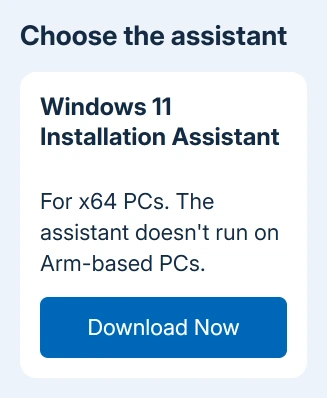
The Installation Assistant doesn't run on Arm-based PCs. For those devices, use Windows Update or the manufacturer's supported upgrade instructions. A missing banner isn't a reason to use an installer built for another processor type.
Free Windows 10 support ended October 14, 2025. When an upgrade must wait, check your enrollment in Extended Security Updates. A missing Windows 11 banner doesn't extend Windows 10's ordinary support.
If eligibility passes without an offer, open Get Help from Start for Windows Update assistance. Give support your PC model, Windows version, Health Check result and hold message. Ask whether compatibility or policy blocks it.
The Short Version
Identify the installed OS, finish pending updates, then check eligibility. Refresh an old hardware assessment after changes. Respect compatibility holds and work policies, and use the assistant only on an eligible supported PC.
Checked November 13, 2026.






