Error 0x80070103 almost always means Windows Update is trying to install a driver your PC already uses. It offers an Intel, HP or Realtek driver, finds that version or a better one already installed, and stops with this error.
Nothing on the PC breaks, because the driver you have keeps running. What's left is a failed entry that retries every day, and clearing the update download folder is the quickest way to get rid of it.
In this guide
What 0x80070103 means
In Settings > Windows Update, the failed update shows up as a line with the driver's maker, a device type and a version number, followed by Install error - 0x80070103.
On a new HP laptop, one asker on Microsoft's Q&A forum saw two of them, for Intel MEDIA 10.29.0.7621 and Intel System 1.0.2117.0.
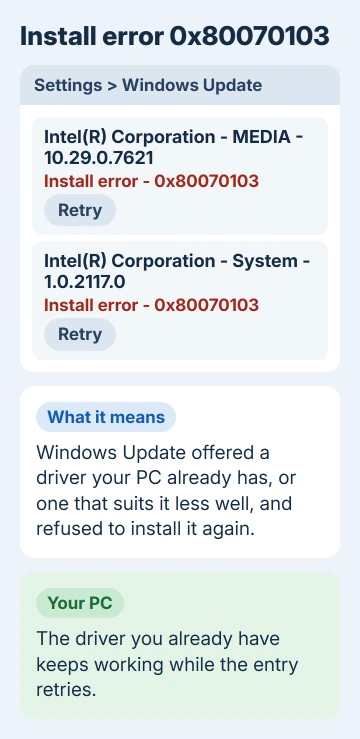
Microsoft's own note on the code says it can mean you're installing "a driver that's already installed or a driver that might be less compatible than one you already have installed".
In practice, less compatible often means the driver you have came from your PC's maker and suits the hardware better than the one Windows Update is offering.
Another owner spotted the giveaway: the drivers stuck on Retry were also listed as installed in Update history. So check that before anything else.
1. Check whether the driver is already there
Open Settings > Windows Update > Update history and open the Driver updates group. If the same name and version show as Successfully installed, you already have that driver, and the failed entry is only a second attempt at it.
For a closer look, right-click Start, choose Device Manager and find the device. The word after the maker's name points to the right group: MEDIA means the Sound, video and game controllers group, and System means System devices.
Right-click the device, choose Properties and open the Driver tab. Compare the Driver Version there with the number in the failed update, and the result tells you which fix to use.
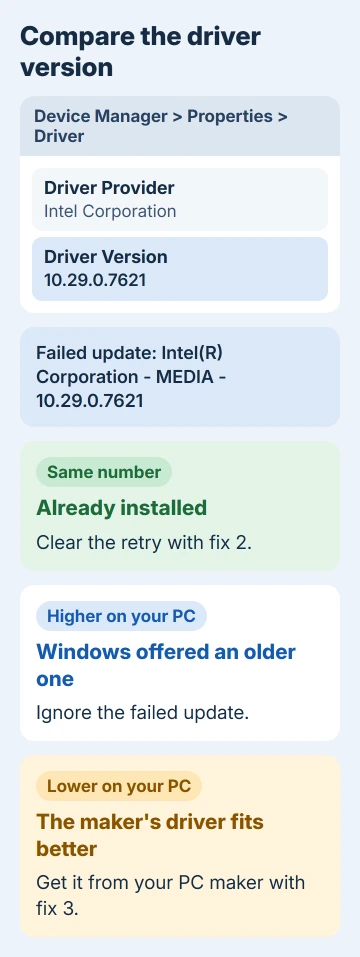
The same number means the update has nothing to add, so clear the failed entry with fix 2. A higher number on your PC means Windows offered an older driver, and you can ignore it.
A lower number means your maker's version is the better match for the hardware, and fix 3 gets you the current one.
2. Clear the Windows Update download folder
Clearing out SoftwareDistribution, the folder where Windows Update keeps its downloads, was the accepted fix in the thread. A later owner wrote back, "This did the trick for me."
Renaming the folder has the same effect and keeps a copy until updates work again.
- Type cmd in Start, right-click the Command Prompt result and run it as administrator.
- Stop the update service with
net stop wuauserv, then its download helper withnet stop bits. If either says the service isn't started, that's fine. - Rename the update folder with this line:
ren %systemroot%\softwaredistribution softwaredistribution.bak- Start both services again with
net start bits, thennet start wuauserv. - Restart the PC, open Settings > Windows Update and select Check for updates.
Windows creates a fresh SoftwareDistribution folder as soon as the service starts and downloads what it needs again, so the next check takes a little longer.
If a command comes back with System error 5 or Access is denied, the window isn't running as administrator. Close it and start over from a window opened with Run as administrator.
The fix doesn't always last. One owner had the error back a day later, because Windows Update offered the same driver again. If that happens to you, the maker's driver in the next fix is the one that lasts.
3. Install the driver from your PC's maker
Laptops and branded desktops come with drivers the maker tested for that model, and Windows Update can't always replace them.
Open the maker's support site or app (HP Support Assistant on an HP), enter your model and install its current driver for that device.
For Intel parts on a PC you built yourself, Intel's Driver & Support Assistant does the same job.
The same goes whenever Windows Update can't supply a working driver: check the hardware manufacturer's website for one that suits your version of Windows.
Windows 11 also lists extra drivers under Settings > Windows Update > Advanced options > Optional updates. They don't install on their own, so you can skip any driver there you don't need.
4. On Windows 11, pause updates and resume them
When the same failed driver keeps coming back, pause updates for a week, restart, then resume them so Windows checks from scratch.
That cleared a stubborn Realtek driver offer for several owners, and our Realtek Extension guide shows it screen by screen.
5. Check your account when commands say access denied
The asker's errors went away after an account fix. To check yours, press Windows+R, type netplwiz and press Enter.
Their account showed administrator;user in that window's Group column, even though they were an administrator.
They opened Properties > Group Membership, chose Other, picked the administrators group, then signed out and back in. The next check had no errors.
None of the replies could explain why. Another owner whose account already showed as administrator still had the error, so I'd only try this if the commands in fix 2 won't run.
When 0x80070103 keeps coming back
With the maker's driver installed, a leftover entry is cosmetic, because the driver doing the work is the one you chose.
Note the exact name and version from the failed update and send them to the PC maker's support, especially on a laptop still covered by its warranty.
If a different code shows up next to the driver, our list of Windows Update error codes covers the common ones. For anything else, open Get Help on the PC and ask Microsoft's support to look at the failing driver with you.
The Short Version
0x80070103 means Windows Update tried to reinstall a driver you already have, or a less suitable one. Compare versions in Device Manager, clear the SoftwareDistribution folder, and install the maker's driver if the error returns.
Checked November 20, 2026.
 If you have any business, I can build it online